4. Meters - Select the audio channels to be displayed on the two front panel meter
banks using these radio buttons. The Meter Bank 1 radio buttons select the audio
channels to display on the the left hand meter bank, and the Meter Bank 2 radio
buttons select the audio channels to display on the right hand meter bank.
5. Optical Format - This pop-up sets the format of the rear panel optical Toslink
connectors (when an I/O Module with optical inputs and/or outputs is installed).
Routing Tab Windows
!
The functionality of the Routing tab windows vary based on the audio interface mode
selected. Each audio interface mode is described below.
!
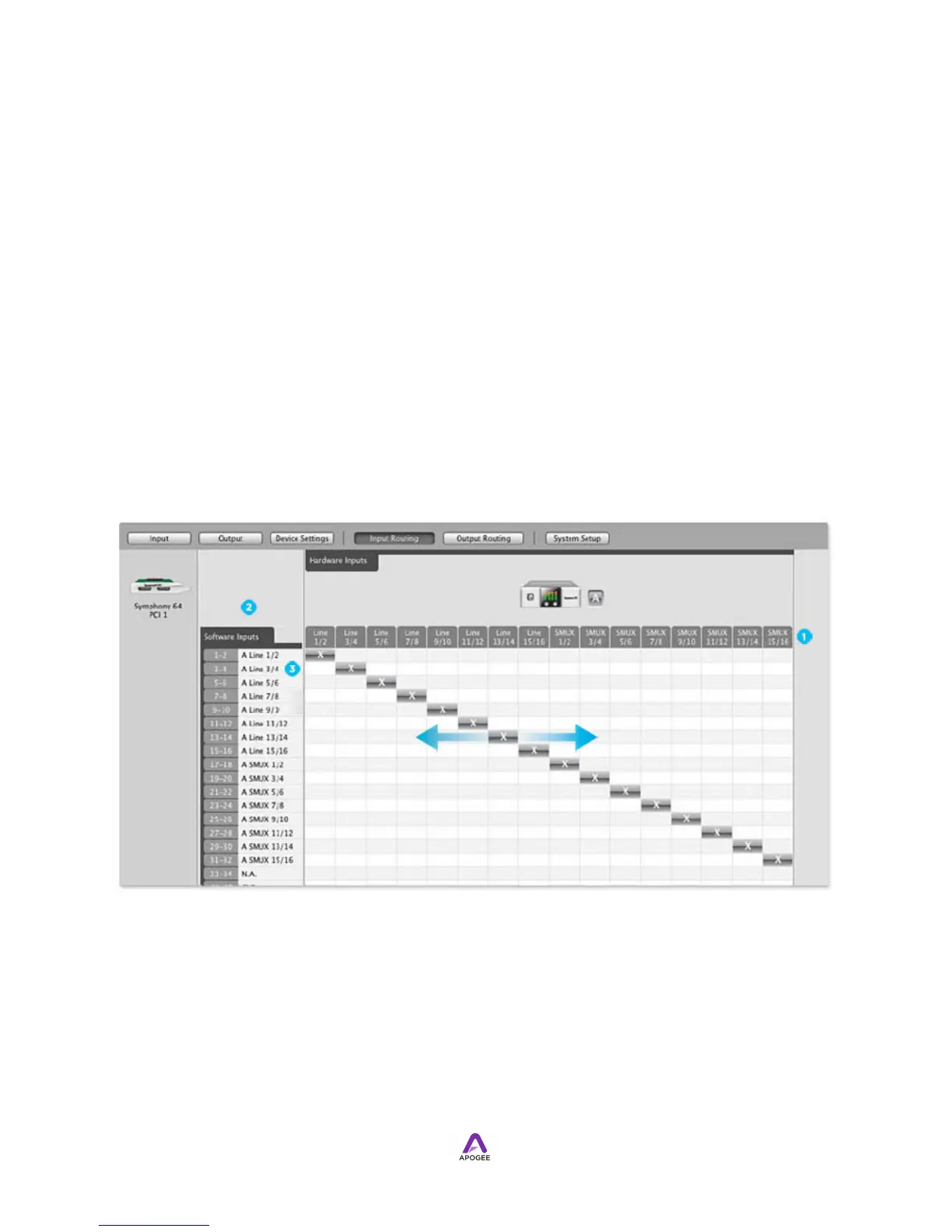
Input Routing -Symphony Audio Interface Mode
The Input Routing tab window determines how Symphony I/O hardware inputs are
routed to audio software inputs.
!
!
1. Hardware Inputs Row - The hardware analog and digital inputs of all
peripherals connected to the Symphony PCI card are displayed in this row.
2. Software Inputs Column - Available audio software inputs are listed in this
column in pairs (1-2, 3-4, etc).
3. Software Input Labels - Once a connection has been made between hardware
and software inputs, the software input label (consisting of the peripheral prefix
plus the hardware input label) appears in this field.



 To Next Page