Setting the Sample Rate
!
Symphony Audio Interface Mode
!
When Symphony I/O is connected to a Symphony 64 PCI card, the Core Audio driver
(part of the OS X operating system) sets the sample rate of the hardware system,
including the Symphony I/O. Audio applications such as Apple Logic, in turn, set the
Core Audio sample rate.
!
It’s important to note that when Symphony I/O is clocked to an external source, the
sample rate of the external source must be set to match the Core Audio sample rate.
For example, if Symphony I/O is locked to an Apogee Big Ben Master Clock, be sure to
set Big Ben’s sample rate to the same rate as your DAW audio application session.
!
Standalone Audio Interface Mode
!
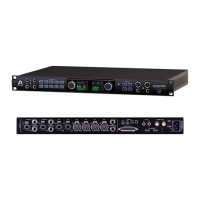
When Audio Interface Mode is set to Symphony, the following instructions apply:
!
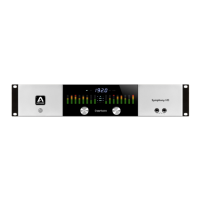
To set sample rates from Symphony I/O’s front panel:
1. Press and hold the left hand encoder until the current clock source is shown on
the OLED Display.
2. Turn the left hand encoder and select INTernal.
3. Turn the right hand encoder to select the desired sample rate.
4. Click either encoder to confirm the new clock source selection.
To set clock source from Maestro software.
1. Click the System Setup tab
2. Set Clock Source to Internal.
3. Choose the desired sample rate in the Sample Rate drop down menu.
!


 To Next Page