Configuration Settings in Apple Logic Pro
!
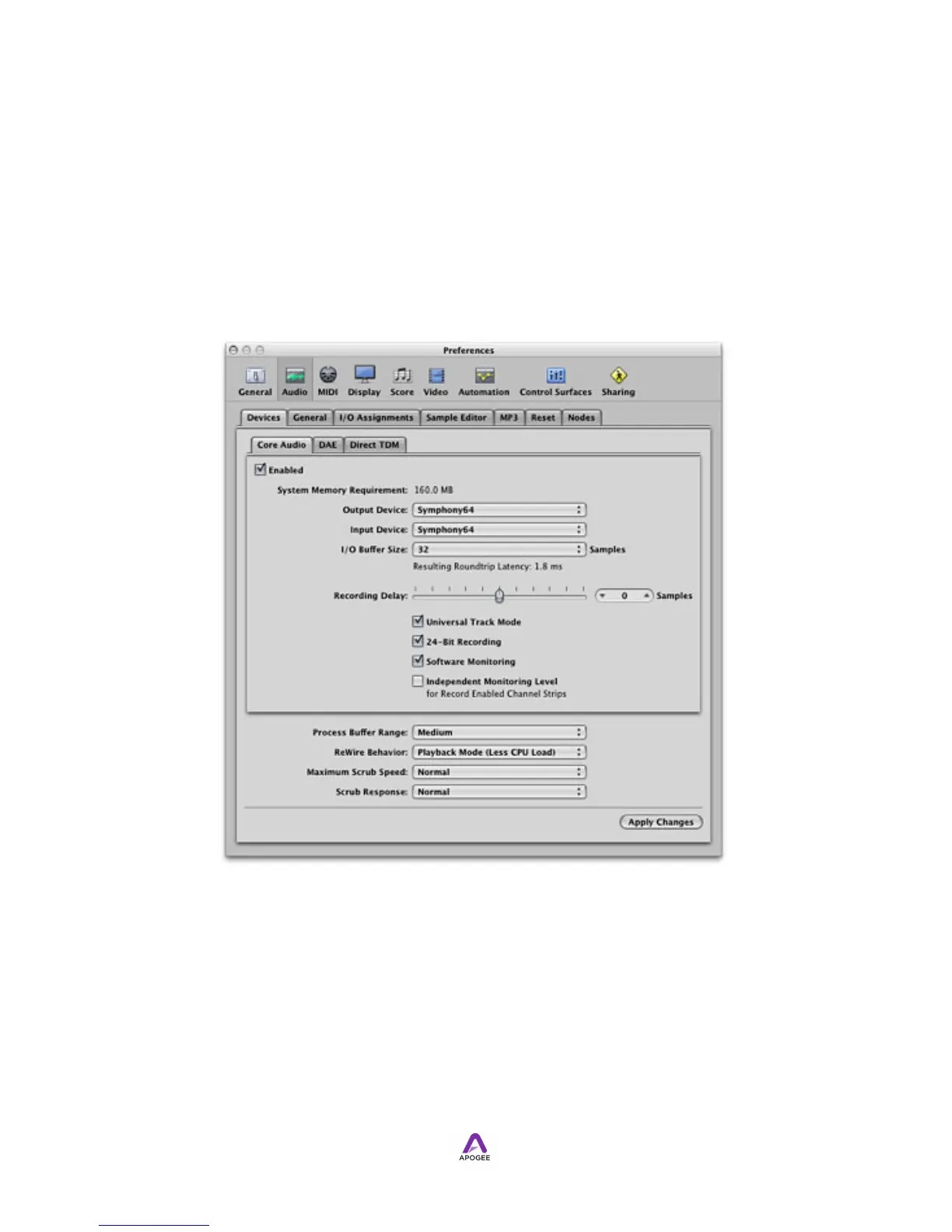
The following steps describe how to configure Symphony I/O with Apple Logic Pro.
1. Open Logic Pro 9 and choose Logic Pro > Preferences > Audio.
2. In the Preferences window, select the Devices tab, then the CoreAudio tab.
3. Select Symphony 64 in the Device drop down menu.
4. Set I/O Buffer Size to 32 for the lowest latency, or to 64 for more DSP resources
in Logic (inputs, outputs, plug-ins).
5. Click on Apply Changes.
* The I/O Buffer Size, found in the Logic Pro preference window described above, and
the Performance Tuning setting, found in the Apogee Maestro software, are the two
settings that determine the audio latency through your Symphony system. When using
Symphony 64 and a Mac Pro, verify that Performance Tuning is set to High
Performance. The I/O Buffer Size should be set as low as possible without causing
digital audio artifacts such as clicks and pops.
!
By selecting Symphony I/O input and output labels in Logic, the labels you see in
Logic’s Channel Strip input and output slots correspond exactly to Symphony I/O’s
hardware inputs and outputs, making I/O assignment much easier.



 To Next Page