Standalone Audio Interface Mode
!When Audio Interface Mode is set to Standalone, the following instructions apply:
!
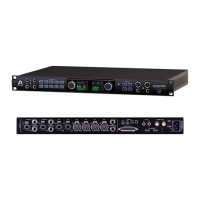
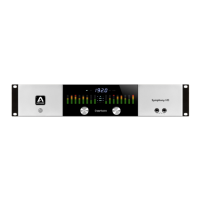
To set clock source from Symphony I/O’s front panel:
1. Press and hold the left hand encoder until the current clock source is shown on
the OLED Display.
2. Turn the left hand encoder to select the desired clock source.
3. When selecting Digital, turn the right hand encoder to select the specific digital
input to be used as the clock source.
4. Click either encoder to confirm the new clock source selection.
To set clock source from Maestro software.
1. Click the System Setup tab
2. Choose the desired entry in the Clock Source drop down menu.
Pro Tools HD Audio Interface Mode
"
When Audio Interface Mode is set to Pro Tools HD, the following instructions
apply:
!
Clock source and sample rate are set in Pro Tools software and transmitted to
Symphony I/O via the PC-32 (or DigiLink) connection. For the most compatible
operation with Pro Tools software, it is not possible to set clock source or sample rate
from Maestro or from Symphony I/O's front panel when Audio Interface Mode is set to
Pro Tools HD.
!
To set Symphony I/O's clock source from Pro Tools software:
!
In Pro Tools, choose Setup > Hardware (Clock Source may also be set from Setup >
Session when a Pro Tools session is open).


 To Next Page