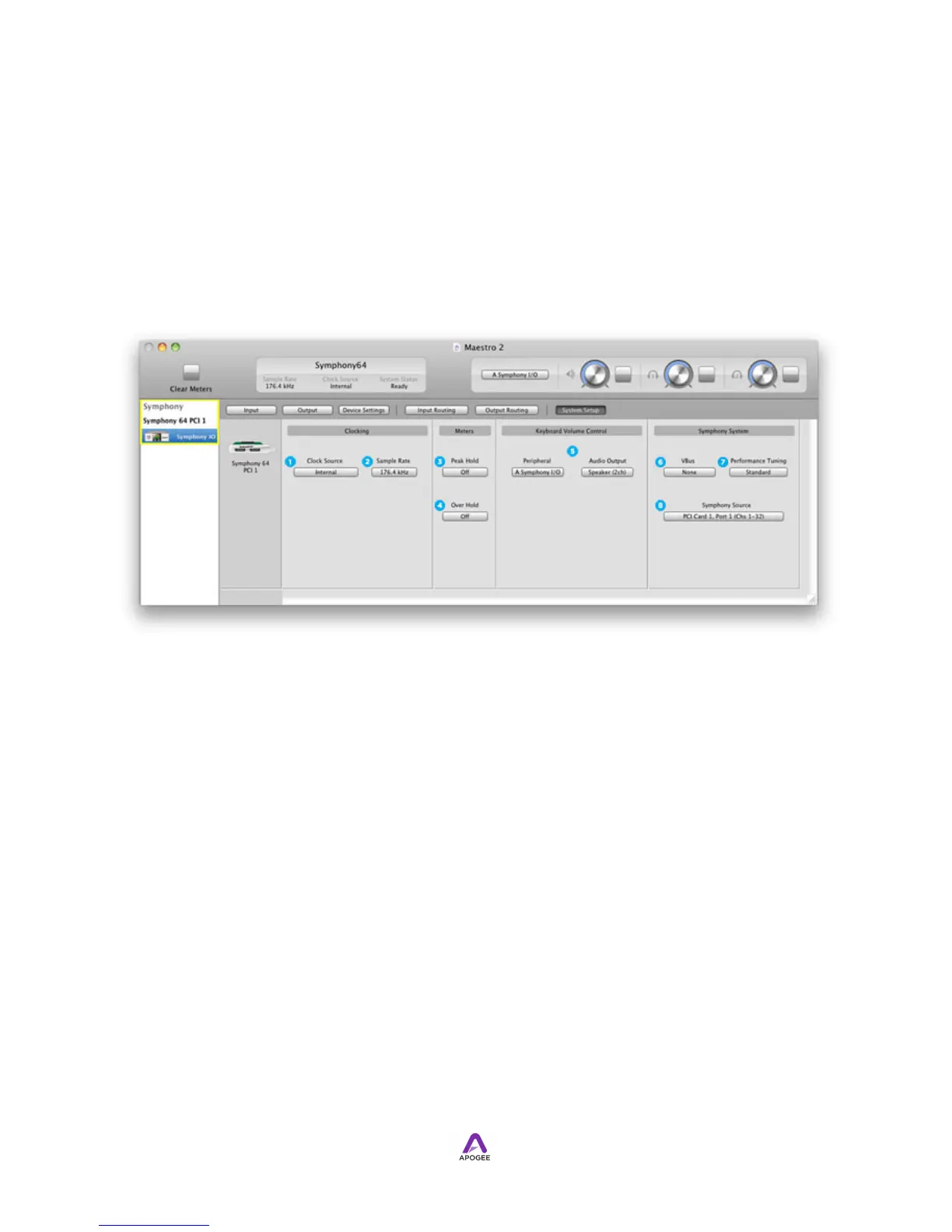
System Setup Tab Window
In most cases, the Symphony I/O hardware interface is part of a larger Mac-based
audio system, such as Symphony PCI or USB Core Audio. Settings that encompass the
integrated hardware-software system are found on this tab window. As the available
settings vary according to the selected Audio Interface Mode, the System Setup tab
window is described individually for each Audio Interface Mode.
System Setup - Symphony Audio Interface Mode
When audio interface mode is set to Symphony, the following controls are displayed:
1. Clock Source - This drop down selects the clock source for the loop sync master
interface, which in turn provides a clock signal to the rest of the system.
The following sources may be selected.
•
Internal - Symphony I/O is clocked from its internal crystal.
•
WC - Symphony I/O is clocked from an external word clock signal connected to the
rear panel WC input.
•
Digital - Symphony I/O is clocked from a digital audio input. The digital clock sources
listed in the drop down menu vary according to the digital audio inputs included on
the installed I/O cards.
2. Sample Rate - This drop down selects the Symphony System sample rate. Under
certain circumstances, (for example, when a DAW session is open) this setting will be
overridden by software sample rate settings.
!
The following settings determine the behavior of the front panel and Maestro
software level meters.
!
3. Peak Hold - This pop-up menu sets the time that peak indications are held on
software and front panel meters.



 To Next Page