the sample rate of the external source is displayed and the drop down is greyed
out.
3. Peak Hold - This pop-up menu sets the time that peak indications are held on
software and front panel meters.
4. Over Hold - This pop-up menu sets the time that over indications are held on
software and front panel meters.
5. See Working with Front Panel and Software Level Meters for more details.
System Setup - Pro Tools HD Audio Interface Mode
When Audio Interface Mode is set to Pro Tools HD, most settings are made in Pro Tools.
!
1. Clock Source - To set clock source, choose Setup > Hardware in Pro Tools and set
the Clock Source drop down.
2. !Sample Rate - The sample rate of a Pro Tools system is always set by the Pro Tools
session, and may not be changed once set during session creation.
3. !Peak Hold - This pop-up menu sets the time that peak indications are held on
software and front panel meters.
4. Over Hold - This pop-up menu sets the time that over indications are held on
software and front panel meters.
See Working with Front Panel and Software Level Meters for more details.
!
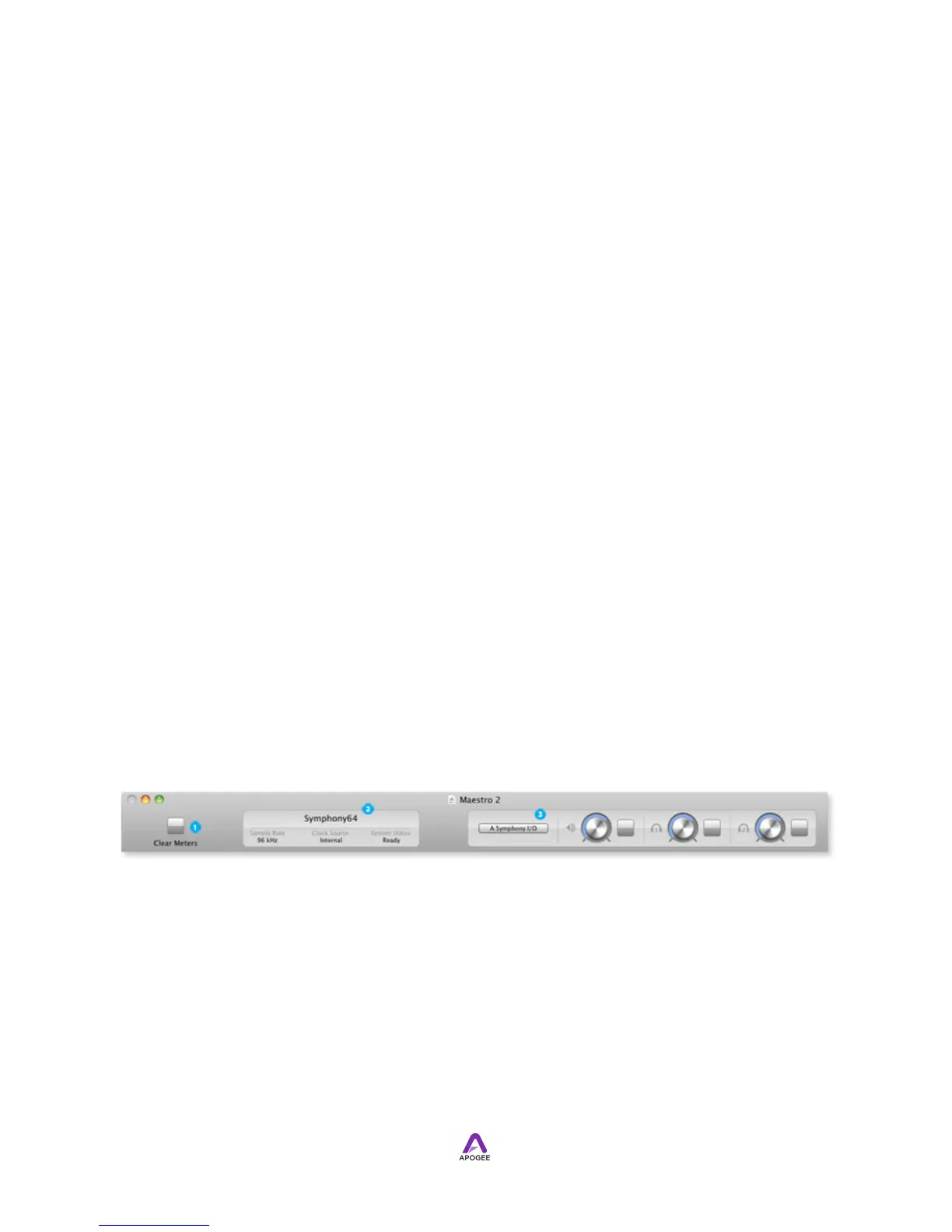
Toolbar
The toolbar is reserved for system controls that must remain easily accessible.
!
!
1. Clear Meters - this button clears all held peak and over indications on all hardware
and software meters.
2. System Status - this window displays the clock source, sample rate and system
status of the currently selected system. A system status of “Ready” indicates that all
detected units are properly connected and clocked. Please consult Troubleshooting
or other system status messages.


 To Next Page