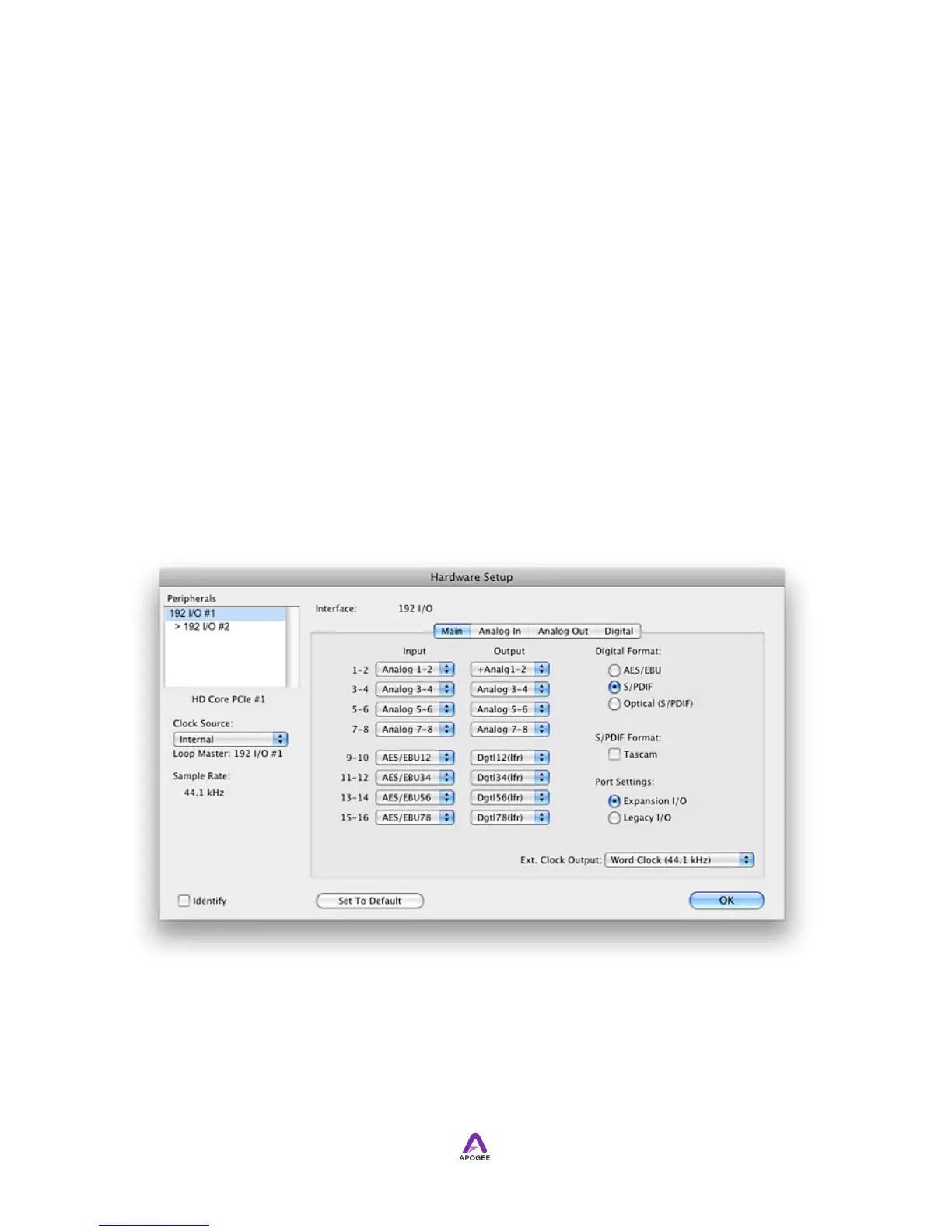
8. Once steps are complete, Symphony I/O's analog I/O is routed identically that of
an Avid 192, ensuring complete compatibility with Pro Tools Delay
Compensation.
!
Symphony I/O's digital inputs and outputs are also routed as those of a 192 I/O, with a
few exceptions based on the I/O Module installed:
1. When using an 8 Analog + 8 Optical I/O Module, Symphony I/O's optical I/O is
listed as AES I/O. This has no effect on the actual audio signal.
2. When using a 16 Analog In + 16 Optical Out Module, the first 8 optical outputs
are listed as analog outputs in Pro Tools and the second 8 optical outputs are
listed as AES outputs. This has no effect on the actual audio signal. Delay
compensation values applied to the first 8 optical outputs are longer than
required.
3. When using a 16 Analog Out + 16 Optical In Module, the first 8 optical inputs
are listed as analog inputs in Pro Tools and the second 8 optical inputs are listed
as AES inputs. This has no effect on the actual audio signal. Delay
compensation values applied to the first 8 optical inputs are longer than
required.
The Hardware Setup Clock Source drop down menu is used to select the clock source
for the Loop Master Interface, as described in Setting the Clock Source.
!
I/O Setup
!



 To Next Page