27
Basic Operations
AQUOS zero2
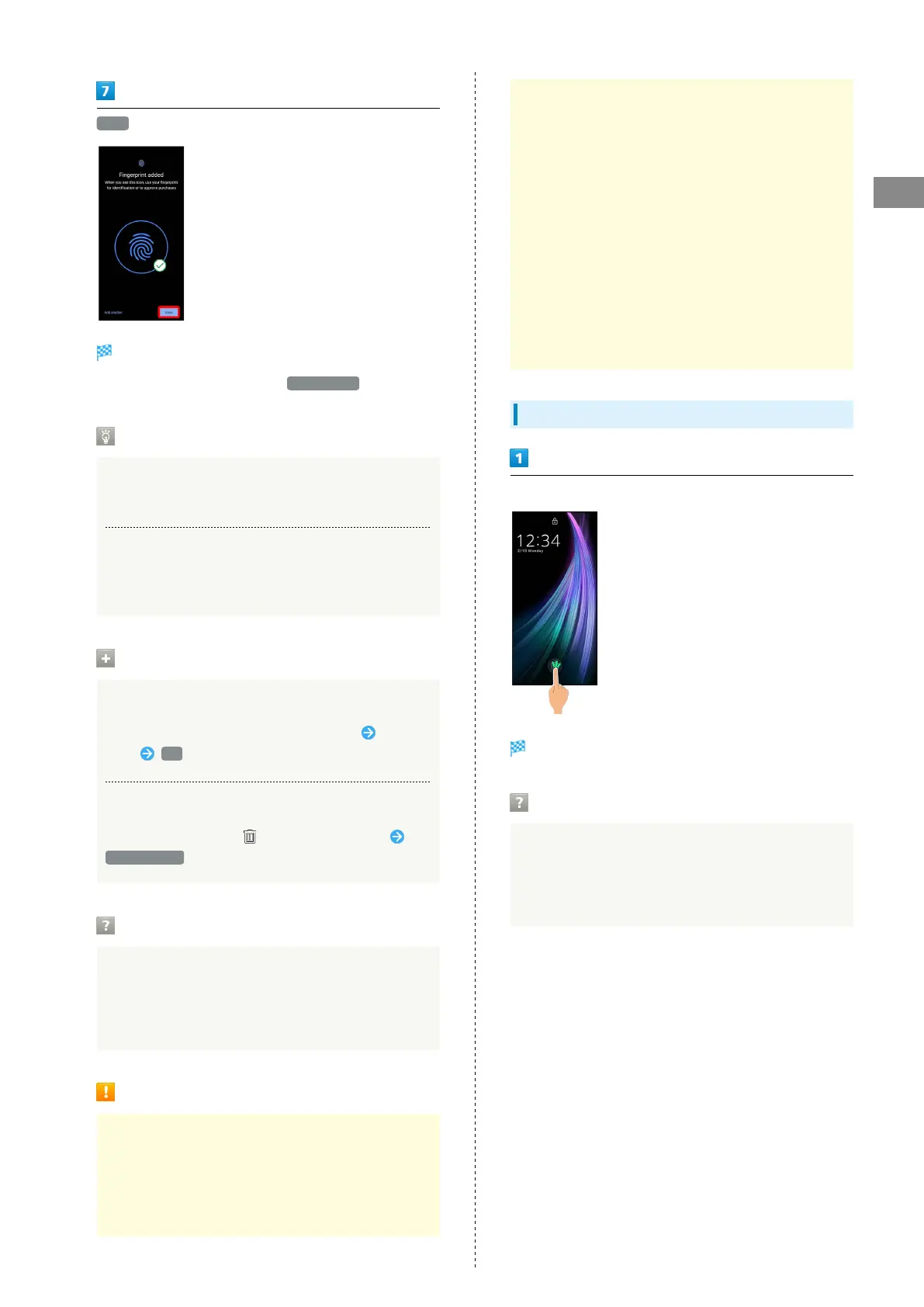
Done
Fingerprint is saved.
・
To save other fingerprints, Tap Add another .
Saving Fingerprints
Savable Number of Fingerprints
Save up to 5 fingerprints.
Backup Screen Unlock Methods
Make sure not to forget pattern / lock no. (PIN) /
password set as backup for unlocking screen.
Fingerprint Saving Operations
Setting/Changing Names of Saved Fingerprints
In Fingerprint settings, Tap saved fingerprint Enter
name OK
Deleting Fingerprints
In Fingerprint settings, for saved fingerprint
YES, REMOVE
Troubleshooting
Q. Failure to save fingerprint
A. Keep your finger pressed on the sensor slightly
harder. Using a different finger may also improve
authentication performance.
Fingerprint Sensor Cautions
Observe the following when using Fingerprint Sensor.
・Fingerprint Sensor is embedded in Touchscreen.
・Dust, oil or other dirt logged on sensor will make
it difficult for the sensor to read the fingerprint
thereby reducing its authentication performance. Clean
Touchscreen every now and then.
・If you remove your finger too early, authentication may
fail to be performed. Remove your finger after your
fingerprint is authenticated.
・Fingerprint Sensor may not activate if you start saving
your fingerprint or performing authentication with your
finger on sensor. Release finger and retry.
・To save or authenticate your fingerprint, press the
screen firmly.
・If you have pasted a protective film on the screen, or if
the fingerprint sensor area on the screen is dirty, the
lock will not get unlocked.
・If you have pasted a protective film on the screen, save
your fingerprint on it again.
・The brightness and color of the screen may change
slightly while your fingerprint is being authenticated.
Performing Fingerprint Authentication
In authentication window, hold finger to sensor
Fingerprint is authenticated.
Troubleshooting
Q. Fingerprint is not authenticated
A. Remove finger then try authenticating again.
Or, Flick lock screen up and unlock screen using backup
unlock method set when saving fingerprint.



 To Next Page