26
Saving Fingerprints
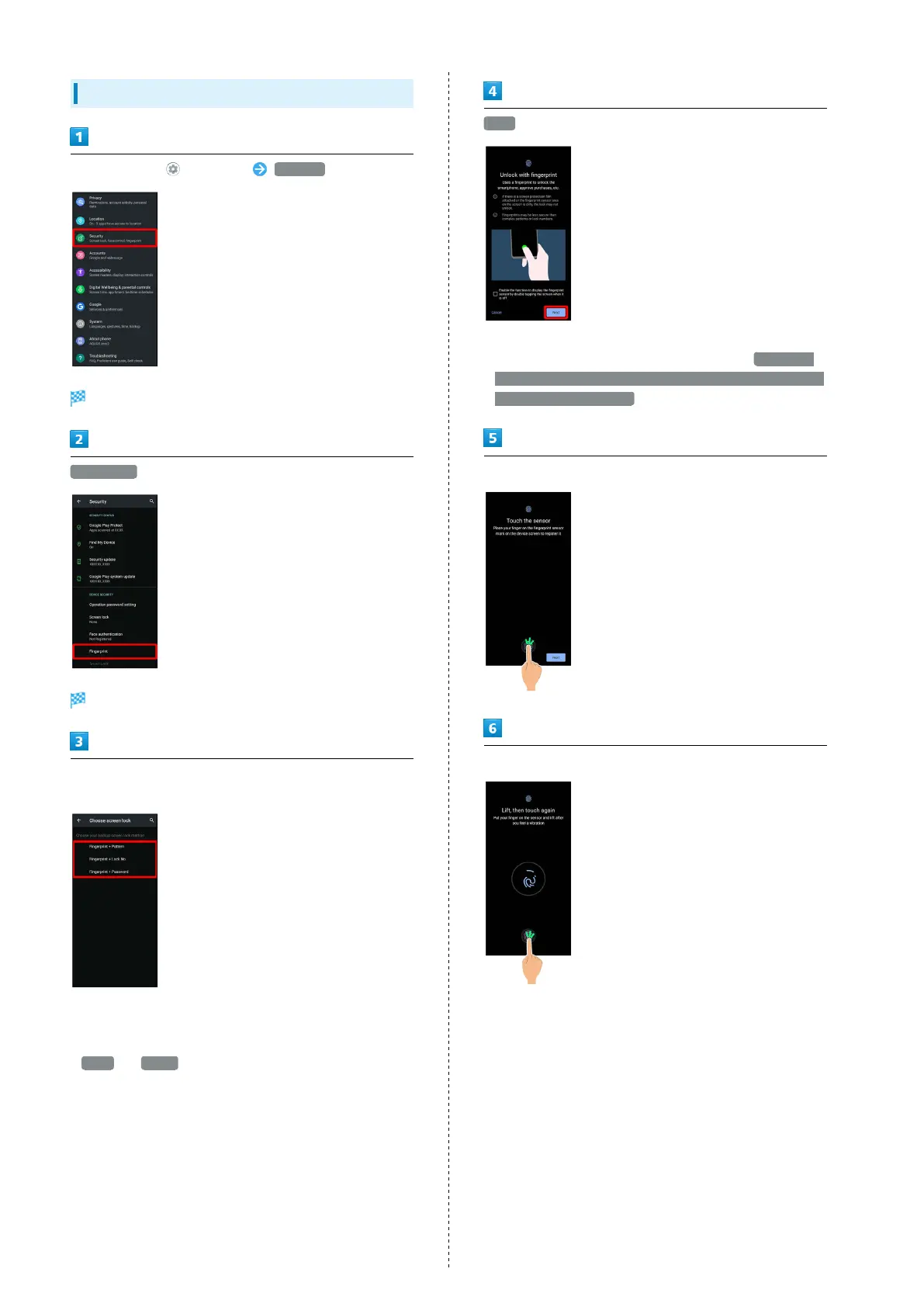
In Home screen, (Settings) Security
Security menu opens.
Fingerprint
Fingerprint settings open.
Follow onscreen prompts and set pattern / lock no. (PIN) /
password for unlocking screen
・This is a backup method for unlocking the screen if unable
to authenticate with your fingerprint.
・If method for unlocking screen is setting other than
None or Swipe , first unlock screen.
・See "Setting Screen to Unlock by Tracing Pattern,"
"Requiring Lock No. (PIN) Entry for Unlocking Screen," and
"Setting Screen to Unlock with Password" for details on
setting a method for unlocking screen.
Next
・To show FingerPrint Sensor by tapping Display twice
while Display is Turned Off (Screen Lock), tap Enable the
function to display the fingerprint sensor by double tapping
the screen when it is off .
Hold finger to Fingerprint Sensor.
Hold finger to sensor until handset vibrates
・Move finger a little at a time and hold it to sensor.
・Repeat until screen appears indicating fingerprint is saved.
・If finger is already saved, use another finger.



 To Next Page