85
Camera
AQUOS zero2
Troubleshooting
Q. Camera exits suddenly
A. Continuing to use Camera while handset is warm causes
warning to appear, after which Camera saves captured
image data and exits.
A. Camera exits automatically after a period of inactivity.
A. Camera automatically exits when battery level is very
low. Charge handset adequately before using Camera.
Q. Images are dark/grainy
A. Is there a strong light near the subject, or a strong
light source in the screen? Avoid letting a strong light
source (the sun, light, etc.) in the screen. Leaving
handset in a warm place for a long time or where
Camera is in direct sunlight for a long time may affect
image quality.
Q. Images captured with Mobile Light appear whitish
A. A finger or cover near the lens can reflect light from
Mobile Light and cause captured images to appear
whitish.
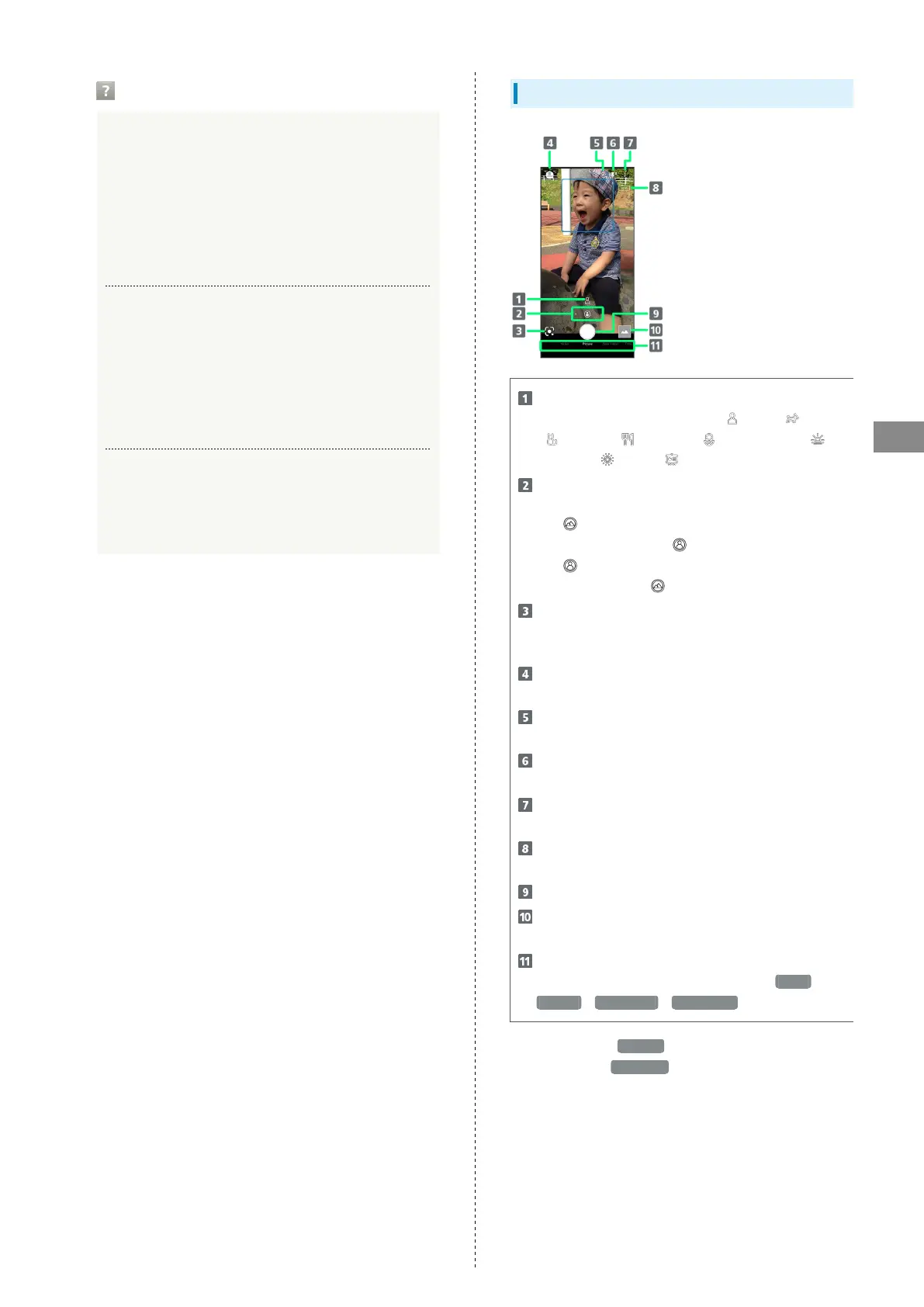
Photo Viewfinder (Back Camera) Layout
Recognition icon
1
Subject recognized by AI (person ( ), dog ( ), cat
( ), cuisine ( ), flowers ( ), evening view ( ),
fireworks ( ), B&W ( )).
Camera switch
Change angle of view (standard/wide-angle).
Tap for Standard Back Camera; capture with
standard angle of view ( ).
Tap for Wide-Angle Back Camera; capture with
wide-angle of view ( ).
Google Lens™
Use Google Lens to copy text captured with Camera and
to search for products.
Shooting menu
Change shooting scene.
Front/Back Camera switch
Switch between Front Camera and Back Camera.
Mobile Light
Change Mobile Light setting.
Settings
Access various Camera settings.
HDR indicator
2
Appears when HDR function activates for capture.
Capture photo
Photos/thumbnail
Open Photos, or view immediately captured photo/video.
Shooting mode
Drag left/right to change shooting modes ( Video /
Picture / Slow video / Time Lapse ).
1 Appears during AI Auto .
2 Appears when Auto HDR is enabled.
・Indicators shown in Viewfinder and available functions/
settings vary depending on Camera type and shooting mode/
scene.



 To Next Page