Chapter 7:
STANDARD 365-095-33577 Revision x.1 IPC4100 Release 1.0 Installation and Operation Guide
20
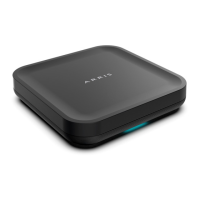
Note: The IPC4100 must be provisioned first in order to properly prepare the IPC1100 for
activation.
After the registration process, the software download process will begin. A progress
indicator on the IPC4100 will show the appropriate steps for the following processes:
Server Connection
Software Server Identification
Software Download
Starting the auto-provisioning process
To start the auto-provisioning process:
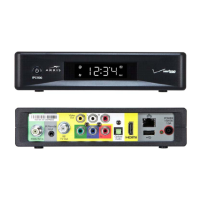
1. Plug the power cord on the IPC4100 into an electrical wall outlet.
2. Do NOT power ON the IPC4100 set-top(s) until after the network and TV connections are
completed.
3. Press OK on the IPC4100 remote control when the Verizon Welcome screen displays.
4. Note: If Prok, PrOK, or PrOH appears on the IPC4100 front panel LED display, press the
OK button on the IPC4100 top panel or hand-held remote.
5. The Verizon Welcome-Start Activation screen displays and the IPC4100 automatically
starts performing a series of self-tests.
6. Press A on the IPC4100 remote control to navigate to the first detailed auto-provisioning
screen.
Note: If a problem is detected during the connectivity check, follow the on screen
instructions to correct the issue.
7. Upon completion of the software download, the device will send a message to the
management server which will start the network activation process.
8. After the health check and any necessary corrective steps, the IPC4100 will register with
the Verizon provisioning server and production management servers.
9. If any problems are encountered with these steps, follow the onscreen instructions to
rectify the problem.
10. The management server will set the IPC4100 to active and instruct it to reboot. After
rebooting, the Verizon FiOS TV will start up. The IPC4100 is now ready for service.



 To Next Page