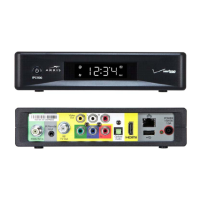
STANDARD 365-095-33577 Revision x.1 IPC4100 Release 1.0 Installation and Operation Guide
84
Chapter 11
Troubleshooting
Troubleshooting guidelines follow. If problems still occur after performing the diagnostics,
call your service provider for assistance.
Problem - if this occurs: Solution - Then do one of the following:
The IPC4100 will not
power ON.
Verify that the power supply is connected to the
VMS and an AC outlet. Then, check to confirm
that the POWER indicator light on the rear of the
VMS is lit. Unplug the power cord on the VMS
from the AC outlet, plug it back in, and then press
the POWER button.
If the VMS is connected to a switched outlet on
another unit, verify that the unit is powered on.
Unplug the power cord from the rear of the VMS,
plug it back it in, and then press the POWER
button. Use an unswitched outlet, if possible.
Press the POWER button on the VMS front panel
instead of the remote control. The batteries in the
remote control may be depleted.
The VMS may have received a software update
and may not power ON while the new software is
being installed. Try again in a few minutes.
The remote control does
not work.
Verify that the remote control is in STB mode.
Verify that there are no obstructions between the
remote control and the VMS. Aim the remote
control directly at the VMS front panel, not the TV
or VCR.
The angle between the remote control and the
VMS may be too large. Stand in front of the VMS
and not too far to either side.
Press and release operation keys one at a time,
firmly and deliberately.
Try changing channels using the buttons on the
VMS front panel.
Check the batteries in the remote control. Install
new batteries if needed.



 To Next Page