from the left side of the mix to the right, for example, press Select + Instrument pad 3
and then press the Pan / Level button. Then use the FX Live pad to place the hi-hat
where you want it to be in the stereo field.
The X axis controls the instrument level and the Y axis controls the stereo position.
5.2.7 Song Mode in the Center panel
5.2.7.1 The Song button
Click on the Song button to enter the Song mode. The Song button will flash
continuously to let you know that you are now in Song mode. Click on the Play button in
the transport zone.
Listen! Your patterns are now chained together and played one after another in the
sequence defined in the song panel.
The Step pads (numbered from 1 to 16 at the top of the Center Panel) are used to
trigger the 16 pattern chains.
To edit your Song, refer to section 5.5 “The Song Panel”.
5.2.8 The Instrument Parameter knobs
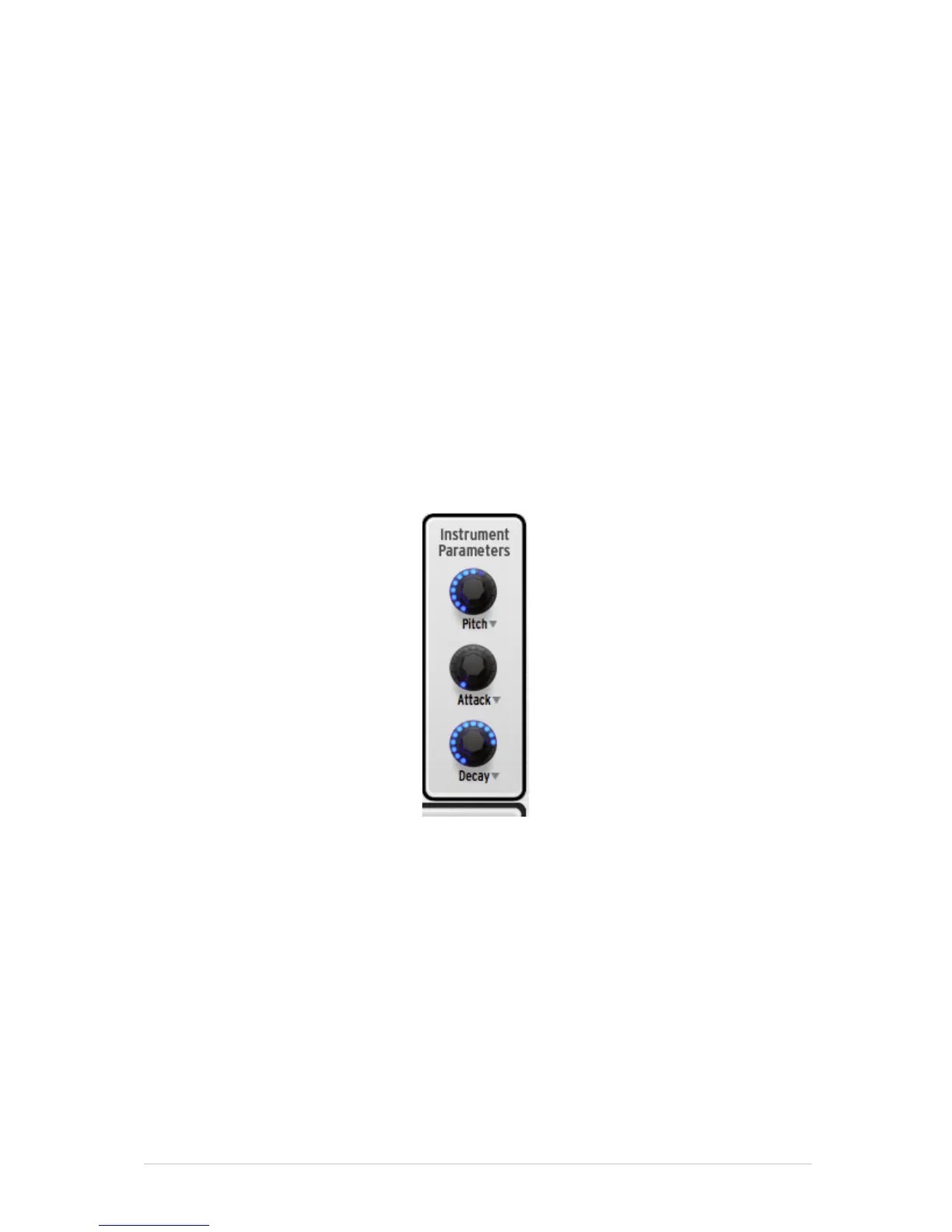
The three knobs on the right side of the Center panel control the selected instrument's
parameters. Let’s say you want to change the pitch of the bass drum. Click the bass
drum pad. After this the Instrument Parameter knobs will show which three parameters
have been selected for the bass drum: in this case, Pitch, Attack and Decay.
With a pattern playing, click and hold the "Pitch" knob and then move your cursor up
and down. This will rotate the "Pitch" knob and change the pitch of the bass drum. The
display will show the amount of change being applied to the pitch in terms of semitones.
5.2.8.1 Altering the Instrument Parameter assignments
It is possible to assign completely different parameters to the Instrument Parameter
knobs. To change the assignment for the first knob, for example, click on the word
“Pitch”. A drop-down list will appear. Make a selection from the list by clicking on one of
the parameters. The list will disappear and the name of the new parameter will be visible
under the knob.


 To Next Page