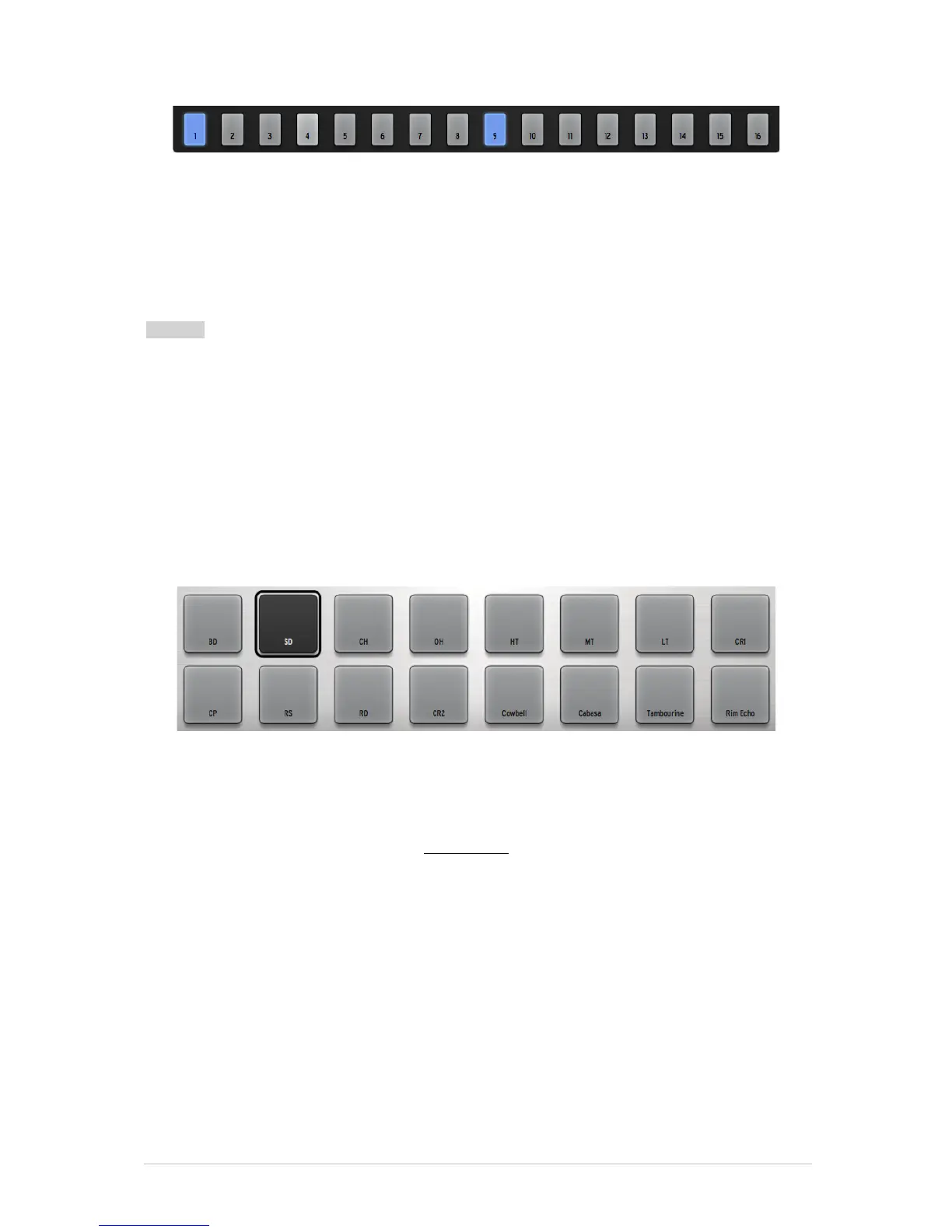
You can edit this track by pressing a pad to add a bass drum event to the pattern. While
the pattern plays, click on pads 7 and 15. They will become lit, and you will hear new
bass drum events during the first bar of the pattern. Now click on pad 9: the blue light
turns to darker gray, and that note has been removed from the pattern.
5.2.9.6 Copying or Swapping Patterns
You can also use the Sequencer Step pads to copy or swap patterns in the currently
selected bank.
To copy a pattern to another location, click on a pattern number and then drag it on top
of another pattern and drop it. A confirmation window will appear. Remember, this will
replace the destination pattern with the source pattern, so if you’re sure it’s okay to lose
the destination pattern, click OK.
To swap two patterns, click on a pattern number while holding [Option/Alt] in Mac OSX
or [Ctrl] in Windows and then drag it on top of another pattern and drop it. A
confirmation window will appear. Click Ok.
The exact same procedure applies to copying or swapping entire banks of patterns.
To export a pattern as a MIDI file to your system or to your DAW, drag the pattern
outside the Spark window and drop it on a system folder or one of the DAW windows.
5.2.10 The Pads
An instrument is assigned to each of the 16 pads. The far left pad is by default the Bass
Drum; next to it is the Snare drum, and so on; but you can set the pads up in any order
you like.
To edit an instrument, right-click on the pad and then click Edit. This will take you to the
"Studio" inside the Bottom panel where you will be able to edit the instrument with a full
array of parameters. (See section 5.6 The Studio).
One really cool feature is the ability to import your own samples into the Spark Engine
by dragging them from a folder on your computer and dropping them onto one of the
sixteen pads. From there you can right-click as described above so you can shape the
sound of the new sample using the powerful voice architecture of the Spark Engine.
5.2.10.1 Tune Mode
Pressing “Tune” allows you to play the selected instrument at different pitches using the
Sequencer Step pads, numbered from -8 to +7.
To do this, locate the Tune mode preference in the Top panel’s Preference section and
set it to “Pads” instead of “Sequencer Steps.”
You can now use the pads as a keyboard to play notes on the current instrument. The
pads offer a range of 16 semi-tones by using the 1-8 / 9-16 button:
• With the 1-8 / 9-16 button unlit you can play notes from the current instrument
tuned from -8 semi-tones to -1 semi-tone.


 To Next Page