ARTURIA – SPARK CREATIVE DRUM MACHINE – USER’S MANUAL
5.4.2.2 The Automation editor
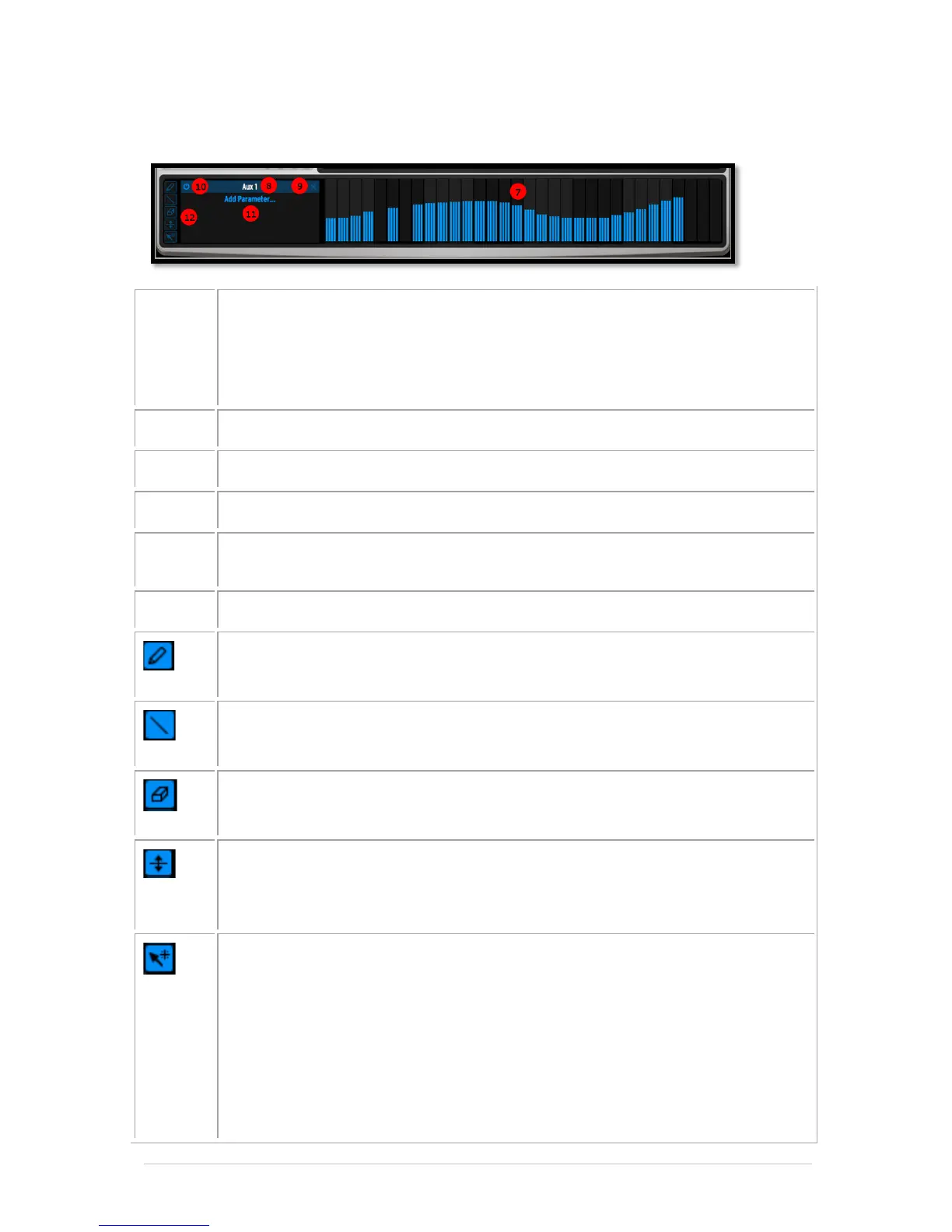
Automation area: Click and drag to draw automation on a single parameter
using the pen or line tool or erase drawing. Except for velocity, repeat and
shift parameters, you can use up to 4 sub-values per single step.
Use Cmd on MAC and Ctrl on WINDOWS to erase or move the four
automation sub-values of a single step note together
Current parameter shown in the automation area.
Remove automation for this parameter
Bypass automation for this parameter
Add a new automation lane . You can add as many automated parameters as
you want, among the instrument and effects parameters of the current track
Automation tools: See below
Pen tool lets you draw automation freely.
Line tool will let you draw a line: Click and hold from the starting point of
your line, and move to the end point of your line.
Eraser will remove automation.
The Global automation tool can be used to increase/decrease all automation
points simultaneously. You can choose to apply this effect to the 16 current
steps or to the entire pattern length via the Preferences option : “Global
automation tool applies to”
The Smart automation tool combines all the other tools into one via a list of
keyboard shortcuts :
Click to draw automation
Right click to erase
Shift+click to draw a line
Alt+click to draw a global automation
Cmd+click (mac) or Ctrl+click (win) to draw values at smaller resolution
(sub-values)


 To Next Page