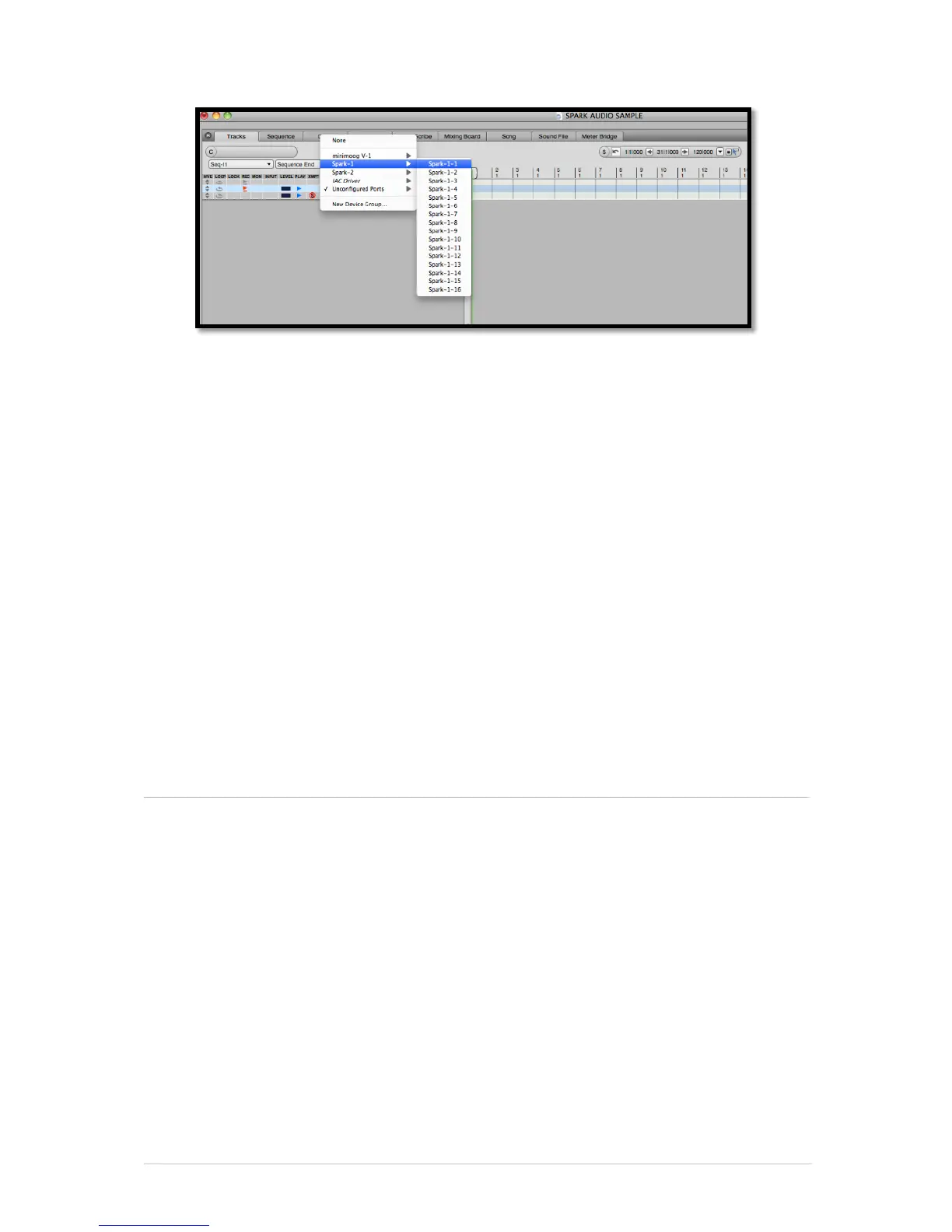
6.4.3.3 Assign Midi Track
Once you have added this instrument, it’s possible to assign a MIDI track to it. In the
connection menu of the MIDI track, select the instrument and the MIDI channel that you
want to use. Make sure you activate the track before starting to play or record.
6.4.4 Stereo Mode and Multi Output Mode
6.4.4.1 Stereo Mode
To add an instrument, choose the menu Project > Add Track > Instrument Track >
Arturia > SPARK.
Once you have added this instrument, it’s possible to assign a MIDI track to it. In the
connection menu of the MIDI track, select the instrument and the MIDI channel that you
want to use. Make sure you activate the track before starting to play or record.
6.4.4.2 Multi Output Mode
To use separate outputs: select an Instrument track. Then on the portion of the mixer
corresponding to the selected track, click on the button “I/O” to obtain the list of plug-
ins, then select AU Instruments > Arturia > SPARK > Multi Output (16xStereo).
6.5 PRO TOOLS
6.5.1 Installation
In Mac OS X, the plug-in is directly installed in the folder reserved for the ProTools plug-
ins in:
/Library/Application Support/Digidesign/Plug-Ins
In Windows, at the time of the installation procedure, select the RTAS plug-in among the
proposed choices of plug-ins. Then, when the system asks, indicate the folder in which
the other RTAS plug-ins are located.
Usually, this path is:
C:\Program Files\CommonFiles\Digidesign\DAE\Plug-Ins\
6.5.2 Utilization and opening of the Plug-in
Access to the SPARK plug-in is like all other plug-ins; simply create a stereo Instrument
track:


 To Next Page