Repeat mix will continue playing the pattern while the effect is applied.
Repeat
The Repeat effect is the same as Repeat mix, except the pattern is not played while
applying the effect.
Tape
The Tape effect simulates the effect of slowing down a tape player.
Reverse
The Reverse effect simulates the effect of playing a tape recording backwards.
Strobe
The Strobe effect will play and shut off the sound alternatively at the rate of the selected
note value.
Pan
The Pan effect will move the sound from the left speaker to the right speaker at the rate
of the selected note value.
Bit Crush
The Bit Crush effect allows you to reduce the audio bit rate, creating a Bit Reduction or
Bit crushing sound effect. Reduce the audio anywhere from 7 down to 2 bits.
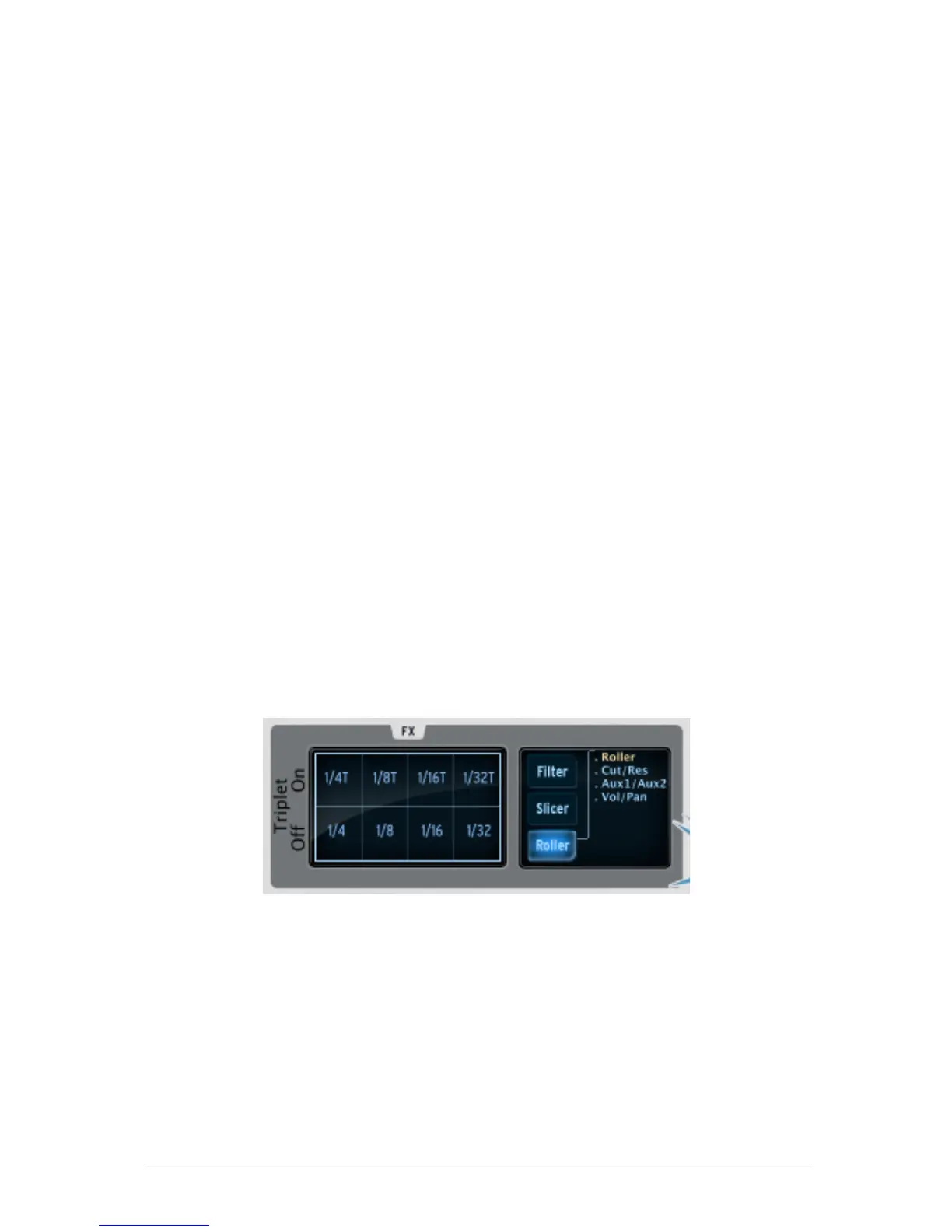
5.3.6.3 The Roller button
The roller could be described as a "Drum roll" tool.
Choose the note value for the Roller effect. Then, click and maintain your click on the
snare drum pad. The snare drum will play a basic drum roll. The roll speed depends on
the selected note value.
You can play, of course, any instrument pad using this effect.
The beginning of the roll is quantized by default.
A swing (dotted or triplet) effect can be added by simply clicking on the upper note
values for Swing on, or on the bottom values for Swing off. When swing is off, one beat
is played per note value.
When Swing dotted effect is on, a dotted beat is added after the first beat.
When Triplet is on, three notes are played per note value.


 To Next Page