9
GETTING STARTED – DO THIS AT HOME, IF POSSIBLE
Setup your Mount and Cable Connections
Refer to the instructions in the mount assembly manual to set up your mount. The following cables must be connected:
R.A. and Dec. cables, and Keypad controller cable and power cable, preferably in that order. You do not need the
mounting plate or telescope tube assembly for these setup procedures.
Gather Basic Information
You will need to enter your local parameters to ensure that the mount functions properly. The mount needs to know the
local time (and if you are on daylight savings) and the longitude and latitude of your observing site. You can enter up to
nine observing sites to be stored in memory.
To determine your longitude and latitude, do an internet Google search or use a GPS unit. The closer you can get the
better, however, it is not necessary to be exact to the seconds (last two number entry elds) since the purpose of these
entries is to calculate which objects are above your local horizon. Please make sure that your location information is in
“Degrees: Hours: Seconds” format (i.e.: 42:22:00 Lat. 89:01:07 Long.), rather than “Decimal” format (i.e. 42.3667° Lat.
89.0186° Long.). Information on converting the format is in the Troubleshooting Section.
The time zone is determined from the Greenwich meridian. An excellent reference is the Standard Time Zones chart in
Norton’s 2000.0 Star Atlas. The Keypad will automatically determine if you are east or west of the Greenwich meridian
based on your entered longitude, so entering a positive or negative number is not needed. If you live in the eastern
hemisphere and observe daylight savings time, please consult “Using the Keypad and The Sky Together” for special
instructions about your time zone. For your reference, these are the US time zones.
US Eastern standard time 05
US Central standard time 06
US Mountain standard time 07
US Pacic standard time 08
US Hawaii standard time 10
Most of this information will be entered only once and will be remembered by the Keypad. We recommend that you make
these entries at home before you go to your observing session to ensure that you have the information that you need. If
you have a GPS (Global Positioning System) device, you may want to enter the coordinates once you reach your site and
have the proper numbers. Longitude and Latitude MUST be in degrees, minutes and seconds format. Decimal values
must be converted – see the Troubleshooting Section. We also recommend keeping a “cheat sheet” with each location’s
relevant data.
Enter Your Location, Date and Time
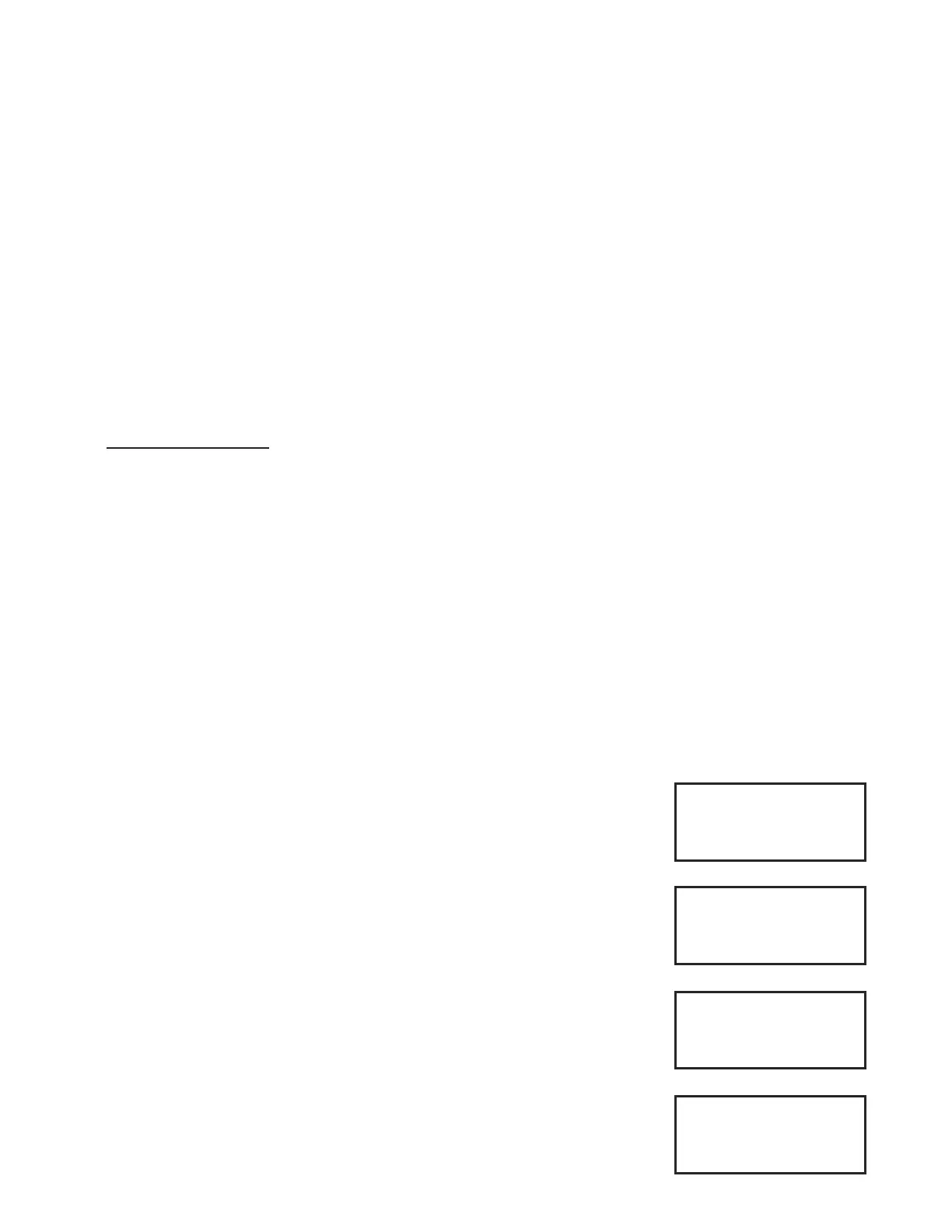
1. If the Location Selection Screen appears the rst time you start up your mount,
press “1” and GoTo, then proceed to step 2. If the Main Menu appears, begin
these instructions with step 3.
2. Select option “3=ResumeLastPosition”, which will allow you to bypass this
screen.
3. Main Menu should now be on the display. You will need to enter all of your Loca-
tion, Time, Daylight Savings and Date settings.
4. DO NOT ATTEMPT TO SLEW TO ANY OBJECTS AT THIS POINT. You must rst
setup your location and time as described below and follow the instructions for Your
First Observing Session.
5. Go to Keypad Options selection screen (Main Menu → 2=Setup → 3=Keypad
Options). The top line displays “1=Auto-Connect”. Press “1” to toggle to “NO” if it is
not set to “NO” already.
6. Press Menu to go back to the Setup Menu.
7. Press “1=Locations & Time”. Then, select “1=Site Location Data”.
1=Locations & Time
2=Mount Move Limits
3=Keypad Options
4=Park / Mount Opt.
Setup Menu
1=Object 5=S:1200
2=Setup 6=B:600
3=Tools 7=A:1
4=Time/LST 8=T:Side
Main Menu
1=Star-Sync
2=Polar Alignment
3=ResumeLastPosition
4=New Setup
Sync, Align, and Resume Menu
Location Selection
Enter number, then
Press GoTo to select
Location <1-9>: __
Location Selection Screen


 To Next Page