11
Resetting Daylight Savings and Time in the Spring and Fall
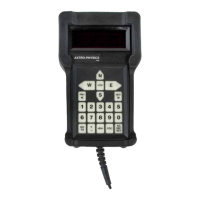
This revised procedure will allow you to maintain your pointing accuracy when changing the clock in your keypad to
accommodate the semi-annual Daylight Savings time changes. This applies primarily to permanently mounted systems
that have their keypad’s Auto-connect feature set to “YES”. The reason for this procedure is that the time change, when
saved in the keypad, is sent to the servo as the new local time. However, the DST time change also results in a change
in the net offset from GMT. The new offset is NOT sent to the servo when the time change is made, which results in a
one hour error in the servo’s calculated LST value. The following procedure will work around this problem in the current
rmware and allow you to maintain the pointing accuracy of the mount through the time change.
1. Power up your mount as normal. You can go to an object and then center and re-calibrate if you wish.
2. Set your Auto-Connect feature to “NO”
a) 2 = Setup
b) 3 = Keypad Options
c) Press the “1” to toggle to 1 = Auto- Connect: NO
d) Press “Menu” 2 X to return to Main Menu
3. Set the tracking rate to “8 = T: Stop” by successively pressing the “8” button from the main menu.
4. Send the mount to any AP Park Position (v4.19.3 or later) or to Park 1 (v4.17 or earlier)
a) 2 = Setup;
b) 4 = Park / Mount Opt.
c) Press number corresponding to desired park position
d) Wait for the mount to slew to the Park position
e) Press “Menu” 3 X to return to Main Menu - mount will unpark, but tracking is stopped
5. Change Time and Daylight Savings settings
a) 2 = Setup
b) 1 = Locations & Time
c) 2 = Date & Time
d) Enter new time data and DST setting. You MUST use 24 hour clock format.
e) Press “GO TO” to save. You should hear a beep to conrm
f) DO NOT go to any objects or re-park the mount at this point!
6. Power down the mount and wait about 10 seconds.
7. Power the mount back up
8. At the prompt, enter your location number and then press “GO TO”
9. From the next menu:
a) Choose 4 = New Setup (v4.19.3 or later); select Start from Park Position (choose same as chosen in #4 above), or
b) Choose 4 = Resume Ref Park 1 (v4.17 or earlier) and the Main Menu should appear.
10. Set the tracking rate to “8 = T : Side” by pressing the “8” button once.
11. Go to your rst object. You should be dead on.
12. Restore your preferred Auto-Connect setting if needed.


 To Next Page