7
● Re-Calibrate: If you wish to tweak your pointing accuracy, slew to an object, use the N-S-E-W directional buttons to
center the object, then press the RA/DEC REV button and select “9”. This will re-calibrate your mount. Refer to the
section later in the manual that for more detailed information.
● Meridian Delay: Advanced astro-photographers will appreciate this feature. Refer to the “Advanced Features”
section of the manual that discusses “Meridian Swap” and the section on the “GTO Quick Star Drift” method of polar
alignment. Do not change this setting unless you understand the consequences.
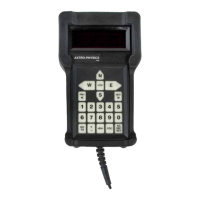
STOP Button
Press the STOP button to cancel a slewing command and stop the movement of the telescope immediately. The mount
will know where it is, so you can proceed to your next command. If you move the telescope by hand, you must follow the
re-calibration procedure.
Number Buttons
The buttons labeled 1–9 and 0 are used to enter numerical data and to make menu choices.
<PREV and NEXT> Buttons
These buttons are used for the following functions depending on the commands you are entering: move from one menu
level to another, backspace to make corrections to number entry or scroll through lists of objects. The “<“ and “>“ symbols
appear on many screen displays. They signify that you can press the <PREV and NEXT> buttons for more choices or
additional information. These buttons are also used in conjunction with the FOCUS button as described below.
GoTo Button
Press the GoTo button after you have selected the object that you want to view. The mount will slew to the object. This
button is also used for other functions, i.e. saving location data.
± Button
This button has two different functions:
● Use it to toggle between “+” and “-“ when entering R.A. and Dec. coordinates.
● To change the rate of the N-S-E-W directional buttons, press the “±” button to display a selection screen. Use the
<PREV and NEXT> buttons to scroll through the rates. Also you can change the guiding rate on this menu by
pressing the “7=Guide Rate” button to scroll through the rates. These features can be accessed whenever the N-S-
E-W buttons are active.
MENU Button
Press this button to move to a previous menu level or to cancel a prompt.
FOC Button
To use this function, you must have an electric focuser with a 6–9V DC motor (available from JMI and others) plugged into
the GTO Control Panel (not available in the CP4) and the corresponding attachment to your focuser. Hold the FOCUS
button with one nger and press the <PREV and NEXT> buttons to change focus. You can change the speed of the focus
adjustment to either “High” or “Low”. Please refer to the Focus Adjustment section for detailed instructions and further
information. Note: This button does not function with modern stepper-motor focusers which have their own software. Also,
the CP4 control box does not offer a focus option.
Retractable Hanger
On the back of the controller, look for a slot with a thumb rest area. Push up to extend the hanger. A lanyard can be
attached here to allow you to hang your Keypad on one of the lanyard posts or base knobs of the mount when it is not in
use.


 To Next Page