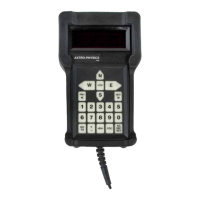
48
TOOLS MENU
Permanent Error Memory Adjustment (PEM)
Astrophotography and CCD Imaging demand the highest tracking accuracy to obtain
pinpoint star images throughout your photographic exposure. You do not need PEM
unless you are engaged in one of these activities.
The servo drive electronics contain a very sophisticated permanent periodic error
compensation circuit (other manufacturers call this PPEC). Because a majority of the
periodic error is due to the R.A. drive worm and is quite predictable, it is possible to
signicantly reduce it by simply having the controller “memorize” the corrections you make with your button inputs and
automatically play them back for each cycle of the worm. This circuit has some unique features that makes it easy to
operate and almost totally foolproof.
Polar align your mount so that you have minimum R.A. and Dec. drift. Be sure that the night is steady enough with
minimum atmospheric motion, and pick a star near the zenith to minimize atmospheric refraction errors. You must use
an eyepiece with a reticle. The recording process will take about 7 minutes to complete for the 1600,1200, 1100 and
900 mounts and 8 minutes for the 600E and 400 mounts. The Keypad will display the PEM recording screen for the full
8 minutes. However, the actual recording will only occur for the appropriate length of time for your mount. This timing
information is stored in the GTO Servo Control Box.
Record Permanent Error Memory
1. Select response rate for N-S-E-W buttons at the Main Menu. For medium
power, use 1x, for higher powers use 0.5x or 0.25x.
2. Go to PEM setup screen (Main Menu → Tools → PEM).
3. Be sure the PEM state is set to NONE.
4. Put star on reticle. Place a medium brightness star on the reticle at moderately high power so you can easily see the
R.A. gear drift. It is sometimes easier if you defocus the star a bit. Practice moving the star with your N-S-E-W direc-
tional buttons to get the feel of guiding. To change the response rate for the N-S-E-W buttons, press “±” button.
5. Choose Record. The record cycle will begin approximately 10 seconds later, signalled with a single audible beep. The
screen will show “Recording” throughout the entire cycle.
6. Keep star on reticle. During the 7-minute recording period, it is necessary to keep the star on the reticle using the
N-S-E-W directional buttons. Every button input will be recorded. Avoid trying to guide out any atmospheric scintilla-
tion since this will add a random noise error into your nal guide rate. If an autoguiding camera is available, it can be
used to guide, and the controller will faithfully remember each error correction that it makes. An autoguider is extremely
accurate and will place into memory a very smooth correction of the gear error. A countdown timer is provided for your
convenience. You cannot cancel the recording session.
7. Screen will return to PEM setup screen and you will hear a beep when the recording cycle is complete.
8. The PEM state will change to Play upon completion of the cycle. You can watch the reticle again to see how ac-
curately your corrections were made. If you are not satised with your results, record again using the same procedure.
Playback PEM corrections
Activate the corrections when guiding astrophotos or CCD images if you satised with the quality of your recording. When
autoguiding, the signal from the autoguider will override the PEM correction as needed. The recording itself will remain
unchanged until you record over it again.
1. Choose Play from the PEM Setup Screen. The controller will automatically play back the correct portion of the worm
gear error at whatever tracking, slewing or directional button rate that you choose.
2. If you do not want PEM to be active. Toggle to the NONE setting.
Special Features
A most valuable feature of this circuit is that it automatically compensates for any drift inadvertently introduced by the
1=PEM 0=Status
2=Smart Guide
3=Photo Timer
4=Bookmark Tools
Tools Menu
PEM Setup
PEM State: None
1=Rec 2=Play 3=None
Press MENU to Exit
PEM Setup Screen


 To Next Page