42
Set Horizon Limits for Your Telescope
Astro-Physics mounts are used in wide variety of locations. You
may determine that if the telescope attempts to point to some
areas of the sky, that the object will end up behind a wall, a hill or
some other obstruction that limits your horizon.
The horizon limit function will allow you to control the area in which
the scope is allowed to slew. Based on your horizon limit setting,
the Keypad will determine whether the object that you have
selected for slewing is above the horizon or not. If the object is
in an area of the sky that is below the Horizon Limit that was set,
your Keypad will display “Object Below Horizon Limit. Altitude:
[Value]”. The value indicates how many degrees the object is
above the actual horizon if you were viewing from a perfectly at
location. If the number is with in a degree or two of the limit you
have set or you know you have a lower horizon in the direction the
object is in, you can hit GoTo and mount will slew to the object.
Alternately you may hit menu to cancel the slew and choose
another object from the objects menu.
How to Determine Your Horizon Limit
Set up your telescope at the observing location. Take note of any
area around the horizon that may be obstructed, i.e. by trees,
houses, observatory walls, mountains, hills and so on. If you are
in a valley or an observatory with high walls, your horizon limit
setting will be higher than an observer on a hilltop or on an island
looking over a large body of water.
Move your scope through its range of motion, notice where you
cannot see the sky through the telescope. If you can see the sky
in every direction you slew the scope then leave your horizon
limit set at 0 degrees. This means that the entire sky can be
accessed and observed without obstruction. If you do end up with
obstructions you can consider setting the horizon limit.
How Horizon Limit Works
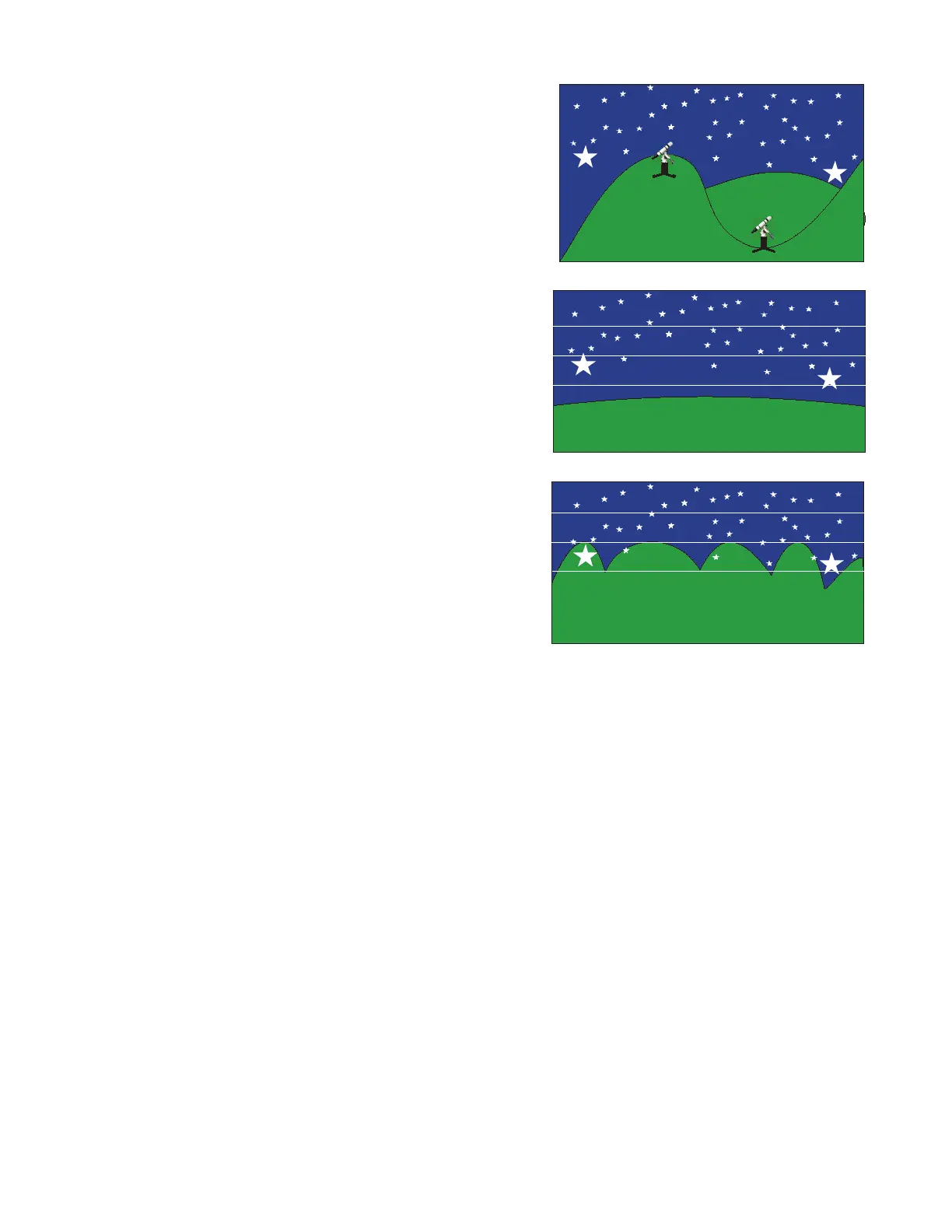
Observer A’s site is on a hill with a very long distant local horizon, whereas Observer B is in a valley with a very close and
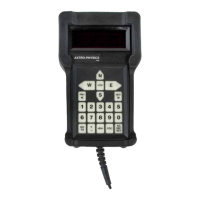
obstructed horizon. Observer A would set their horizon limit at 0 because they can see the entire sky. Where as Observer
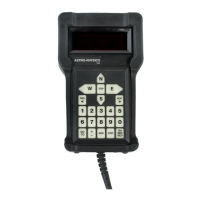
B in the valley would set their horizon limit to around 20 to tell the mount to prompt them if they attempt to slew to an object
that would be below their local horizon.
If Observer B attempted to view Star 1 the object would be below their horizon (hidden by a nearby hill) and the Keypad
would prompt to tell them this. If Observer B attempted to view Star 2 the Keypad would prompt them that the object was
below the horizon but Observer B would know they could see Star 2 and would press GoTo to override the horizon limit
slew to mount to observe it.
Remember that if you set your horizon limit to a number greater than 0, you will be prompted to view any object below the
limit. If you are prompted often for objects that are visible above the horizon, adjust your limit lower. If you are not being
prompted for objects that are below the horizon at your location, consider raising the number.
The software that controls the mount sets the horizon limit. In this manual, we are discussing Keypad control. However, if
you are using an external software program, that program controls the horizon. The Keypad settings are not active in that
situation and you might end up slewing to an object below your local horizon.
Set Your Horizon Limit
1. Go to Mount Move Limits Menu. (Main Menu → “2=Setup” → “2=Mount Move Limits”).
2. Press “4=Horizon Lim”. Notice that the number eld changes.
3. Enter number of degrees. As you continue to hold “4”, the number choices increase from 0–50 and back to zero.
Release “4” to stop the scroll through the numbers.
2
1
2
1
2
1
Observer A
Observer B
0
10
20
30
40
0
10
20
30
40
Observer A View Horizon Limt Setting = 0
Observer B View Horizon Limt Setting = 20


 To Next Page