12
Setting Keypad to GMT (aka UTC)
Running everything on UTC is a great way to do things if the laptop is completely dedicated to astronomy endeavors.
Professional astronomers all generally set everything including their lives to UTC. The main thing to remember is that
EVERYTHING needs to be set to UTC. Normal commercial software intended for amateurs will often want to default you
to a time zone. Once you have everything set up though, it’s awesome.
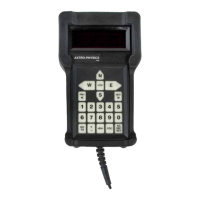
1. From the Main menu, press 2=Setup
2. From the Setup menu, press 1=Location & Time
3. From the Location & Time menu, press 1=Site Location Data
4. On the next screen, enter the relevant site number, and then press GoTo
5. In the screen that follows, be sure to set the Time Zone = 00
6. Press GoTo to save
7. ***You MUST do this (steps 3 - 6) for all sites that you have entered
8. After the last GoTo save, press Menu to get back to the Location & Time screen.
9. Now, from the Location & Time menu, press 2=Set Date & Time
10. In the Set Date & Time screen, set the time to the current UTC time.
11. Press GoTo to save.
Hint: I often round the time up to the next minute and then watch my PC clock until it rolls over to time my press of the
GoTo button. That way, they are time-synced, at least for a short while.
12. Press Menu to get back to the Main menu.
13. Press 4=Time/LST.
14. Verify that Local time = GMT
15. DONE!! Don’t forget to set your astronomy computer to GMT.


 To Next Page