51
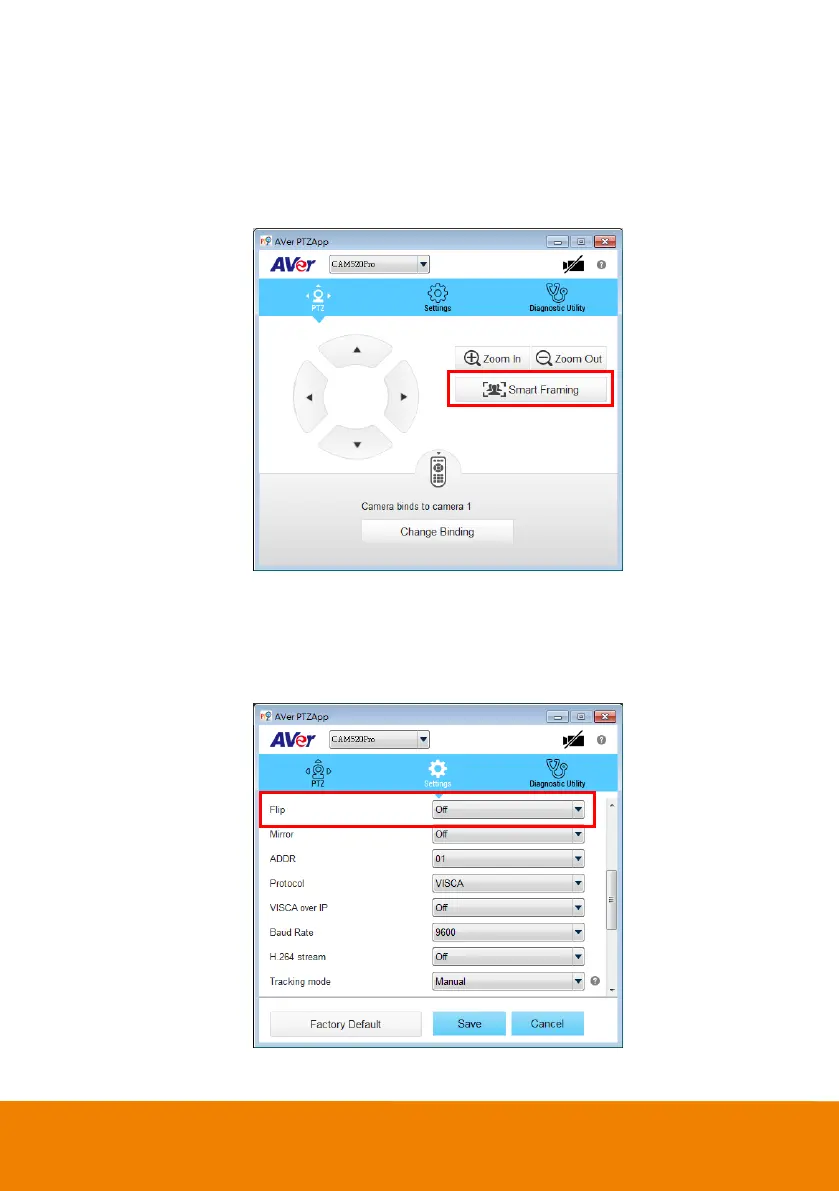
PTZ: To control the camera direction, zoom in and out, and to enable/disable the backlight
compensation during your video call.
Smart Framing: One-click automatic FOV(Field of View ) adjustment to fit all participants.
Click “Smart Framing” button to enable Smart Framing manually.
[Note] While in conferencing meeting, participants must face the camera for face detection
(smart framing).
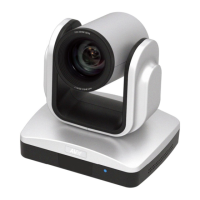
Settings: To setup parameters of the camera. Click the Save button to save all settings. To
change all the settings, back to the default values, click the Factory Default button.
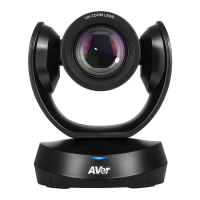
Flip : If the CAM520 Pro is installed in the upside down position, please enable the "Flip"
function in the AVer PTZApp , and the screen will display normally.


 To Next Page