30
Model E1070 Indicator Service Manual
1. From previous step 3 in section TOP (Peak hold application), press the
UNITS key. . .
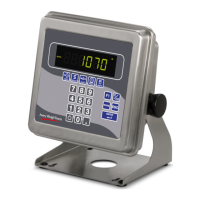
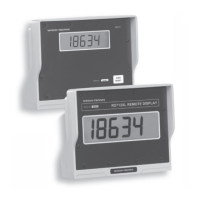
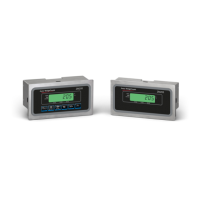
R-DISP is displayed. This stands for remote display. Use this item
to set up your indicator as a remote display for another indicator.
2. Press the PRINT key. . .
ON or OFF is displayed, depending on the current setting.
3. Press the PRINT key. . .
PORT is displayed. Use this item to select which port the master
indicator will use to communicate with this remote display.
4. Press the PRINT key. . .
The current port selection is displayed.
5. Toggle between the choices by using the TARE or UNITS key. Press
the ENTER key when your choice is displayed. . .
PORT is displayed.
6. Press the UNITS key. . .
MODE is displayed. Use this item to configure how the remote will
operate.
7. Press the PRINT key. . .
Current mode value is displayed.
MODE 1 = Indicator displays gross annunciator, weight and units
annunciator. This is an emulation of the RD4100 remote display.
MODE 2 = Indicator does the same thing as Mode 1 plus annun-
ciators reflect the main display status.
MODE 3 = Indicator acts as Mode 1 plus the following keys work;
TARE, SELECT, ZERO, PRINT and UNITS.
MODE 4 = Indicator acts the same as in Mode 3 plus all the
annunciators reflect the main display status
8. Scroll through the choices using the TARE or UNITS key. When your
choice is displayed, press the ENTER key. . .
MODE is displayed.
9. Press the ESC key to exit the Service menu. . .
SAVE is displayed.
10. Press ENTER to save your changes or press ESC to abort any changes
made in the Service menu. . .
BUSY flashes until the indicator returns to normal operation
mode.
This completes the APP menu.
R-DISP
(Remote Display)
Service Menu—APP submenu (continued)
In normal operating mode,
press the MODE key to
change from one enabled
application to the next.


 To Next Page