43
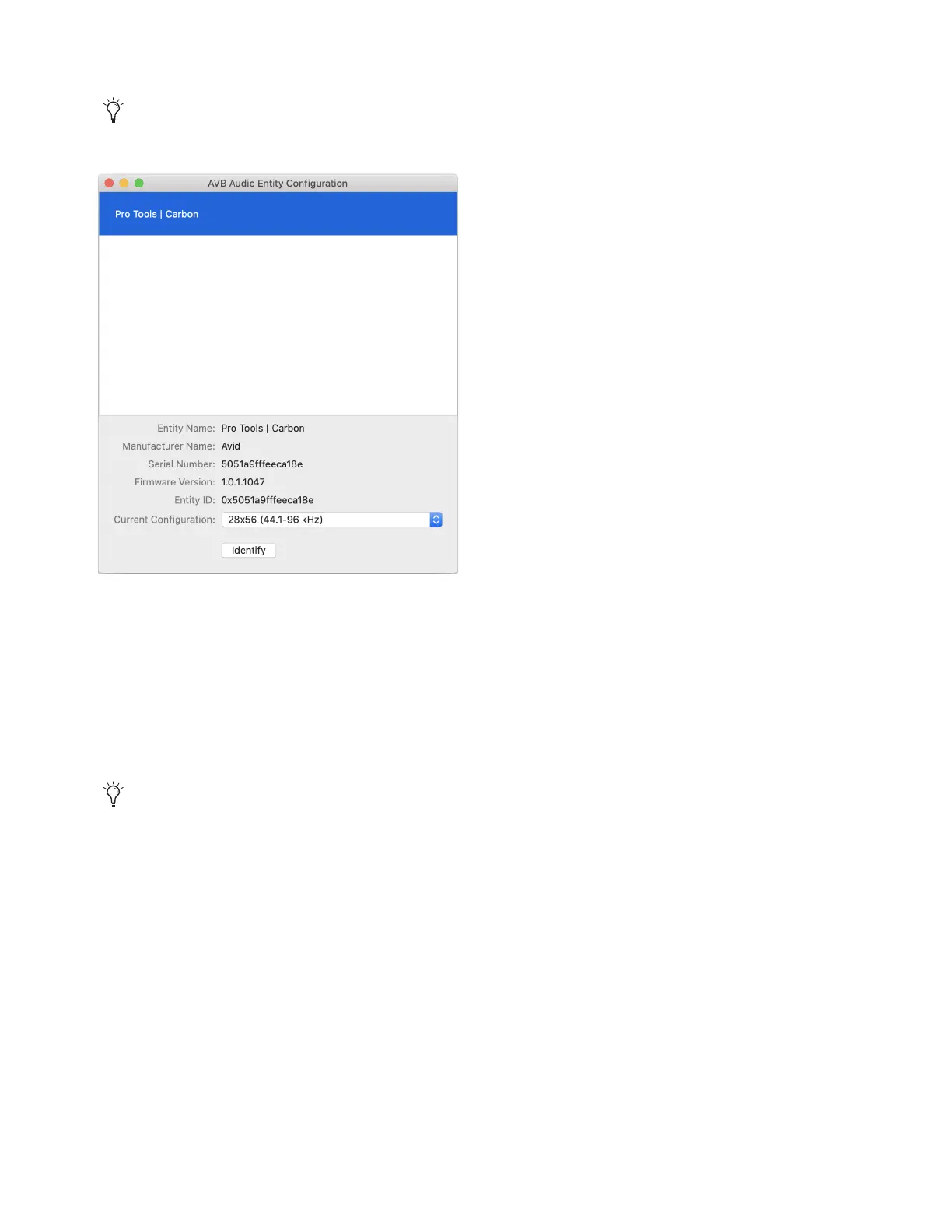
4 In the resulting AVB Audio Entity Configuration window, select Pro Tools | Carbon.
5 From the Current Configuration selector, select the configuration that best suits your workflow:
• 28x56 (44.1–96 kHz)
• 56x56 (44.1–96 kHz)
• 56x84 (44.1–96 kHz)
• 28x42 (44.1-192 kHz)
• 28x56 / 14x14 (44.1-192 kHz)
• 42x56 / 14x14 (44.1-192 kHz)
6 Quit the AVB Audio Configuration application (AVB Audio Configuration > Quit, or press Command+Q).
If the AVB Audio Entity Configuration window does not appear automatically, choose Window > Audio Entity Configuration
(or press Command+1).
AVB Audio Entity Configuration window
In Pro Tools, the System Usage window shows the number of available Input Channels and Output Channels for the selected
configuration, and how many are currently in use by the open session. See System Usage.











 To Next Page