Monitor Profiles 42
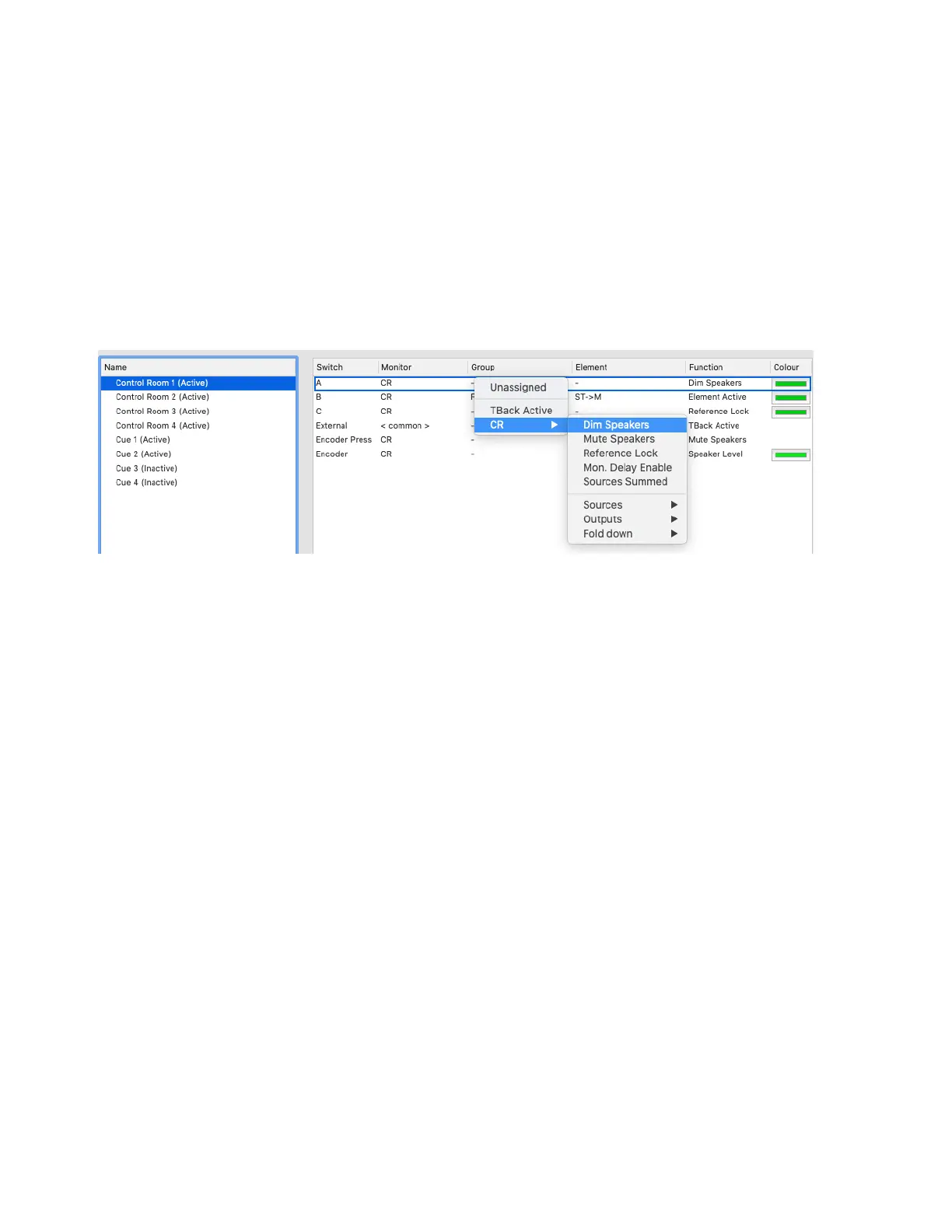
To assign a function to a switch for the selected Control Room layer or Cue:
1 In the left pane, select Control Room 1, 2, 3, or 4 depending on which control layer you want, or Cue 1 or Cue 2 (for Headphone
1 and Headphone 2).
2 In the right pane, right-click on the switch that you want to assign. The available switches include:
A
The A button on the front panel.
B
The B button on the front panel.
C
The C button on the front panel.
External
The footswitch connected to the jack on the back panel.
Encoder Press
Pressing the encoder (dial) on the front panel.
Encoder
Turning the encoder (dial) on the front panel.
3 Choose from the following options:
Unassigned
Removes any control assignment for the switch.
TB Active
The assigned switch toggles Talkback on and off for the monitor group.
Dim Speakers
The assigned switch toggles Dim on and off for the monitor group.
Mute Speakers
The assigned switch toggles Mute on and off for the monitor group.
Reference Lock
The assigned switch toggles Ref on and off for the monitor group.
Mon Delay Enable
The assigned switch toggles the Delay on and off for the monitor group.
Sources Summed
The assigned switch toggles between Sources Summed and Sources Switched for the monitor group.
Sources
Lets you select a specific Input set.
Outputs
Lets you select a specific Output set.
Fold down
Lets you select a specific Fold down.
4 Click in the Colour column to set the color for the assigned switch.
Repeat these steps for the remaining Control Room layers. Cues only provide a single layer of control.
MTRX Studio page, Control Room layer 1 assignments



 To Next Page