DADman Software 13
DADman Software
Use DADman software to configure and control MTRX Studio over Ethernet.
Assigning the IP Address for your Computer and MTRX Studio
Before using DADman with MTRX Studio units on your network, you must set the network configuration for each MTRX Studio
unit in your system, one at a time. You can use fixed IP addresses or IP addresses assigned by DHCP.
Fixed IP Address
You must have a preferred range of IP addresses, and a network mask for the computer network and the connected MTRX Studio
units.
To use a fixed IP address:
1 Configure your computer IP address and network mask using the macOS System Preferences or the Windows Control Panel to
10.0.7.25 | 255.255.255.0.
2 Launch DADman.
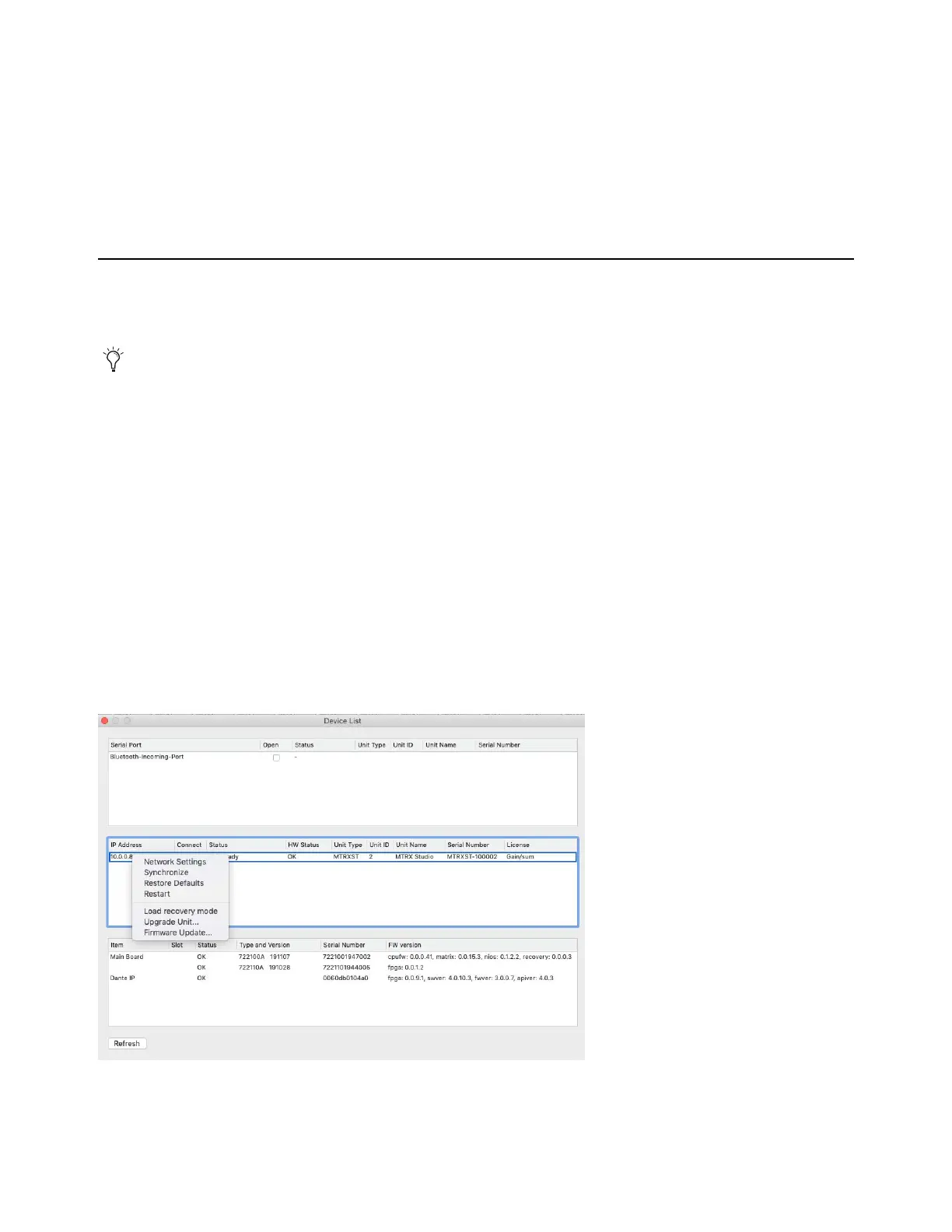
3 Choose Settings > Device List.
4 Click Refresh to discover the MTRX Studio on the network.
5 Right-click the MTRX Studio and choose Network Settings.
When using MTRX Studio units in Pro Tools systems with EUCON peripherals (such as S6, S1, or Control app), use a dedicated
Network Interface for EUCON peripherals and connect all other network devices to a separate Network Interface (for MTRX
Studio/DADman, Dante audio, local network, internet, and so on). Using separate Network Interfaces is especially important
when streaming audio over Dante.
Device List



 To Next Page