31User Manual
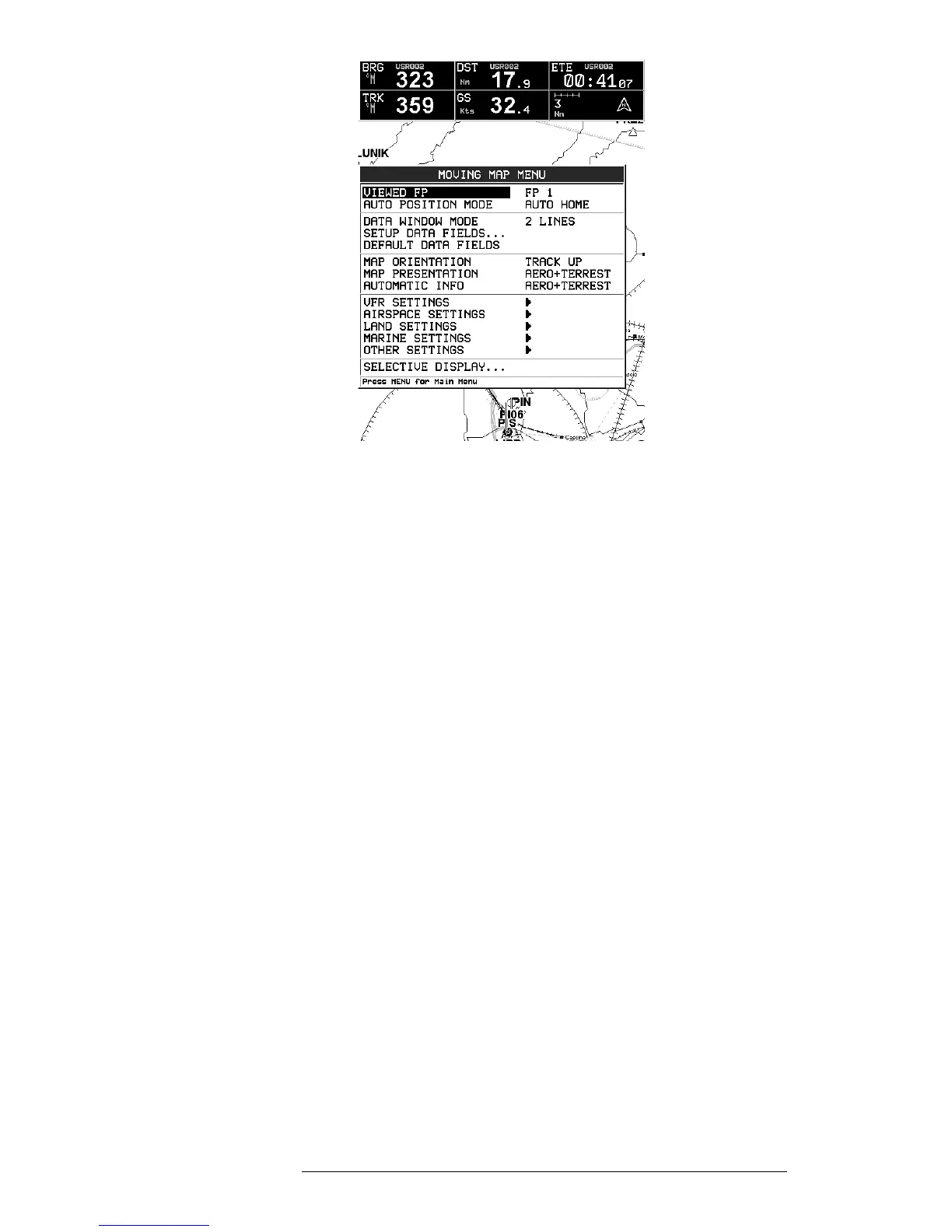
Fig. 3.5 - Moving Map Menu
3.5.1 VIEWED FP
This item enables you to select the Flight Plan to display on the Moving Map
from the list of stored Flight Plans. The Flight Plan that is “Viewed” can then
be edited or activated from the Moving Map display.
> ‘MENU’ + “VIEWED FP” + ‘ENTER’
The Flight Plan list will display, using the cursor key, highlight the Flight Plan
and press ‘ENTER’. Select an EMPTY Flight Plan if you do not want a Flight
Plan to display on the Moving Map, or to create a new Flight Plan from the
Moving Map.
3.5.1.1 AUTO POSITION MODE
To set Auto Zoom or Auto Home mode:
> ‘MENU’ + “AUTO POSITION MODE” + ‘ENTER’
The following options are available:
OFF - The moving map display will remain in ‘CURSOR’ or ‘HOME’ mode
as set by the user.
AUTO ZOOM - Used to keep the current position and the destination (Tar-
get) visible on the map. The map is scrolled and zoomed automatically to keep
the best view possible during all phases of flight. When Auto Zoom is selected,
and the cursor is active, the map will reposition the cursor to the center point
of the current position fix and the destination waypoint as needed to keep
both items visible on the display.
AUTO HOME - The Moving Map page will automatically change to the
‘HOME’ mode when no cursor activity is present for 60 seconds. The default
setting is AUTO HOME.


 To Next Page