32
User Manual
Auto Zoom is On the Auto Zoom mode is activated (see Par. 3.1.3).
> ‘MENU’ + “AUTO ZOOM” + “ON”+ ‘ENTER’
The Auto Zoom mode is used to keep the fix position and the destination
(Target) visible on the map. The map is scrolled and zoomed automatically to
keep the best view possible.
3.5.2 DATA WINDOW MODE
The Data Window is displayed on the top of the Moving Map. This window
provides navigation information relating to the Flight Plan and GPS data. This
screen can be customized to allow you to select the information based on your
flying needs.
>‘MENU’ + “DATA WINDOW MODE” + ‘ENTER’
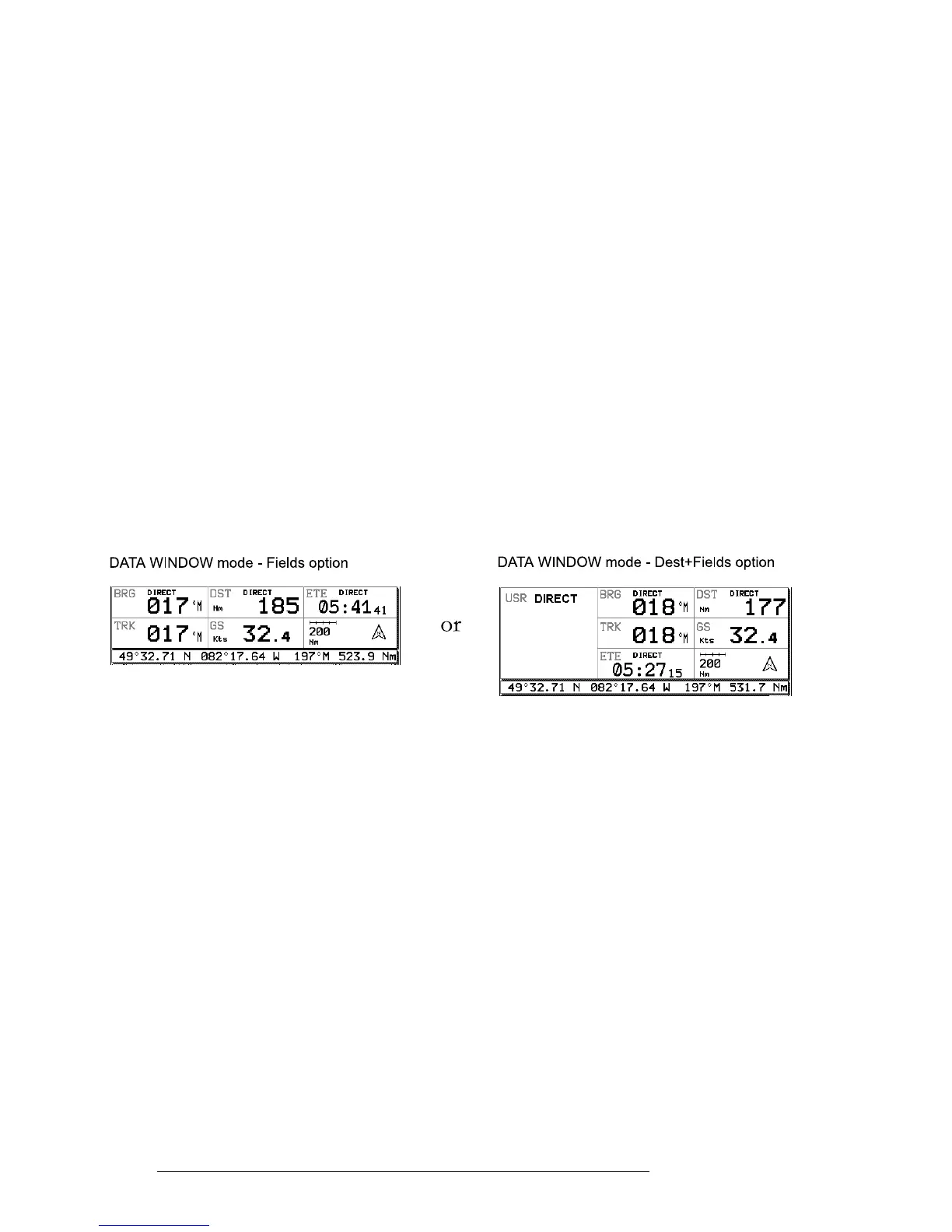
The following options are available for the data window display:
OFF
1-line - Provides three fields for data display.
2-lines - Provides six fields for data display.
3-lines - Provides nine fields for data display.
HSI + Fields - Provides the HSI along with 6 data fields in the top half of the
display window. (Settings for the HIS display are selected in the HIS menu
page, see Sec.5.)
Fig. 3.5.2 - Data Window options
3.5.3 SETUP DATA FIELDS
You can select the item to be displayed in each of the fields of the Data Win-
dow. The following figure displays the options available. The fields selected
for each window mode option (1-line, 2-lines, etc.) are independent; therefore,
you can select different fields for each window view.


 To Next Page