34
User Manual
> ‘MENU’ + “MAP ORIENTATION” + ‘ENTER’
The options are:
Track-up - will rotate the map automatically to keep your Track pointed to-
ward the top of the display (see Par. 14.2.6; System Setup + Fix Setup + Head
Up Response).
Course-up - will rotate the map automatically to keep your active leg pointed
toward the top of the display.
North-up - will rotate the map automatically to keep North pointing toward
the top of the display.
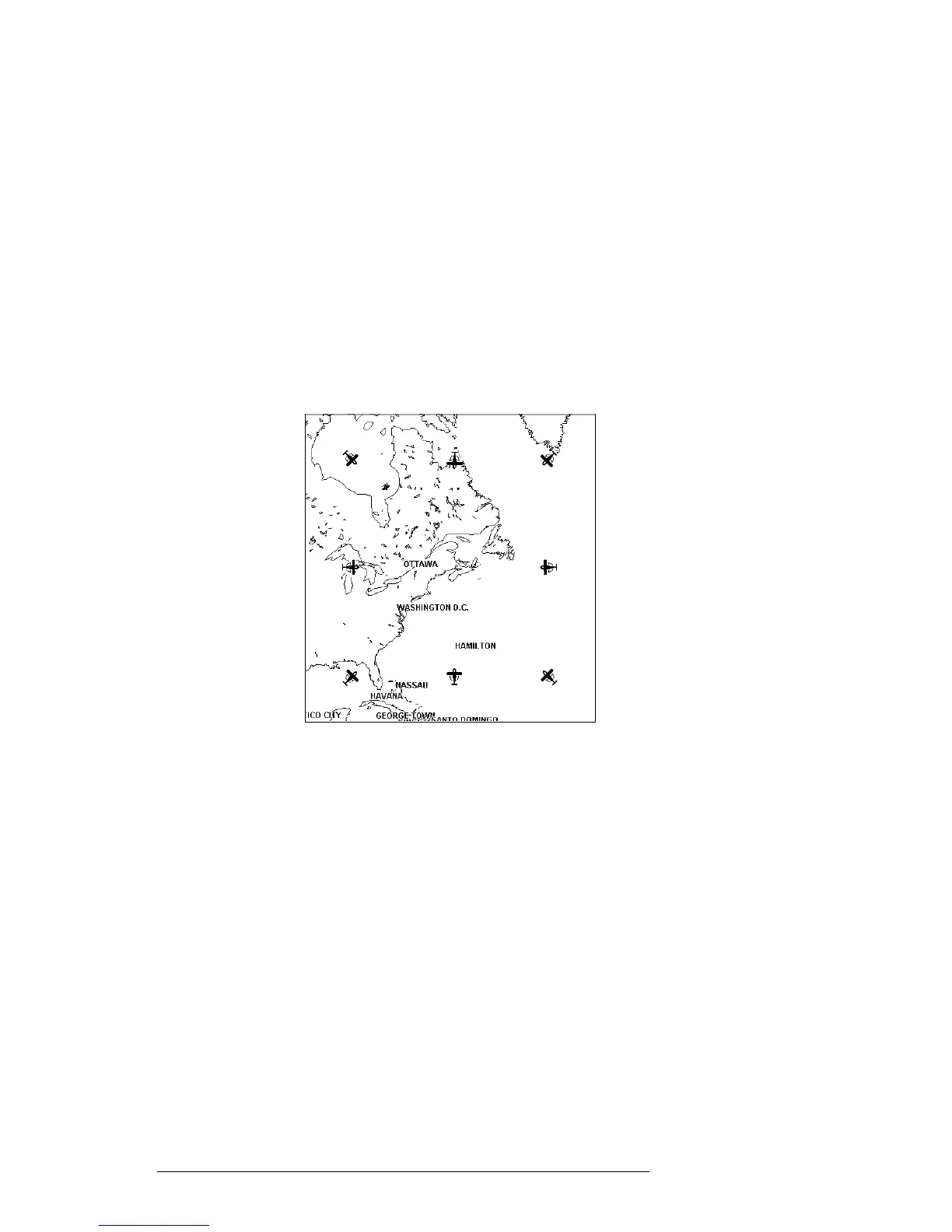
During North - up mode the Screen Amplifier is active. Depending on the
Heading, the fix icon is placed on one of the 8 positions. For example, if the
Heading is 45°, the fix icon is placed on the bottom left part of the screen (see
Fig. 3.5.5). This method of icon placement allows for the maximum view ahead
of the aircraft at the given direction of travel.
Fig. 3.5.5 - 8 marks at the areas where the icon may appear
3.5.6 MAP PRESENTATION SETTINGS
Map Presentation allows you to select the priority of the map display and color
selections among AERO+TERRESTRIAL/AERONAUTICAL/MARINE settings.
> ‘MENU’ + “MAP PRESENTATION” + ‘ENTER’
The options are: Aero + Terrest, Aeronautical, Marine. The default setting is
Aero + Terrest. Aeronautical setting will change all land based detail to a light
color to enhance the aeronautical data. When using aviation and land based
Compact Flashs, be sure this setting is on Aero + Terrestrial. Switch to Marine
when utilizing the C-MAP Marine Compact Flashs.
3.5.7 AUTOMATIC INFORMATION
The display of Automatic Information is controlled by this setting. The cat-


 To Next Page