14. Service menu
14.2 Identification
What can be seen on the identification screen?
The identification screen shows the general information about the projector.
The following items will be displayed:
• Projector address
•Typeofprojector
• Package
•Configuration
• Baud rate
• IP address
• MAC address
•Text
• Serial number of projector: this number can be useful when calling for technical assistance.
• Runtime
• Lamp runtime
•CustomerID
How to display the screen?
1. Press MENU to activate the menus.
2. Use the ▲ or ▼ key to select Service and press ENTER.
The service window opens.
3. Use the ▲ or ▼ key to select Identification and press ENTER.
The identification screen is displayed.
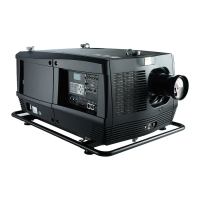
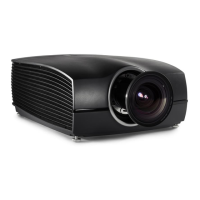
Image 14-1
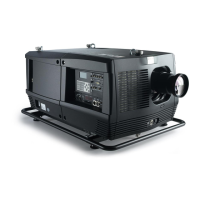
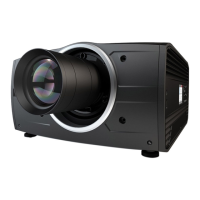
Image 14-2
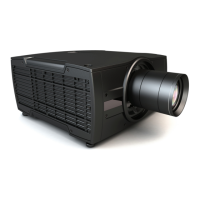
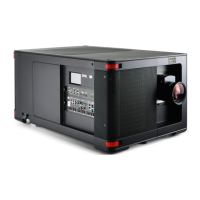
Image 14-3
Add a customer ID to identification window
When on the identification window:
1. Use the ▲ or ▼ key to select Customer ID and press ENTER.
The Customer ID input window opens.
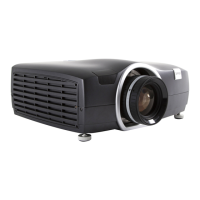
Image 14-4
2. Use the ▲ or ▼ key to change the selected character.
Use the ◄ or ► key to selected another character.
Note: Digits can be entered with the digit keys on the remote control or on the local keypad. When a digit is entered in that
way, the next character will be selected automatically.
166
R59770179 FLM R22+ 15/03/2010



 To Next Page