Chapter 3: Barcode Reader Option 47
1 Plug the barcode reader into the USB port on the back of your computer.
The reader turns on automatically.
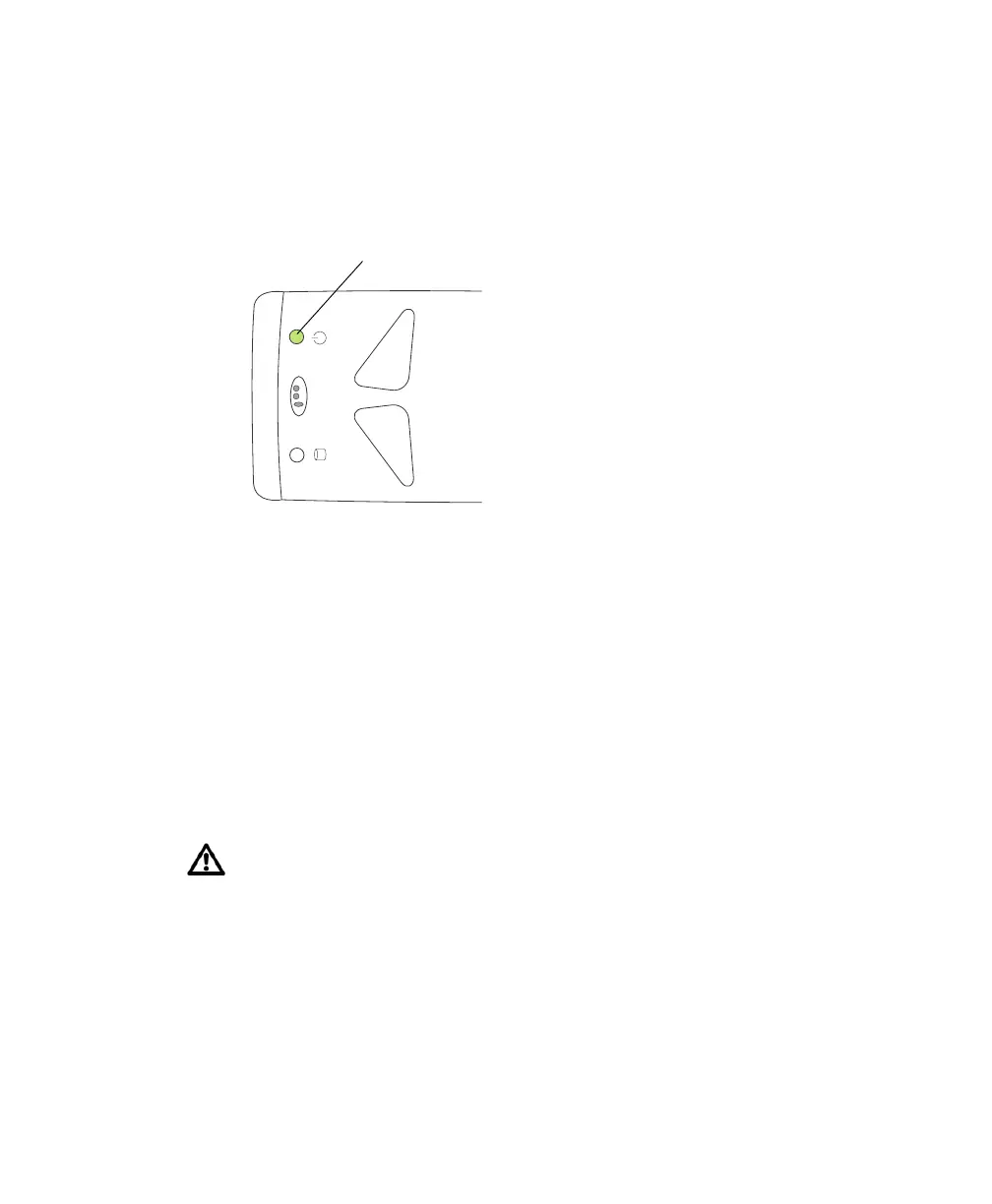
2 Make sure the green light on top of the reader is illuminated:
3 In BD FACSCanto clinical software, navigate to the fields for which
information can be scanned.
• Lot information for BD FACS 7-color setup beads is scanned into the
Setup Lot Information dialog from the setup values label supplied with
the setup bead kit (NOT from the lot number on the setup bead tubes).
• Patient information is scanned from sample labels into the worklist ID
field.
4 Locate the barcode on the label of BD FACS 7-color setup beads kit, or on
the patient sample.
; Tip To make it easier to use, an optional stand is available for the barcode
reader. See Bar Code Reader Parts on page 129.
For accurate results, do not photocopy or enlarge the barcodes that are
included with the reagent. Scan the barcodes exactly as they are provided.
green light








 To Next Page