Using Application Explorer in BEA WebLogic Workshop to Create XML Schemas and Web Services
BEA WebLogic Adapter for SAP User’s Guide A-7
c. From the Type drop-down list, select the type of server to which you are
connecting.
Application Server is the default value.
4. Click OK.
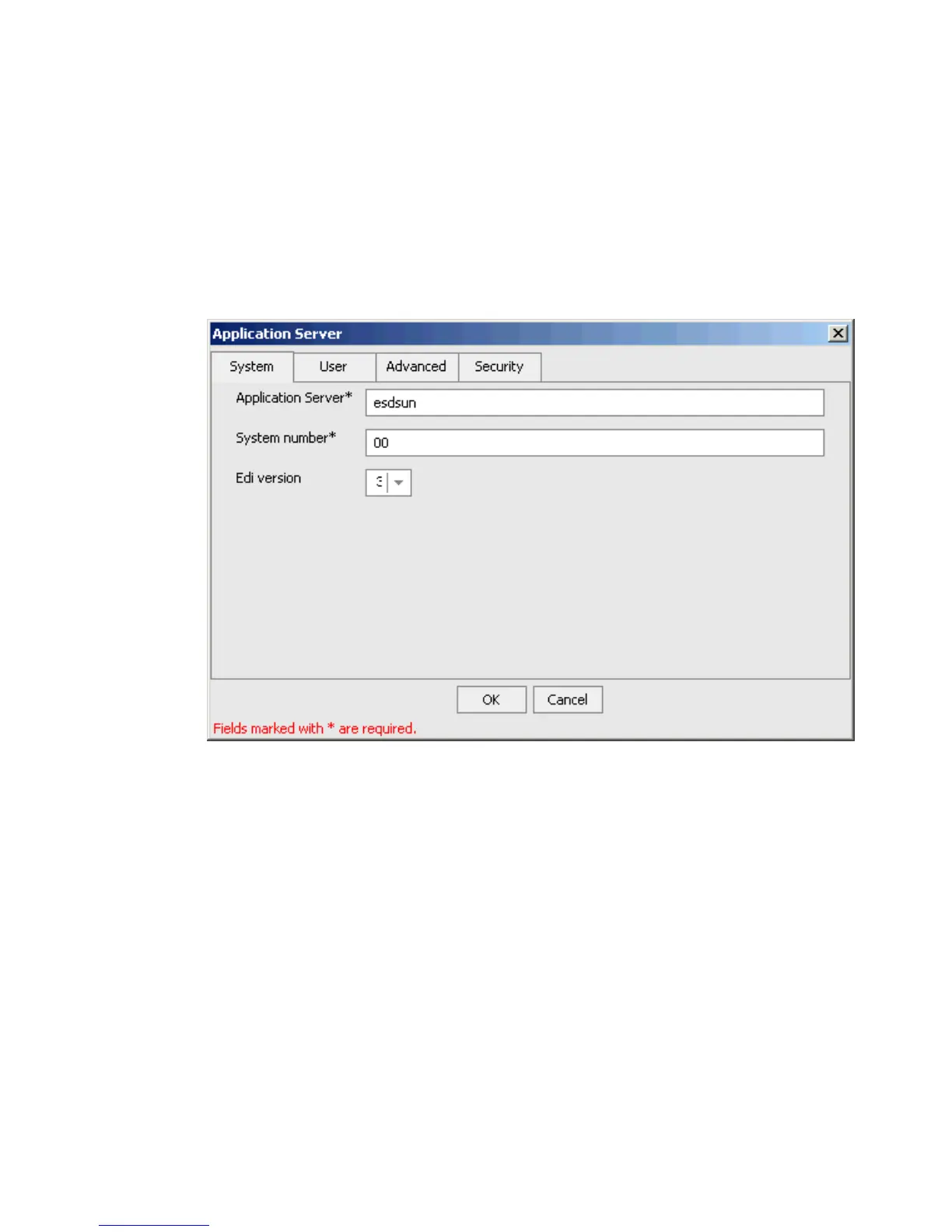
The Application Server dialog box opens where you must specify connection
information for SAP and the application server that is hosting SAP.
5. Enter the following SAP system information on the System tab.
a. In the Application Server field, type the host name or IP address for the machine
that is hosting the SAP application (required).
b. In the System number field, type the system number defined to SAP for client
communications (required).
c. From the EDI version drop-down list, select the Electronic Data Interchange (EDI)
document version that you are using with the BEA WebLogic Adapter for SAP.
Version 3 is the default value.
6. To view and provide information on the User tab, click User.



 To Next Page