32
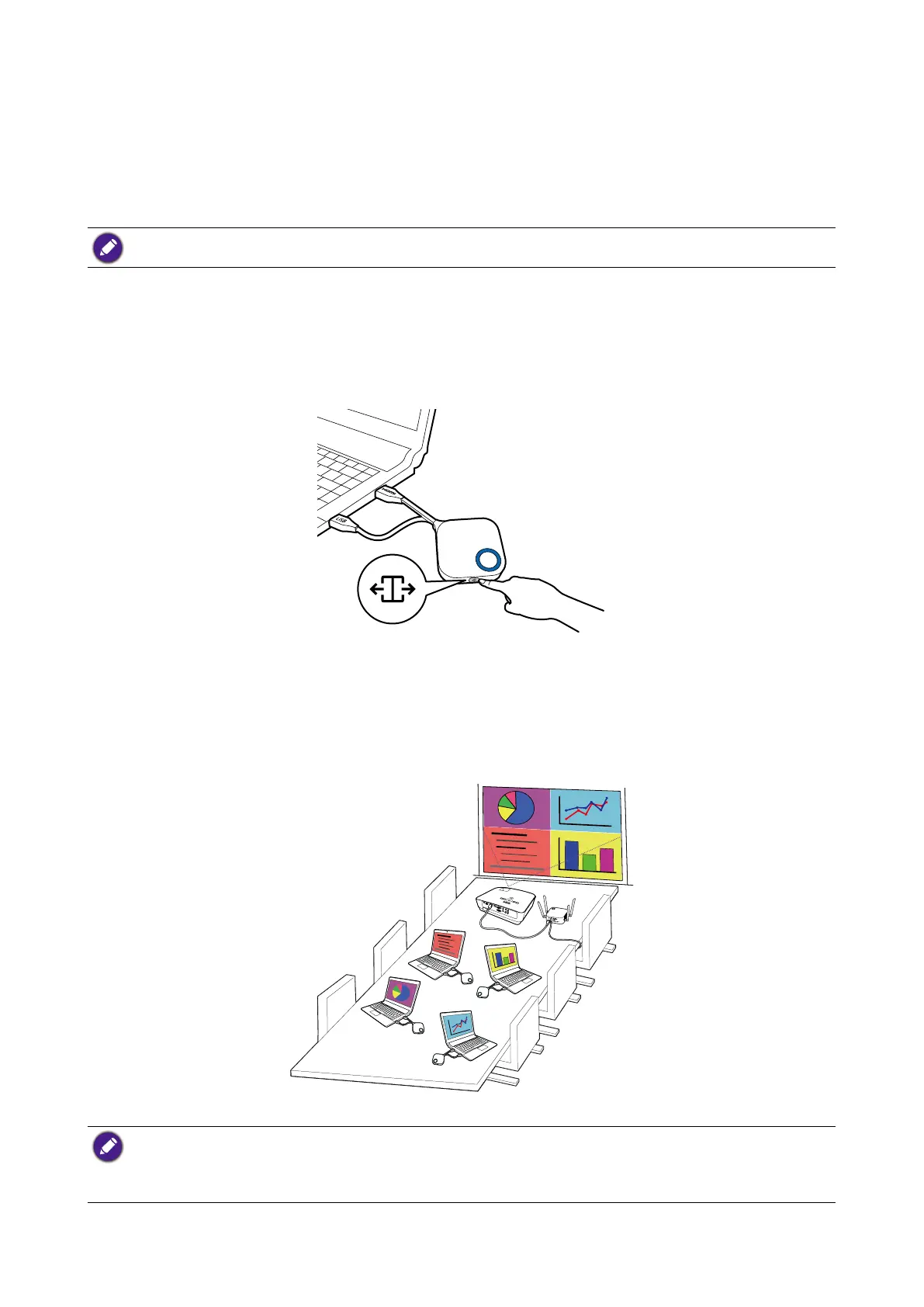
The product allows up to 8 users to present simultaneously in a split screen orientation.
Starting a split screen presentation
1. Connect a Button to each computer that will be presenting in the split screen presentation. See
Setting up and powering a Button on page 22 for more information.
Make sure that all Buttons have already been paired to the Host projecting the presentation. See Pairing a
Button and Host on page 25 for more information.
2. Start a normal presentation using one of the Host buttons. See Starting presentation on page
30 for more information.
3. Press the split screen button on the Host that started the presentation to enable split screen
presentations.
4. Once a notication appears on-screen indicating that the split screen function has been enabled,
press the Present key on the Button of the second computer that wants to join the split screen
presentation.
5. Repeat step 4 for all other users that want to join the split screen presentation.
• Only up to 8 users are simultaneously supported in a split screen presentation.
• The layout of the split screen presentation will be dictated by the amount of users in the presentation.
• If split screen is not enabled by the initial Button, all subsequent connections by other Buttons will be full
screen presentations.



 To Next Page