52
Monitor
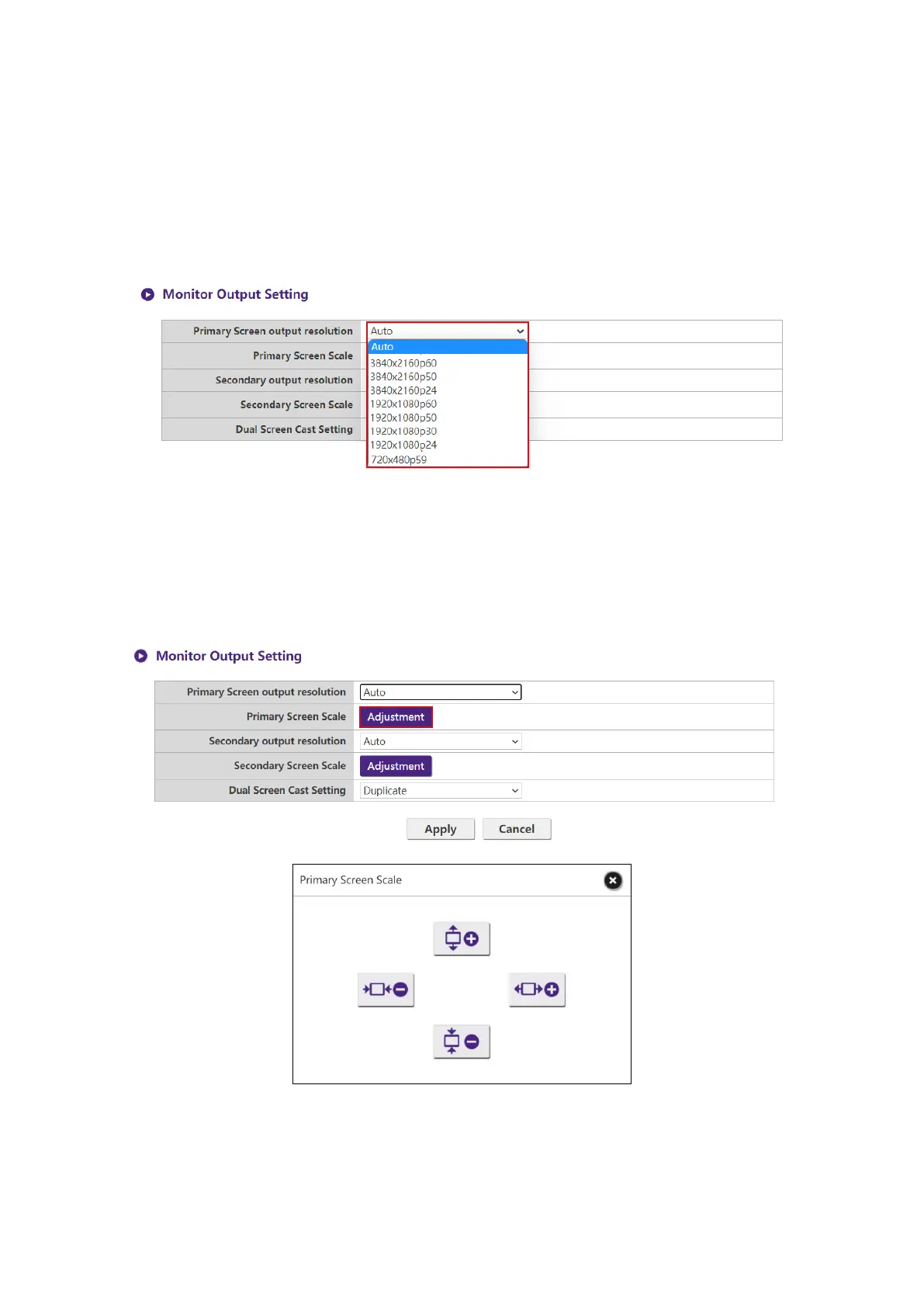
Click Monitor to adjust Monitor Output Setting.
Primary Screen output resolution, Secondary output resolution congures the Host’s
output resolution for video broadcast by the Host. When Primary Screen output resolution ,
Secondary output resolution mode is set to Auto the Host will select the output resolution
based on the connected display’s native timing, or you can select an output resolution manually.
Primary Screen Scale, Secondary Screen Scale allows users to adjust the borders of the
Host’s video output so that it properly ts the screen of the connected display. This setting is
mainly intended for users who connect the Host to a touchscreen display, so that the edges of the
video align to the edges of the display’s screen to ensure the accuracy of touch gestures. To adjust
the Primary Screen Scale, Secondary Screen Scale setting, click the Adjustment button,
then use the toggle buttons to scale the video to t the screen.
Dual Screen Cast Setting is a feature to dene the output screen among 2 HDMI output
(HDMI 1 as Primary and HDMI 2 as Secondary). Default setting is Duplicate which means
Secondary screen has the same output screen of Primary Screen. In Duplicate mode, 4 users can
simultaneously project. In Extend mode, it can support up to 8 users in Primary and Secondary
screen.



 To Next Page