MK / MKT (E5) 03/2019 page 51/158
or
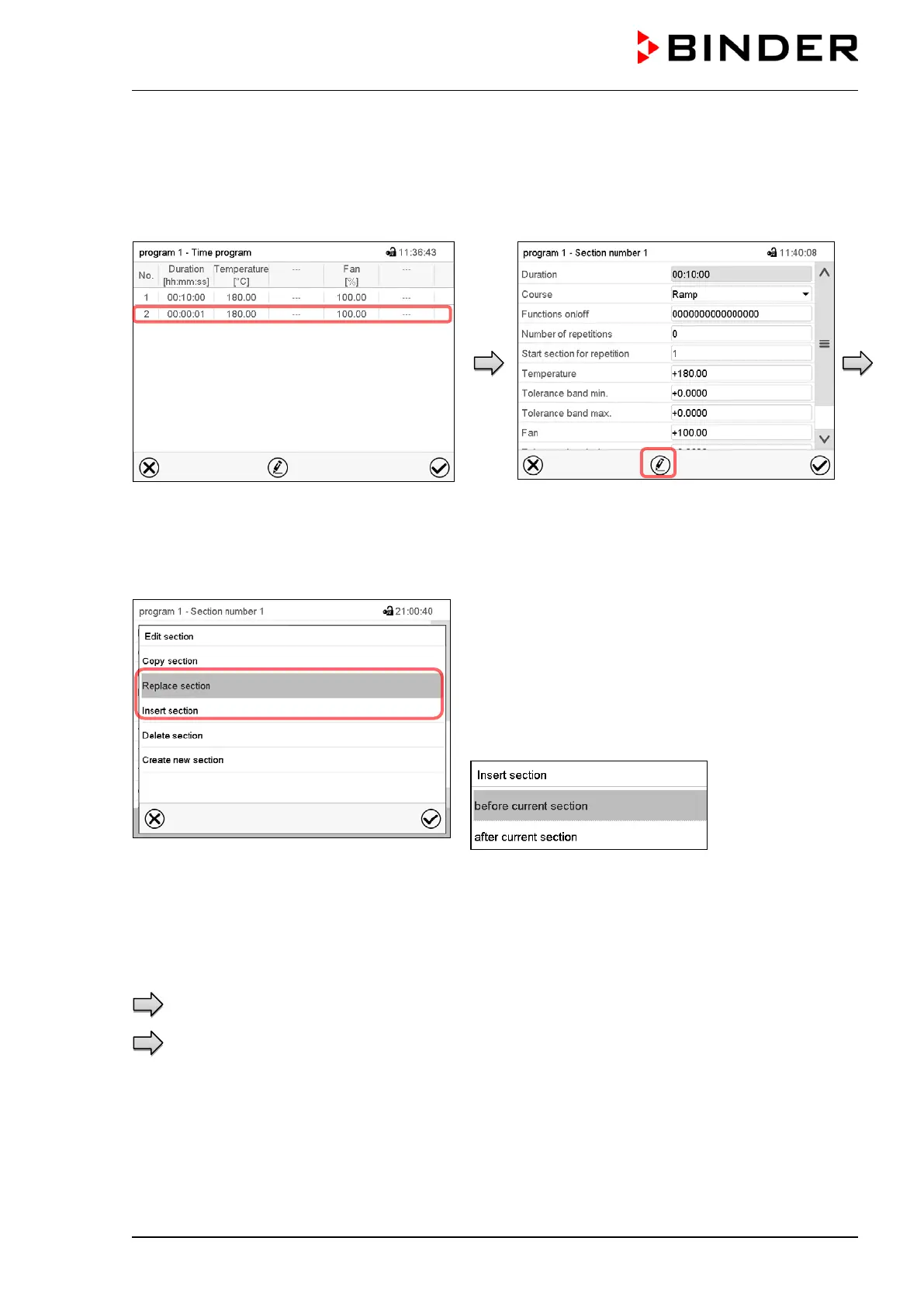
Press the Edit icon to open the section editor
if you want the current section to be replaced
or the copied section to be inserted before or
after it
Program view.
Select the section to be replaced or before or
after which the copied section shall be inserted
(example: section 2) and press the Confirm
icon.
Section view (example: section 1).
Press the Edit icon to open the section editor
Section editor: “Edit section” menu
Select “Replace section” to replace the selected section
with the copied section
or
Select “Insert section” to additionally add the copied sec-
tion.
In this case select whether to insert it before or after the
selected section.
Press the Confirm icon
9.6.3 Deleting a program section
In the program view select the program section to be deleted. The section view opens.
In the section view press the Edit icon to open the section editor
In the section editor select “Delete section” and press the Confirm icon.
The section is deleted. The controller returns to the section view.



 To Next Page