4 Windows 8.1 Tutorials
15
2
Tap the desired charm:
Icon Name Function
Search Finds things on the device or the web.
Share Shares files, photos, or links from the current app.
Start Opens the Start screen or desktop.
Devices Allows you to play, print, or project from peripheral devices.
Settings
From apps: Changes the settings for the current app.
From the Start screen and desktop: Changes Windows settings.
4.4 Switching between the Start screen and desktop
1
Swipe in from the right edge of the screen.
2
In the Charms menu, tap Start.
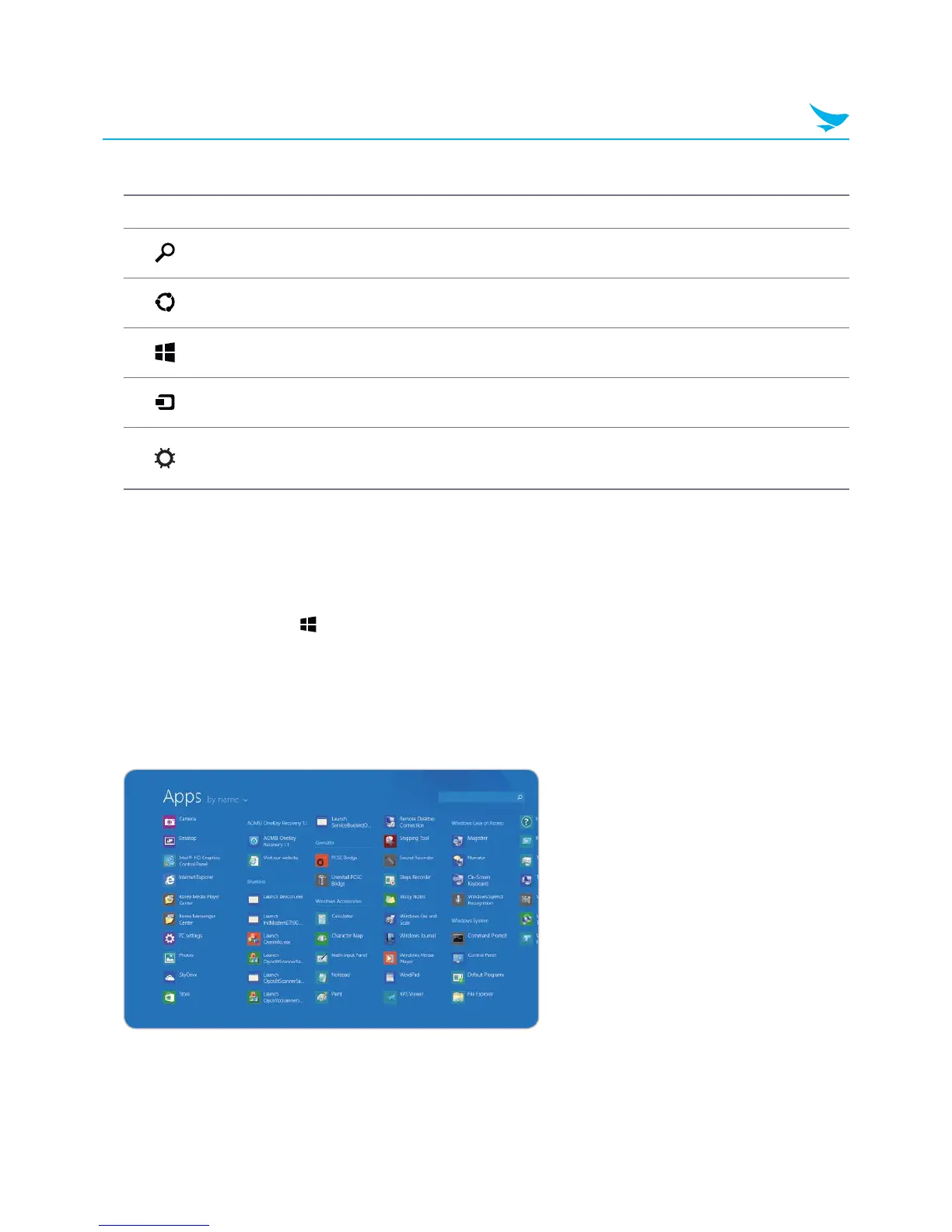
4.5 Apps Screen
The Apps screen displays all of the applications installed on the device. The apps that you use most
frequently appear on the left side of the Apps screen. The other apps are grouped by publisher.



 To Next Page