13 Maintenance and Troubleshooting
40
13.4 Updating Windows
Unless you specify otherwise, Windows automatically downloads and installs updates when they become
available. However, you may need to manually update Windows when you start the device for the first time
or if Windows is not updating correctly.
To manually update Windows:
1
Plug in the device.
Do not unplug the device during the update process.
Doing so may result in lost or damaged data.
2
Swipe in from the right edge of the screen.
3
In the Charms menu, tap Settings.
4
In the Settings menu, tap Change PC settings.
5
In the PC Settings menu, tap Update and recovery.
6
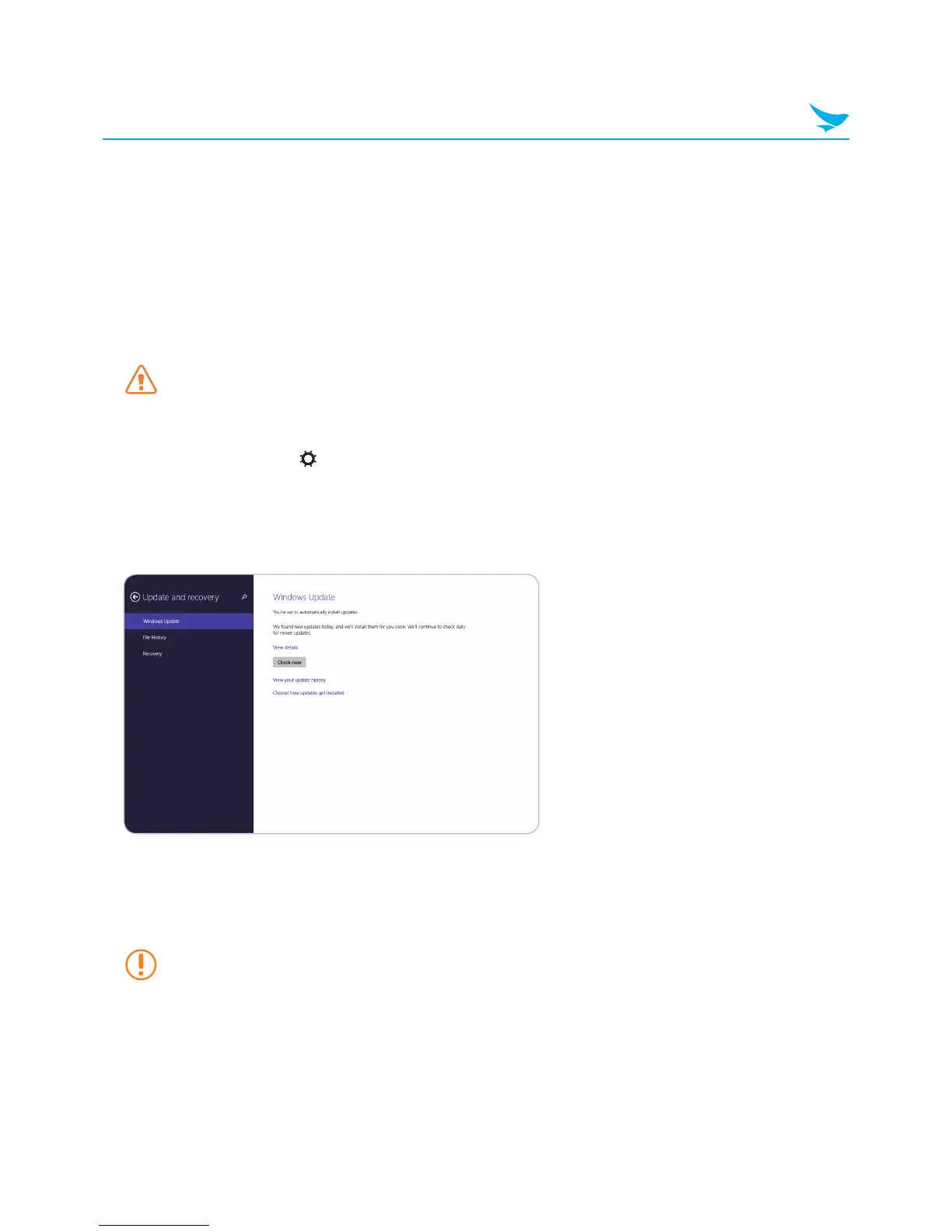
In the Update and recovery menu, tap Windows Update.
7
Tap Check now.
8
When Windows finishes searching for updates, tap View details.
9
In the list of updates, select all of the updates that you want to apply, and then tap Install.
You may need to provide an administrator password to install the updates.
If prompted, enter your password to continue the installation process.
10
After the updates are installed, restart the device.



 To Next Page