13 Maintenance and Troubleshooting
42
13.6 Recovering Windows
Recovering Windows allows you to revert to a backup system image created using AOMEI OneKey. The
backup image contains Windows as well as the applications, system settings, and files in the device when
the backup was made. You may need to recover Windows if a critical error occurs on the device.
1
On the Apps screen, tap AOMEI OneKey.
You can also tap Enter into AOMEI OneKey Recovery on the boot menu to access AOMEI OneKey.
2
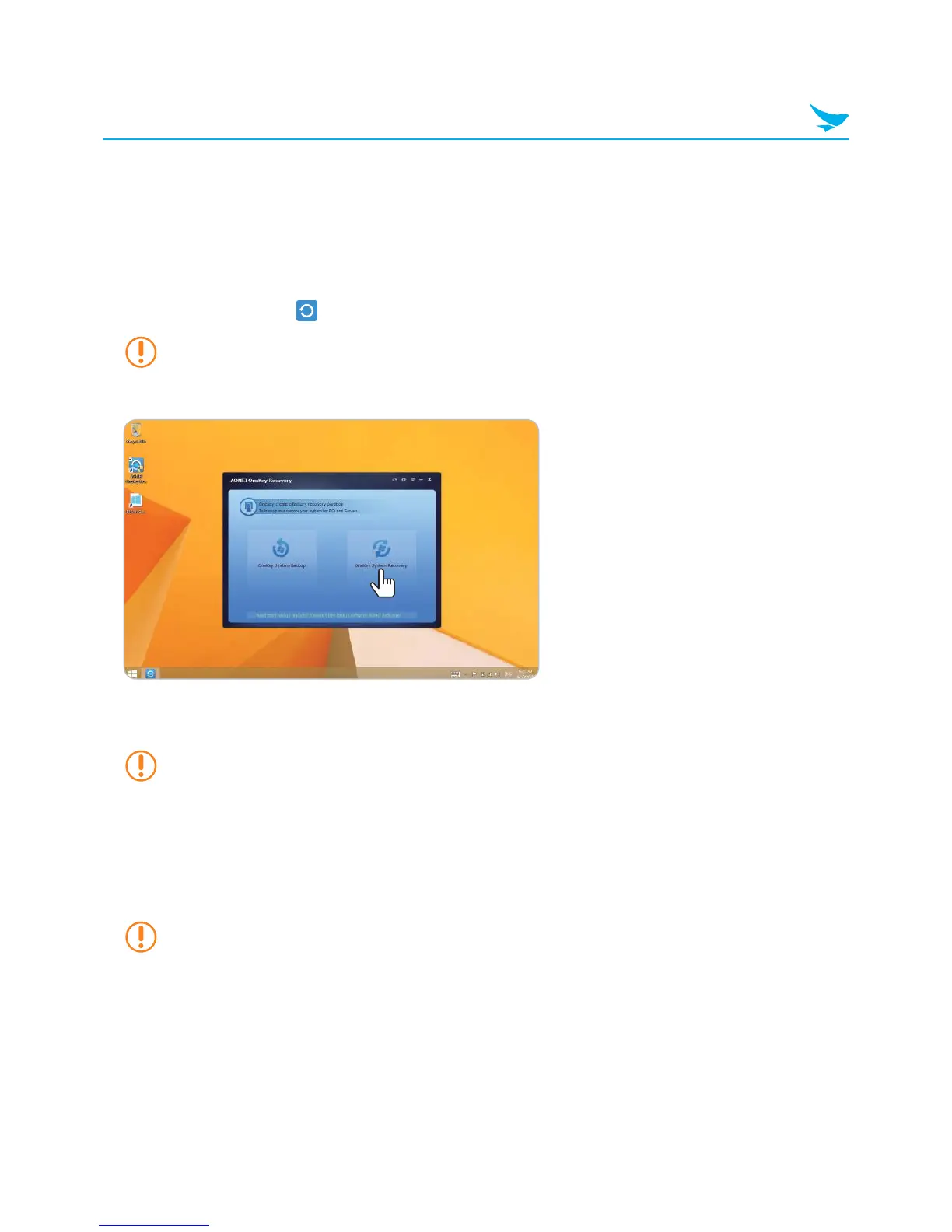
When AOMEI OneKey Recovery loads, tap OneKey System Recovery.
3
On the Restore and Confirm screen, highlight the partition on which to install the backup image, and then
tap Start Restore.
During recovery, the partition is formatted make room for the backup image. All data stored on the
highlighted partition will be lost.
4
When the dialog window appears to warn you that system recovery requires the computer to reboot, tap
Yes.
5
When the system restarts and the Choose an operating system screen appears, tap Windows 8.1 to
start the backup version of Windows or tap Enter into AOMEI OneKey Recovery to recover the backup
version again.
To restore the OS to its original state, press the reset button of the device using a small thin
pointed piece like a pin. When the OS is restored to its original state, the drivers provided by
Bluebird are not installed.



 To Next Page