4 Windows 8.1 Tutorials
16
To show all of the apps installed on the device, follow these steps:
1
Place your finger in the center of the Start screen and swipe upwards.
2
On the Apps screen, swipe to the left or right to show more apps.
You can swipe up from the bottom of the screen to display the context menu. The context menu
allows you to pin apps to the Start screen or taskbar, uninstall apps, run apps as an administrator,
or open app locations.
4.6 Switching Between Apps
1
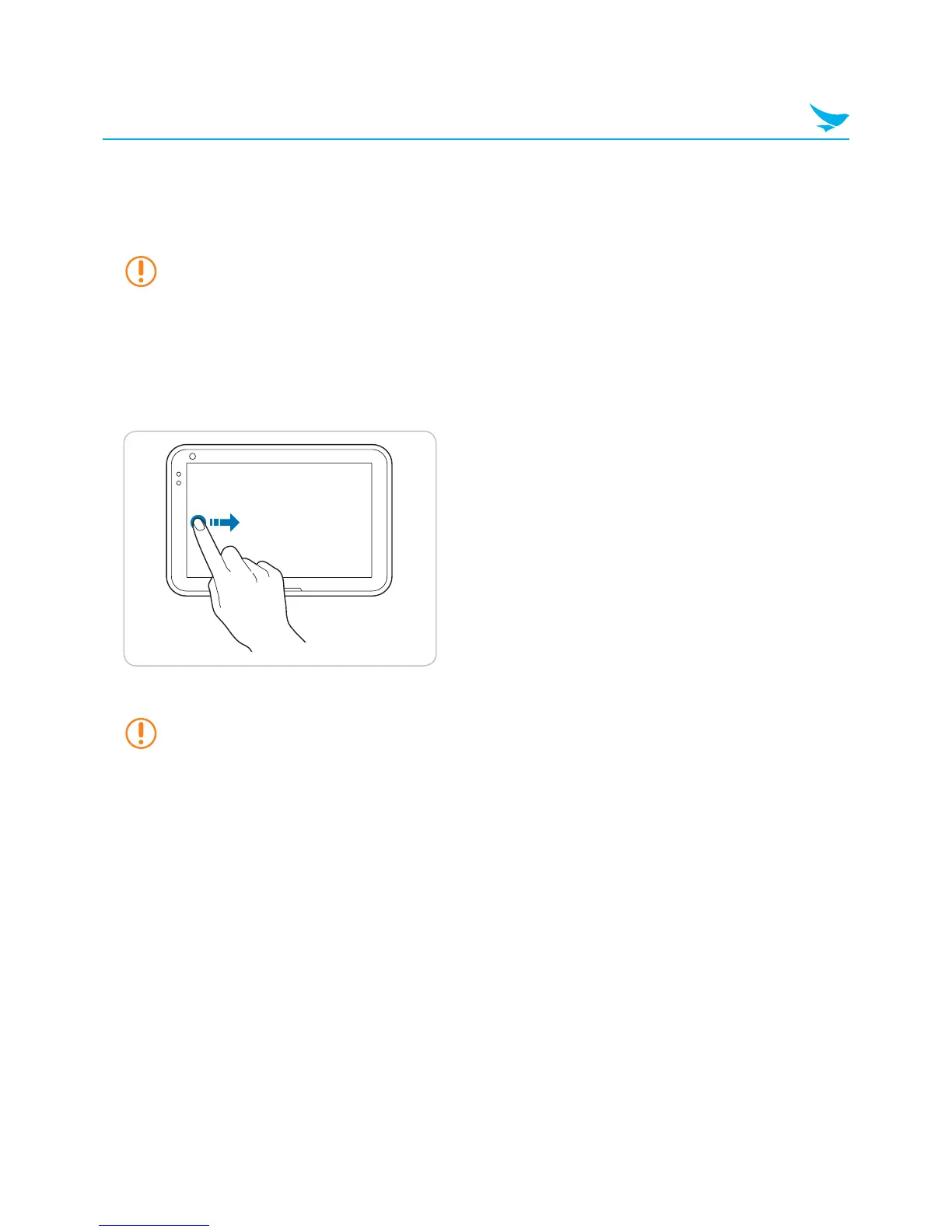
Drag your finger inwards from the left edge of the screen.
2
Drag the app to the center of the screen, and release the app thumbnail.
You can swipe in repeatedly from the left side of the screen to quickly cycle through all open apps.



 To Next Page