8 Customizing the Device (Windows)
27
3
Release the app.
4
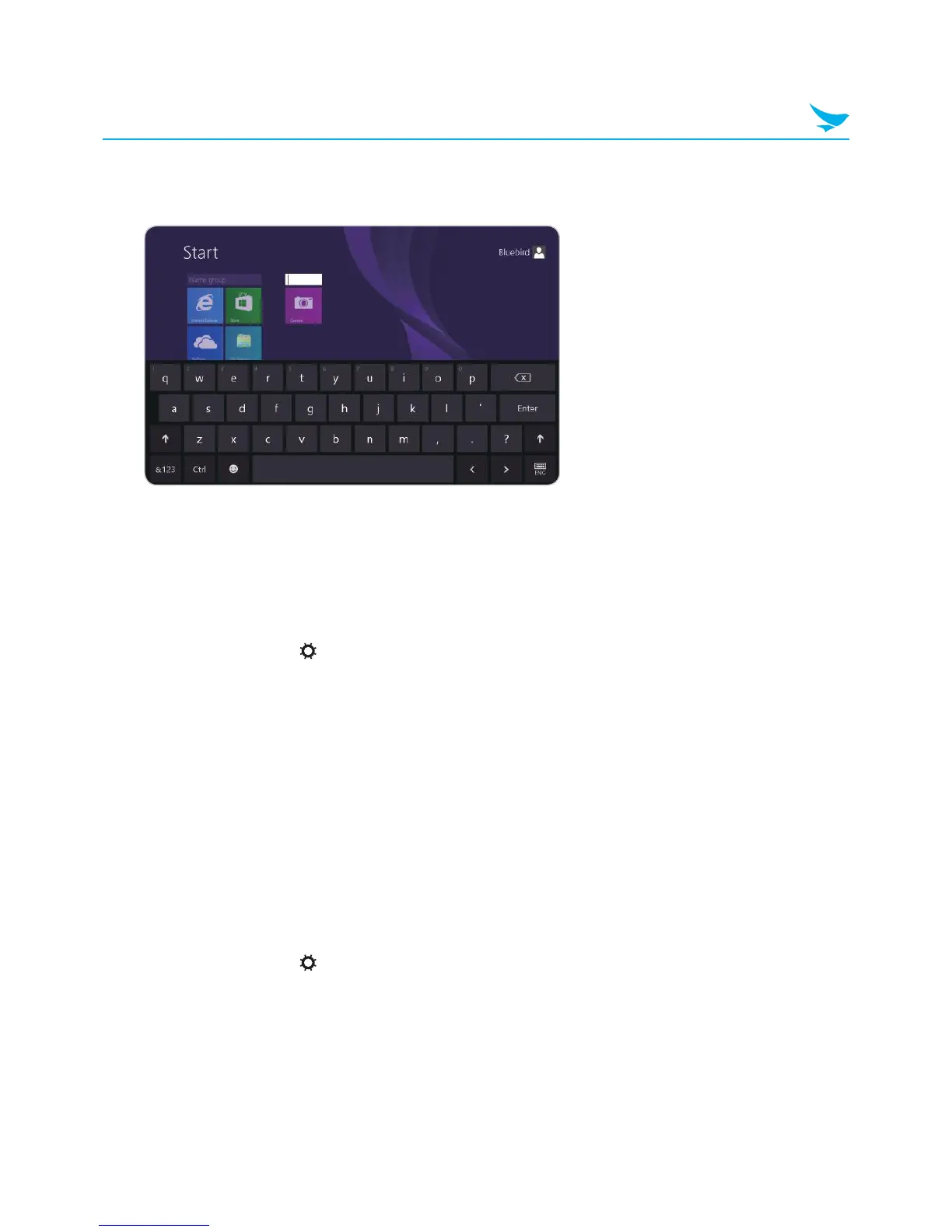
After grouping all of the desired apps, tap the Name group textbox above the group to name the group.
8.2 Changing Your Account Picture
To change the picture associated with your Microsoft account, follow these steps:
1
Swipe in from the right edge of the screen.
2
In the Charms menu, tap Settings.
3
In the Settings menu, tap Change PC settings.
4
In the PC Settings menu, tap Accounts.
5
In the Accounts menu, tap Your account.
6
Choose a photo source:
• Tap Browse to use a photo stored on the device.
• Tap Camera to take a new photo using the camera on the device.
8.3 Personalizing the Lock Screen
1
Swipe in from the right edge of the screen.
2
In the Charms menu, tap Settings.
3
In the Settings menu, tap Change PC settings.
4
In the PC settings menu, tap PC and devices.
5
In the PC and devices menu, tap Lock screen.
6
Change options that you want to personalize.



 To Next Page