13 Maintenance and Troubleshooting
41
13.5 Backing Up Windows
Backing up the device creates a system image, which contains Windows as well as the applications, system
settings, and files on the device. You can use this system image to recover the contents of the computer if a
critical error occurs on the device.
1
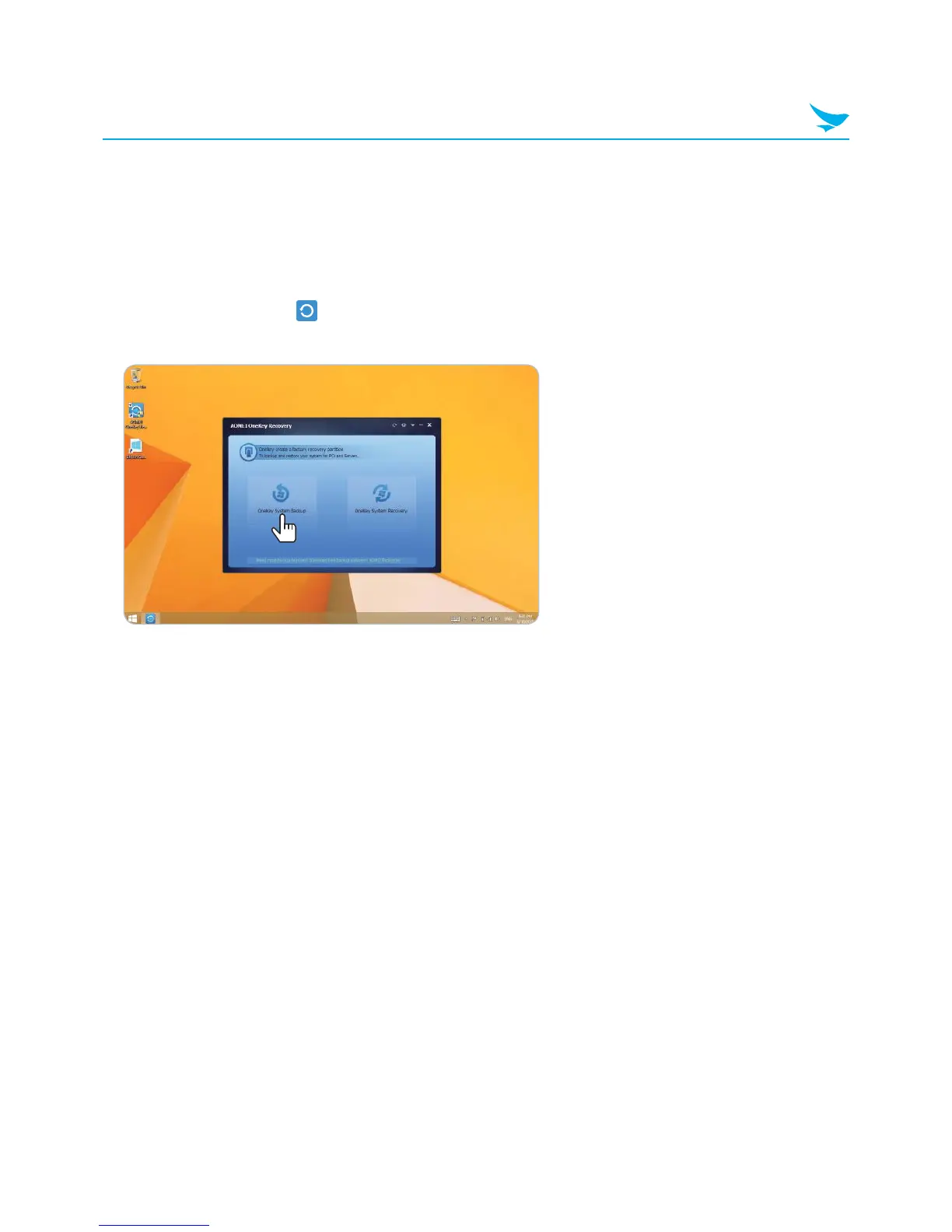
On the Apps screen, tap AOMEI OneKey.
2
When AOMEI OneKey Recovery loads, tap OneKey System Backup.
3
On the System Backup screen, specify where to create the backup image.
• Select Backup system to AOMEI OneKey Recovery Partition to store the backup image on the
device.
• Select Backup system to other location to store the backup image on an external hard drive or
network drive.
4
On the Select Partition screen, highlight the partition on which to create the recovery partition, and then
click Next.
5
On the Preview and Confirm screen, examine the proposed changes to the partition allocations, and then
click Start Backup.
6
When the dialog window appears to warn you that some operations require the computer to restart, tap
Yes.
7
When the system restarts and the Choose an operating system screen appears, tap Windows 8.1 to
start Windows normally or tap Enter into AOMEI OneKey Recovery to recover the backup version.



 To Next Page