Wraptor A6200 User Manual 12
Setup
Connecting the Printer
Connecting the Printer
Connect to the labeling software using a Wi-Fi® wireless network, Ethernet network, or a USB cable.
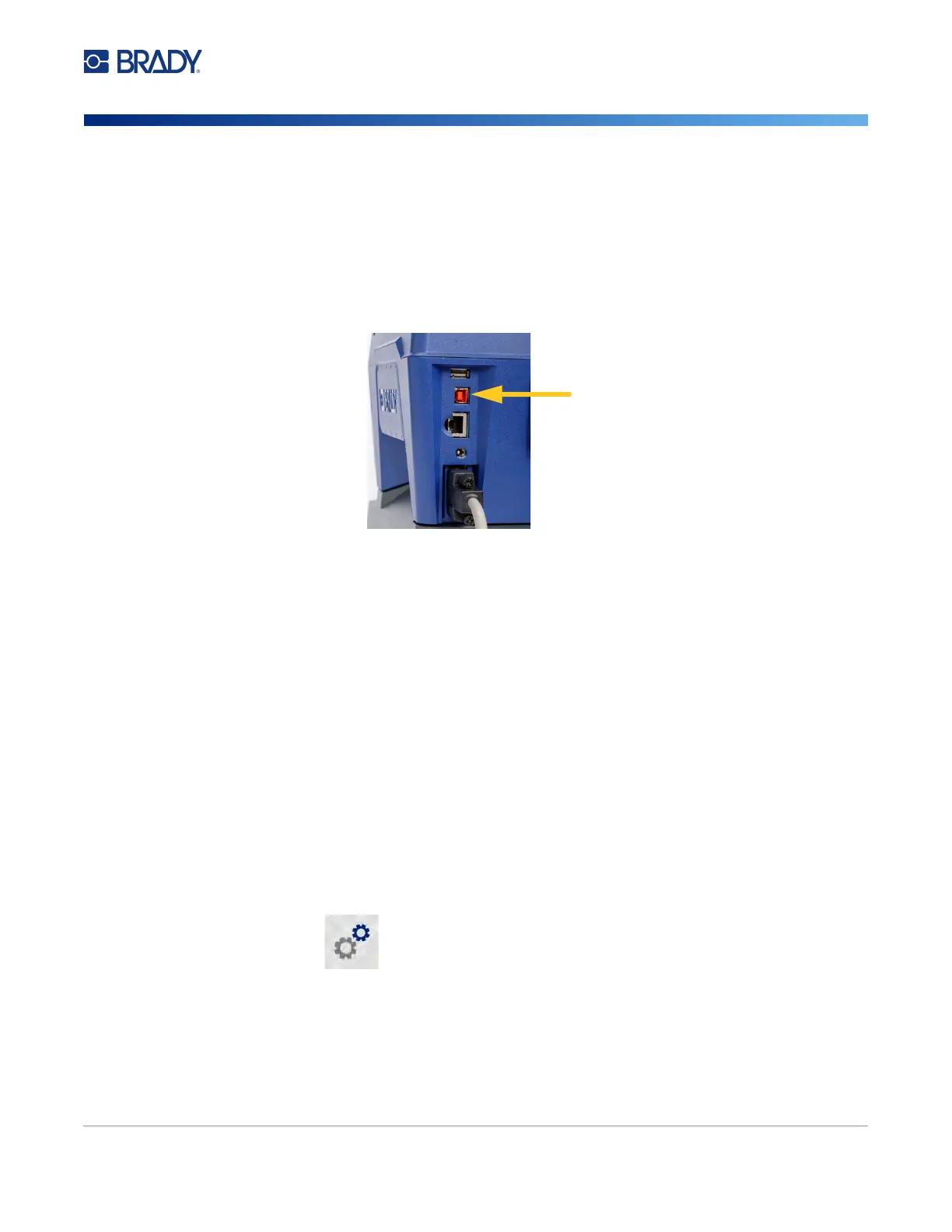
USB
To connect to a computer via USB 2.0, plug the provided USB cable into the printer and the computer.
Brady Workstation software automatically detects the printer when connected via USB cable.
Note: If you are not using Brady Workstation software, you need to install the printer driver. See the
Driver Installation Guide PDF file on the USB drive that came with the printer.
Wi-Fi
Connect to a Wi-Fi network either by searching for and selecting a network, or by manually entering
the network settings. Once connected, the printer can communicate with devices on that network.
Note: The on-screen keyboard for entering passwords and user names contains only the
characters allowed for network user names and passwords. Thus, you may see a keyboard
that differs from those you have enabled in Settings.
If you are not using Brady Workstation software, you need to install the printer driver. See the Driver
Installation Guide PDF file on the USB drive that came with the printer.
Search to Connect
This is the easiest and most common method for connecting.
To connect to a Wi-Fi wireless network:
1. Make sure the printer is turned on.
2. Tap Settings.
3. Tap Connection.
4. Tap Wi-Fi Network to turn on Wi-Fi. The printer searches for Wi-Fi networks and displays a
list of networks found. Touch and drag to scroll the list. (If you need to identify the network by
static IP address or DHCP, see “Manually Enter Settings” on page 13.)
Tap the network that you want to use.


 To Next Page