Wraptor A6200 User Manual 32
General Operation
Printing: Details
Managing the Print Queue
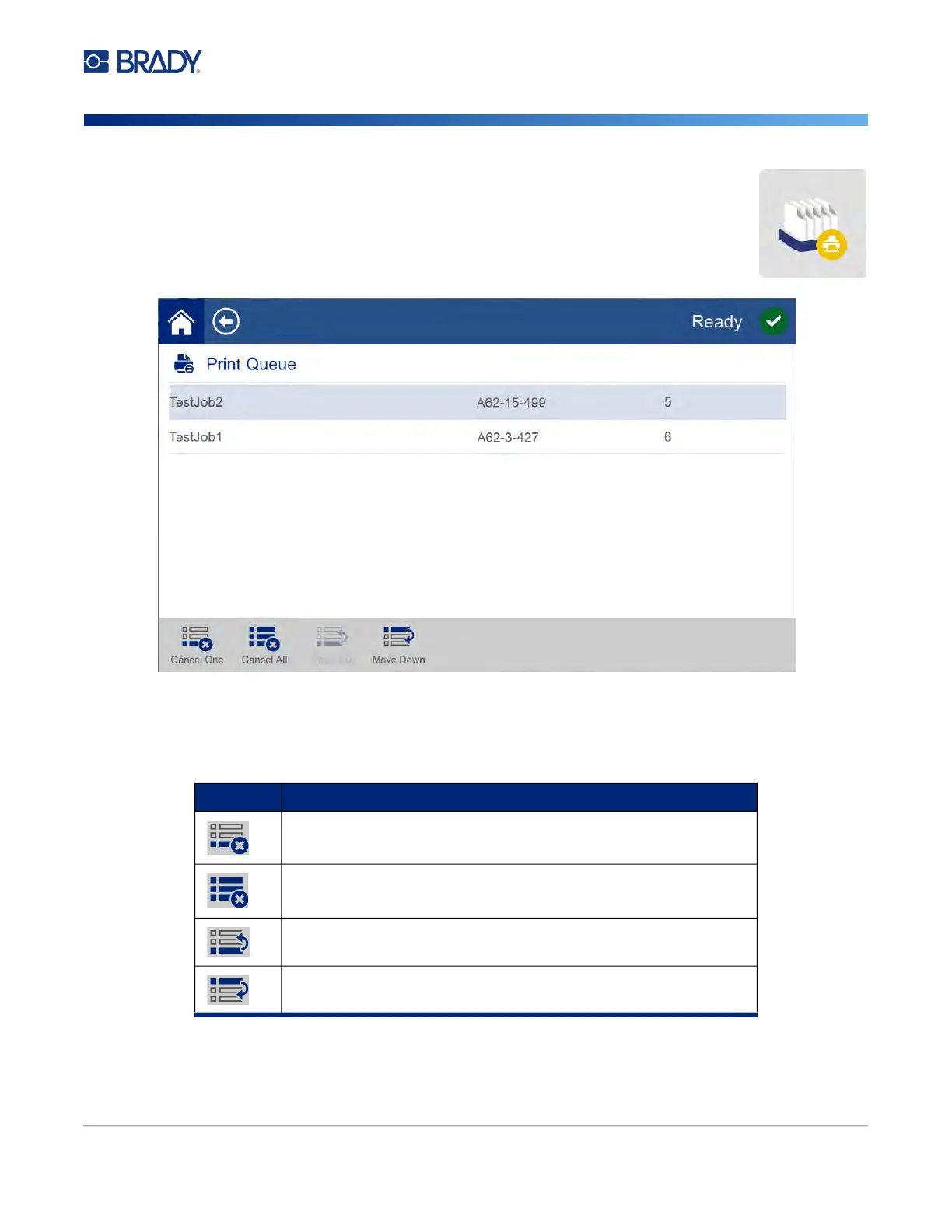
A print job must be in the queue in order to print it. Jobs print in the order that they
are listed in the queue. Use the Print Queue screen to change the order of jobs in the
queue or to cancel print jobs. Tap Print Queue on the home screen to display the
Print Queue screen.
You can only have one job at a time in the queue unless you enable the print queue in Settings > Print
Queue. See “Print Queue” on page 35.
To add a job to the queue, use the Print Jobs screen. See “Adding a Job to the Queue” on page 31.
To cancel a job or change the order, tap a print job and then tap one of the following buttons.
Button Description
Cancel One. Removes the selected job from the queue.
Cancel All. Removes all jobs from the queue.
Move Up. Moves the selected print job up one position in the
queue.
Move Down. Moves the selected print job down one position in
the queue.


 To Next Page