EasyManua.ls Logo

Brother MFC-495CW - User Manual

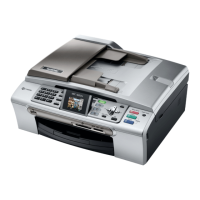
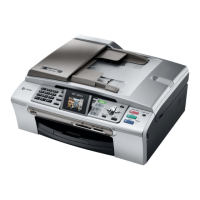
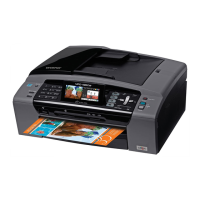
Brother MFC-495CW
224 pages
Print Icon
To Next Page IconTo Next Page
Loading...
USER’S GUIDE
MFC-495CW
Version 0
USA/CAN

Table of Contents

Other manuals for Brother MFC-495CW

Questions and Answers

  • A
    Ashley MurrayAug 25, 2025
    How to remove vertical black lines in copies from Brother MFC-495CW?
    • R
      Richard GravesAug 26, 2025
      Vertical black lines or streaks on copies from your Brother All in One Printer are typically caused by dirt or correction fluid on the scanner. Clean the glass strip and scanner glass, as well as the white bar and white plastic above them.
  • J
    Jennifer Donaldson MDAug 26, 2025
    How to remove white horizontal lines on Brother MFC-495CW All in One Printer?
    • K
      Kimberly ReedAug 27, 2025
      If you notice white horizontal lines appearing in text or graphics printed from your Brother All in One Printer, clean the print head. Also, make sure you are using Genuine Brother Innobella™ Ink. Try using the recommended types of paper.
  • B
    Brady LopezAug 27, 2025
    Why is my Brother MFC-495CW printing blank pages?
    • K
      Karina MccarthyAug 27, 2025
      If your Brother All in One Printer is printing blank pages, clean the print head. Also, make sure you are using Genuine Brother Innobella™ Ink.
  • J
    John WatkinsAug 27, 2025
    Why does printing appear dirty on my Brother MFC-495CW?
    • V
      Valerie KingAug 27, 2025
      If the printing appears dirty or the ink seems to run on your Brother All in One Printer, ensure you are using the recommended types of paper and Genuine Brother Innobella™ Ink. If you are using photo paper, make sure that you have set the correct paper type, setting the Media Type in the Basic tab of the printer driver if printing from your PC.
  • H
    Heather PowellAug 28, 2025
    Why are there stains on the back of pages printed by my Brother MFC-495CW All in One Printer?
    • R
      Robert BarreraAug 28, 2025
      If stains appear on the reverse side or at the bottom of the page when using your Brother All in One Printer, ensure the printer platen is not dirty with ink. Make sure you are using Genuine Brother Innobella™ Ink. Also, make sure you are using the paper support flap.
  • W
    William YatesAug 29, 2025
    Why are copies from my Brother MFC-495CW blank?
    • K
      Kendra BarnesAug 29, 2025
      If copies from your Brother All in One Printer are blank, make sure you are loading the document properly.
  • N
    Nathan JimenezAug 30, 2025
    Why are sent faxes blank on my Brother MFC-495CW?
    • L
      Lisa McphersonAug 30, 2025
      If sent faxes from your Brother All in One Printer are blank, make sure you are loading the document properly.
  • S
    Samuel PhillipsAug 23, 2025
    How to fix no printout on Brother MFC-495CW?
    • W
      wilsonpaulAug 25, 2025
      First, ensure the Brother All in One Printer is plugged in and turned on. Check the interface cable or wireless connection on both the printer and your computer, referring to the Quick Setup Guide for assistance. Also, verify that the correct printer driver is installed and selected. Make sure the printer is online by going to Start, then Printers and Faxes, right-clicking on your Brother MFC-XXXX (where XXXX is your model name), and ensuring that 'Use Printer Offline' is unchecked. If the LCD shows an error message or 'Cannot Print and Replace Ink', or if one or more ink cartridges have reached the end of their life, see Replacing the ink cartridges on page 151.
  • L
    Latasha WhiteAug 31, 2025
    Why is there a smudged stain on the corner of the page from my Brother MFC-495CW?
    • J
      Jimmy DavisSep 1, 2025
      If there is a smudged stain at the right or left corner of the printed page from your Brother All in One Printer, make sure the paper is not curled when you print on the back side of the paper with the Print Odd Pages and Print Even Pages settings.
  • A
    Anne GarciaSep 1, 2025
    Why I cannot receive a fax on Brother MFC-495CW All in One Printer?
    • M
      Michael SalazarSep 1, 2025
      If you cannot receive a fax on your Brother All in One Printer, first, make sure your machine has a dial tone by pressing the Hook key. Check all line cord connections, ensuring the telephone line cord is plugged into the telephone wall jack and the LINE jack of the machine. Ensure the machine is in the correct Receive Mode. Consider that another device or service may be answering the call before your Brother machine. If you are using a telephone answering machine (External TAD mode), make sure it is set up correctly. Also, ensure your Brother machine’s Easy Receive feature is turned On. If you often get transmission errors, try changing the Compatibility setting to Basic(for VoIP).

Summary

Section I General

General Information and Documentation

Explains how to use the user guide, document symbols, conventions, access software guides, and view documentation.

Control Panel Overview and Operation

Explanation of the control panel layout, keys, LCD, and basic operations like changing settings.

Loading Paper and Documents

Detailed instructions for loading standard paper, envelopes, postcards, and photo paper.

General Setup and Machine Configuration

Guide to basic machine setup, including power, modes, paper settings, volume, and LCD adjustments.

Security Features: TX Lock

Information on the TX Lock feature to prevent unauthorized access and its password management.

Section II Fax Operations

Entering Fax Mode and Basic Sending Methods

How to enter fax mode and send faxes using the ADF or scanner glass.

Advanced Fax Sending Operations

Covers broadcasting, contrast, resolution, overseas mode, delayed faxing, and job management.

Receiving Faxes: Modes and Settings

Guide to choosing receive modes, setting ring delays, and using features like Easy Receive and Memory Receive.

Remote Retrieval and Fax Commands

How to access machine functions remotely using access codes and commands.

Dialing and Storing Numbers

Instructions for manual dialing, speed dialing, storing numbers, and managing contacts.

Section III Copy Functions

Making Copies: Basic Operations

How to enter copy mode, make single or multiple copies, and stop the process.

Copy Settings and Adjustments

How to change copy settings like quality, enlargement/reduction, brightness, contrast, and paper type.

Advanced Copy Features

Instructions for N-in-1 copies, posters, sorting, watermarks, and default settings.

Section IV Direct Printing

PhotoCapture Center Operations

Overview of PhotoCapture Center® operations, including printing, scanning, and media compatibility.

Printing Photos Directly from a Camera

Guide to printing photos from digital cameras using PictBridge or USB Mass Storage.

Section V Software Features

Software and Network Features Overview

Introduction to software and network features accessible via the CD-ROM, including guides and driver information.

Section VI Appendixes

Safety and Legal Information

Important safety guidelines, legal notices, and precautions for product use and handling.

Troubleshooting and Routine Maintenance

Guide to resolving common issues and performing regular maintenance tasks like cleaning and cartridge replacement.

Menu and Features Reference

Explanation of the machine's menu structure, navigation, and available features.

Product Specifications

Technical details and specifications of the Brother machine, including printer, scanner, and network capabilities.

Glossary of Terms

Definitions of terms and features used throughout the Brother manuals.

Brother MFC-495CW Specifications

General IconGeneral
Print technologyInkjet
Maximum resolution6000 x 1200 DPI
Print speed (black, normal quality, A4/US Letter)35 ppm
Print speed (color, normal quality, A4/US Letter)28 ppm
Digital senderNo
Number of print cartridges4
Total input capacity100 sheets
Total output capacity50 sheets
Mac compatibilityYes
Dimensions (WxDxH)391 x 376 x 180 mm
Wireless technology802.11b/g
All-in-one functionsCopy, Fax, Scan
Package weight (imperial)22.9 lbs
Color all-in-one functionscopy, fax, print, scan
Compatible operating systemsWindows/Mac OS
Package dimensions (W x D x H)18.3 x 10 x 18.1 \
DisplayTFT
Display diagonal3.3 \
Market positioningHome & office
Supported network protocols (IPv4)ARP, RARP, BOOTP, APIPA, NetBIOS/WINS, LPR/LPD, Raw Port/Port9100, DNS, mDNS, FTP, SNMPv1, TFTP, LLTD
FaxingColor faxing
Fax memory480 pages
Fax speed dialing (max numbers)33600 b/s
Copier resize25 - 400 %
Copy speed (black, normal quality, A4)23 cpm
Copy speed (color, normal quality, A4)20 cpm
Image formats supportedBMP, PCX, PNG
Sustainability certificatesENERGY STAR
Paper tray media typesPlain paper
Non-ISO print media sizesLetter
ISO A-series sizes (A0...A9)A4, A5, A6
Maximum ISO A-series paper sizeA4
Power consumption (average operating)- W

Related product manuals