7
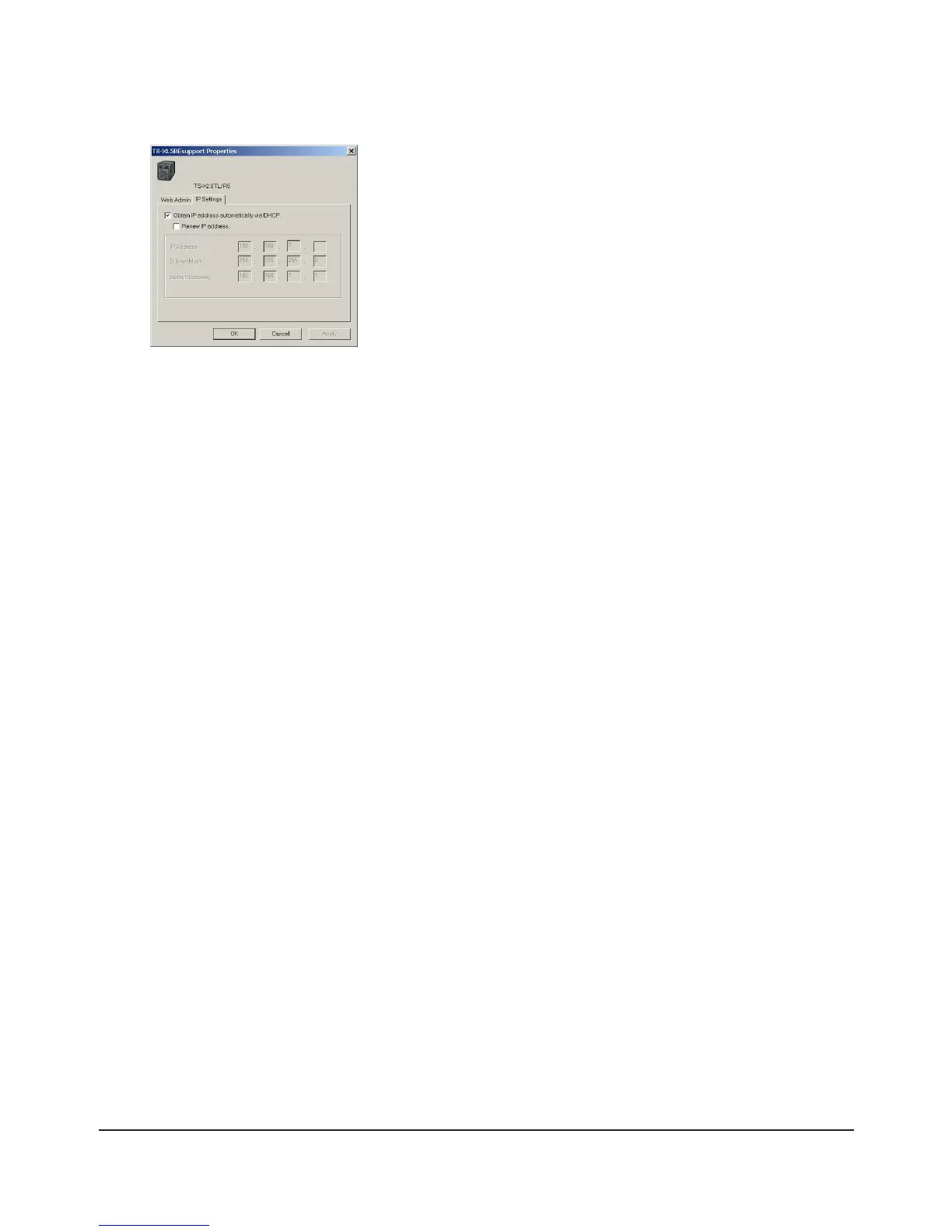
1 Enter the desired [IP Address], [Subnet Mask], and [Default Gateway].
Note:
If you don’t know how to congure these settings, click [Obtain IP address
automatically via DHCP] to check the box. For Mac OS, click [Use DHCP].
2 Click [OK].
Note:
If you are prompted to enter the administrator’s password, enter the
TeraStation’s password (it is set to “password” by factory default).
Continue to set the TeraStation's Clock.
10
Click [System] - [Settings] - [Date and Time].
11
Click [Modify Settings].
8
Right-Click on the TeraStation icon in NAS Navigator2 and choose [Open Web setting].
Notes:
• For Mac OS, hold the Control key, click the TeraStation icon, and click [Open Web setting].
• The Web Admin interface requires Firefox 1.5 or later, Internet Explore 6.0 Service Pack 2 or later, or Safari 3 or
later.
9
Enter the administrator name and password, and click [Login].
Notes:
• The following settings are set by factory default.
Username: admin
Password: password
•The default language for the Web Admin interface is English. To change the display language,
click [System] - [Settings] - [Language] - [Modify Settings], select [Display Language], and click [Save].













 To Next Page