28
Firmware updates (re-flashing)
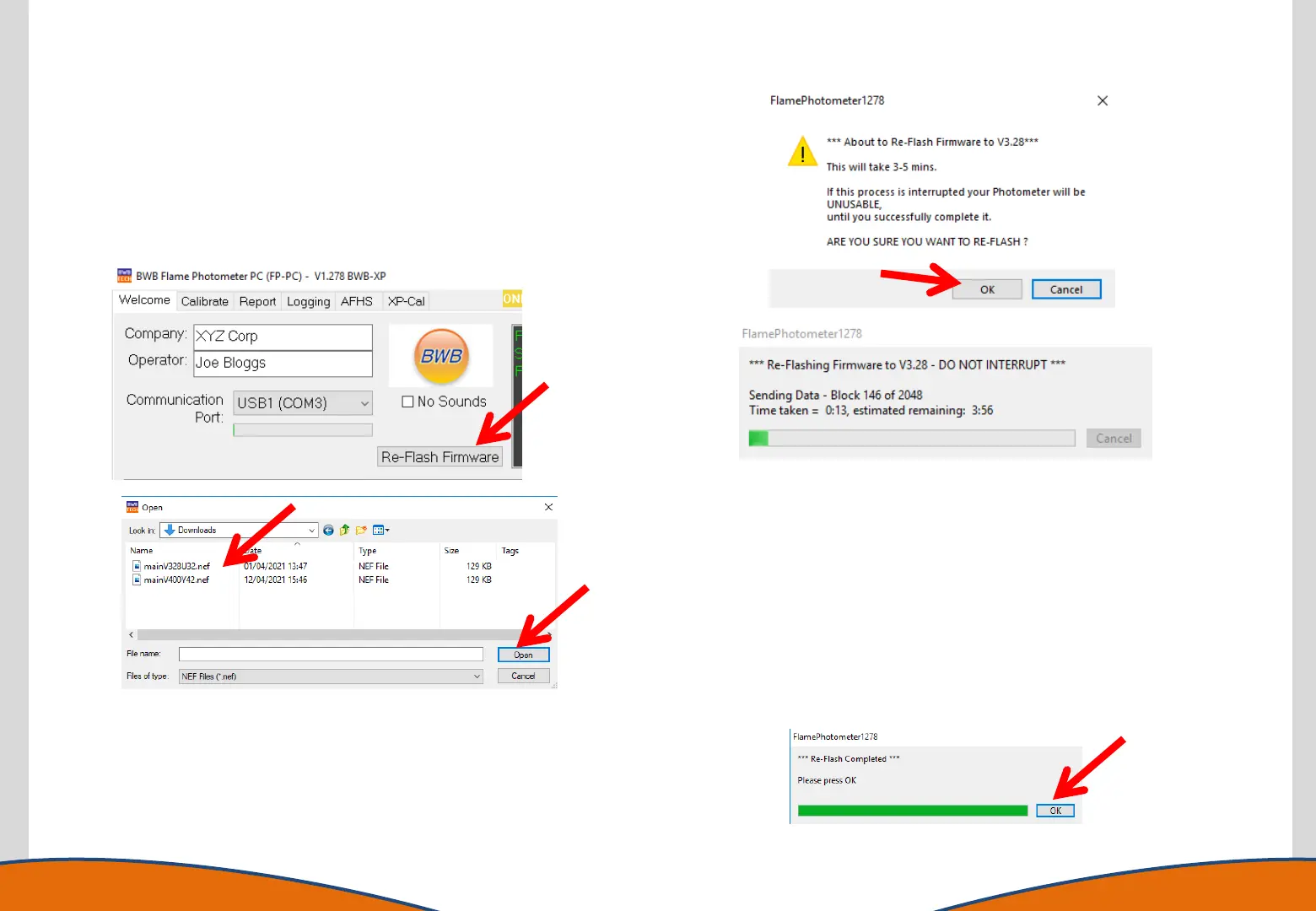
Return to the FP-PC Welcome tab and click on the Re-Flash Firmware
button.
Navigate to the correct file location to find your Firmware file as
supplied by BWB.
•Double check the file name is the one noted previously.
•Click on the file to transfer the file to the File name field and click
OK.
A warning message will be displayed. If you wish to continue
with the re-flash click OK, (if not click Cancel).
A message will be displayed to indicate that re-flashing is in
progress. The instrument display will blank and the Error and
Status LEDs illuminate and extinguish in sequence.
During the re-flash process it is extremely important the process is not
interrupted. An interruption can leave the instrument ceasing to
function and will require a motherboard re-flash (normally conducted
at BWB manufacturing facility or selected approved partners).
When the re-flash download is complete a confirmation message will
be displayed. Click OK to continue. The FP-PC software will now revert
to the Welcome screen.
Close the software to remove the re-flash capability and prevent
unauthorised operators from tampering with the FW flashing
functionality.


 To Next Page