27
Firmware updates (re-flashing)
BWB operate a policy of continuous development. It may occasionally
be appropriate to update the firmware of a product to enable
performance enhancements and provide the user with additional
features and benefits. To facilitate re-flashing the product must be
connected to a PC via the USB cable provided. The PC must have the
FP-PC program loaded either from the USB stick supplied with the
instrument, or from http://www.bwbtech.com/
Note: Prior to commencing this procedure it will be necessary to
obtain a Service Key from BWB
The firmware update will usually be supplied as an e-mail
attachment or downloaded from http://www.bwbtech.com/
If working with Microsoft Windows default settings the download
(from email or web) will be saved in your Downloads folder.
Open the Downloads folder and identify the re-flashing file.
This will be in the form of mainV286X22.nef.
Make a note of the file name for future reference
If the PC connected to the Flame Photometer is not network
enabled, the file can be copied onto a USB stick to enable it to be
transferred to this PC.
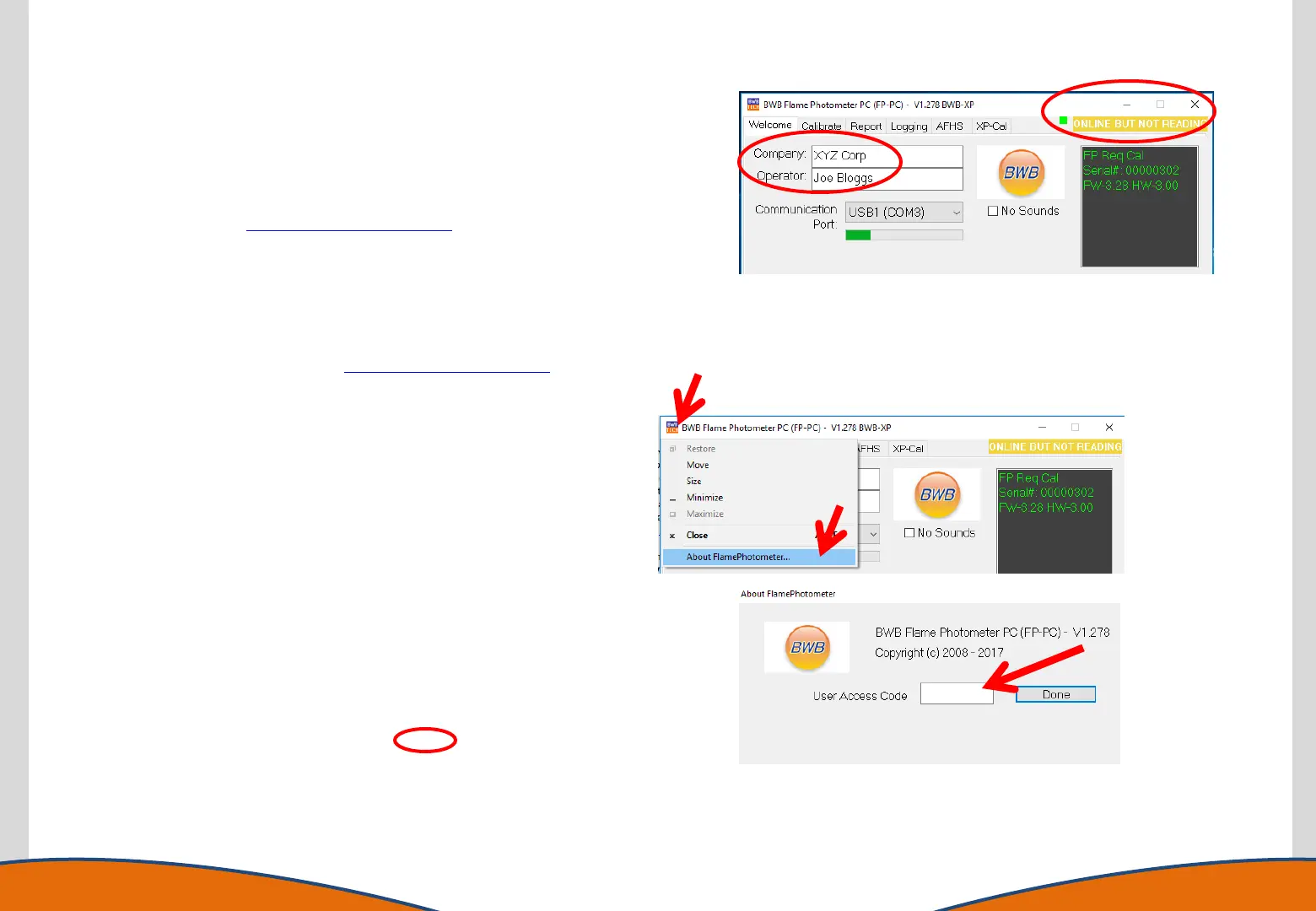
The FP-PC software must be running and the Flame Photometer
switched on, but the flame MUST NOT be lit. Ensure the PC-FP
software is communicating with the Flame Photometer (ONLINE)
and that Company and Operator details have been entered.
Refer to the red circled items adjacent.
•Click on the BWB logo in the top left-hand corner.
•Click on About the Flame Photometer.
•In the dialogue box enter the Service Key code and click OK


 To Next Page