Setup
28 ©2021 CAE 905K351052 v1.1
CAEApollo
Step 6: Launch Maestro
To launch Maestro:
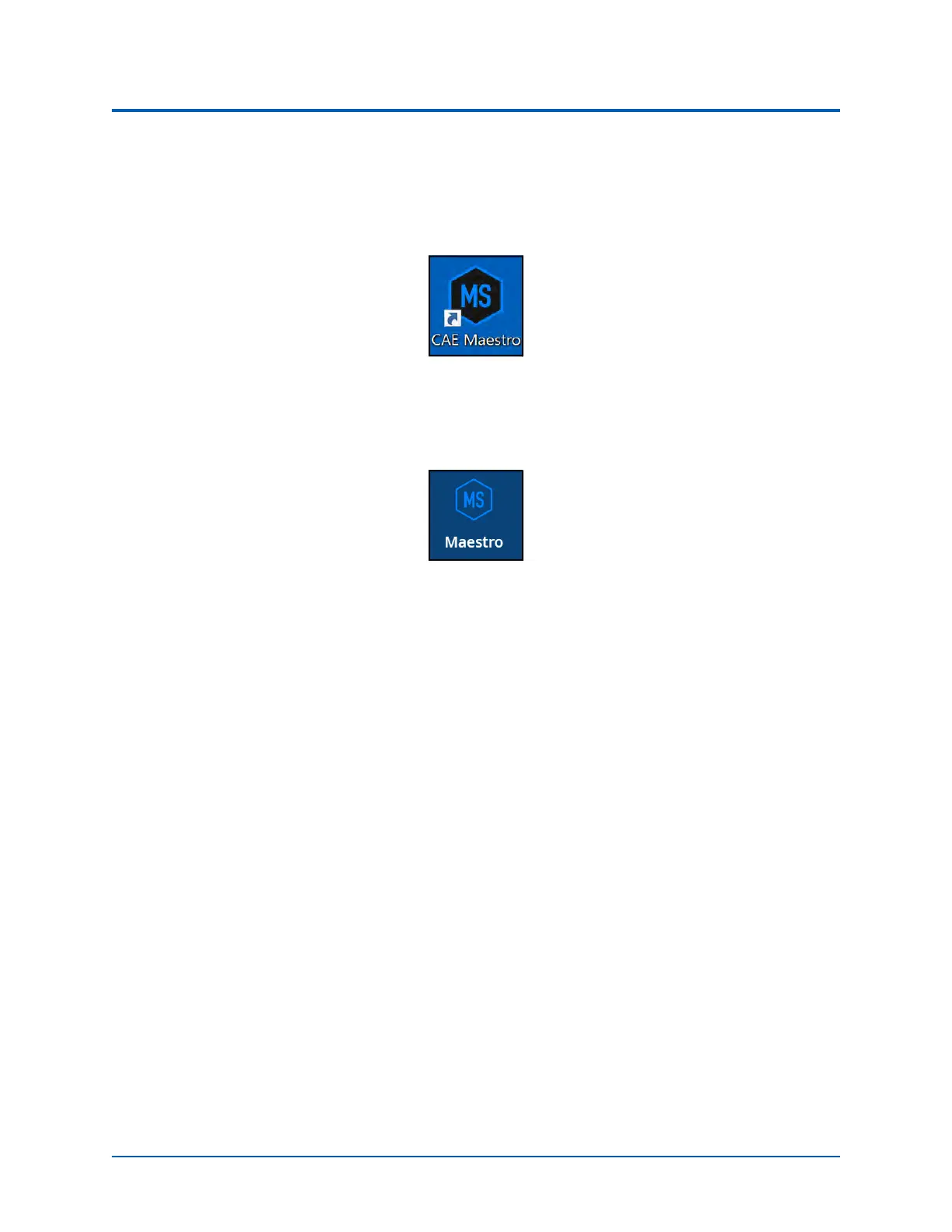
a. From the desktop screen, tap the Maestro app.
The CAE Maestro Desktop Icon
The Maestro start page appears.
b. Tap the CAE Maestro icon.
The CAEMaestro Icon
The Maestro application starts and is ready to be used with the simulator. It will connect to the
simulator automatically in the future.
Optional Step: Setup the TouchPro Computer
To set up the TouchPro monitor, see the TouchPro Getting Started Guide provided with the TouchPro
all-in-one computer.
To set up the TouchPro computer:
a.Connect the power adapter to the back of the TouchPro computer.
b.Connect the other end of the power adapter to a power outlet.
To connect the wireless keyboard and mouse:
a. Insert the provided batteries in the wireless keyboard.
b. Insert the provided batteries in the wireless mouse.
c. Insert the USB wireless mouse receiver and USB wireless keyboard
receiver in the USB ports on the side of the TouchPro monitor.
d. Power on the wireless mouse using the ON/OFF switch located on the
bottom of the mouse.
Check the Network Connection
To check the wireless network connection:



 To Next Page